Mastering the art of how to automate an iPhone app transforms your device from a standard smartphone into an intelligent, autonomous command center. In 2026, iOS automation has evolved far beyond basic time-based reminders, integrating sophisticated on-device machine learning, localized triggers, and advanced API interactions directly within Apple's native ecosystem. Whether you want to streamline complex professional workflows, restrict digital distractions, or instantly launch custom multi-app routines with a single voice command, configuring these systems requires a technical approach to the Shortcuts app, focus filters, and accessibility triggers.
Core Architectural Framework of iOS Automation
Building resilient automated workflows on iOS requires understanding how the operating system coordinates execution loops, background permissions, and data passing between different software packages. The modern iOS automation engine relies on three distinct pillars: triggers, actions, and dictionaries. Triggers initiate the sequence based on environmental or internal changes; actions execute the programmed steps; and dictionaries handle complex data variables passed dynamically through applications.
When designing a production-grade automation sequence, efficiency and error handling dictate success. If an underlying app update alters its URL scheme or action availability, your sequence can stall. Therefore, structuring your automations with fallback conditions and explicit error-checking routines ensures long-term reliability.
- Explicit Triggers: Always tie resource-heavy routines to specific, undeniable events such as arriving at a specific geographical boundary, connecting to a designated Wi-Fi network, or launching a master focus mode.
- Variable Management: Utilize dictionaries and text formatting actions to capture data from one app and inject it seamlessly into another without manual clipboard intervention.
- Background Execution Limits: Keep in mind that certain resource-intensive operations require explicit user confirmation to run due to iOS security frameworks, while background automations execute silently.
Step-by-Step Implementation Guide for Custom App Automations
Deploying your first advanced application automation requires navigating the Shortcuts interface and configuring personal automation parameters. Follow this structured engineering workflow to build a reliable automation that launches specific applications, adjusts device states, and queries external APIs simultaneously.
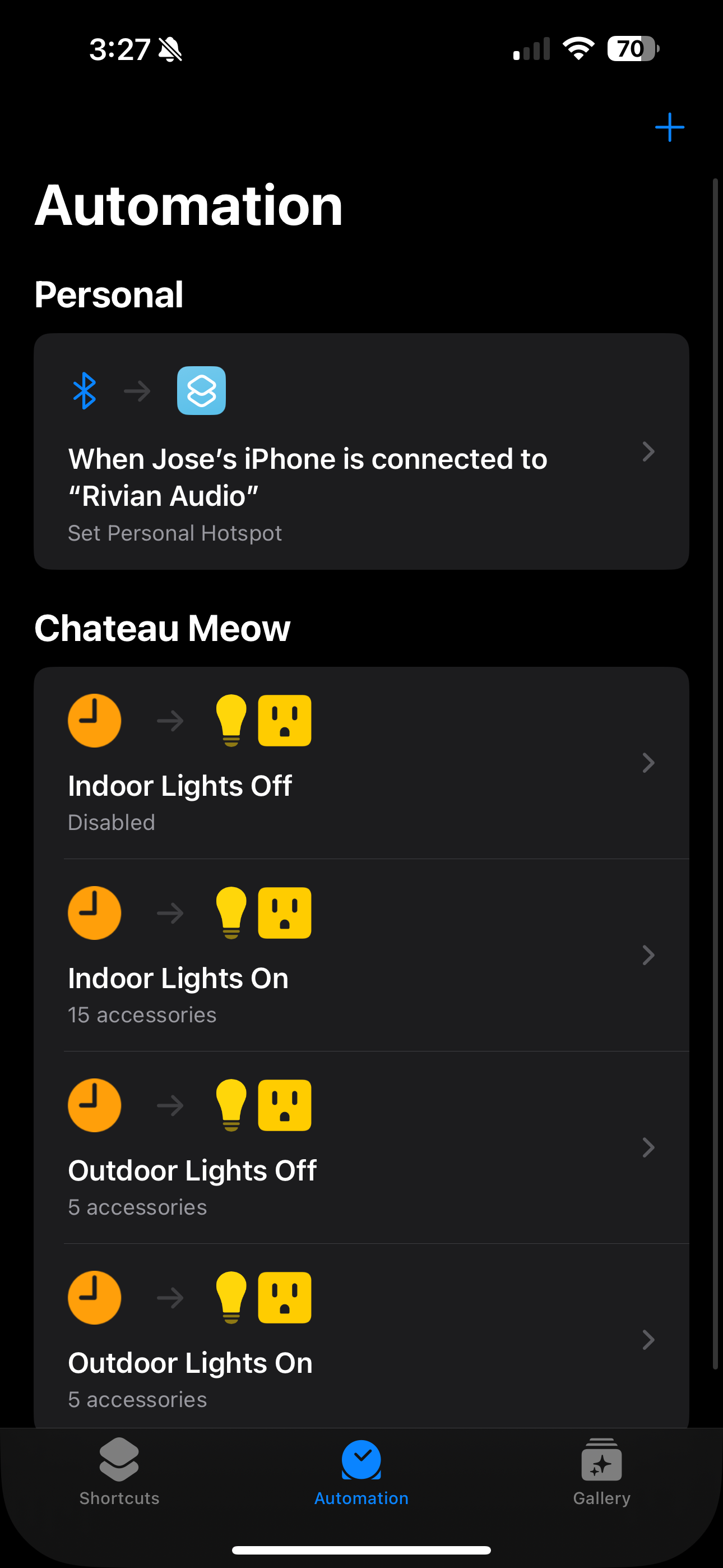
- Launch and Initialize: Open the Shortcuts app on your iPhone, navigate to the Automation tab at the bottom of the screen, and tap the plus (+) icon in the top right corner to create a new personal automation.
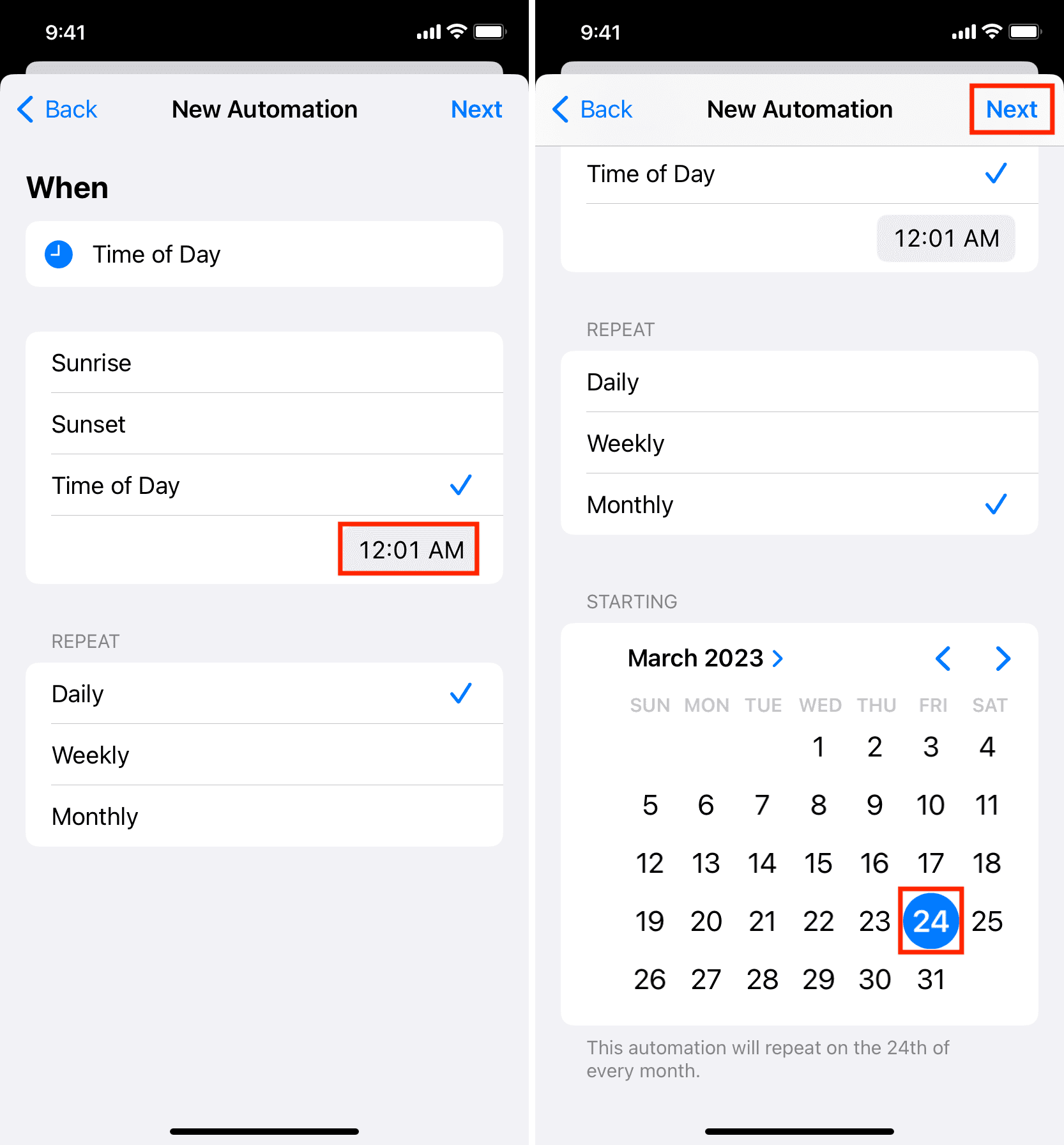
- Define the Trigger Condition: Select your trigger category. For location-based workflows, choose "Arrive" or "Leave," set your exact geographical radius, and select whether the automation should run immediately without confirmation for seamless execution.
- Construct the Action Pipeline: Tap "Add Action" and search for the target application. Utilize the expanded parameter menu to select specific intents, such as "Open Document," "Send Message to Contact," or "Log Workout."
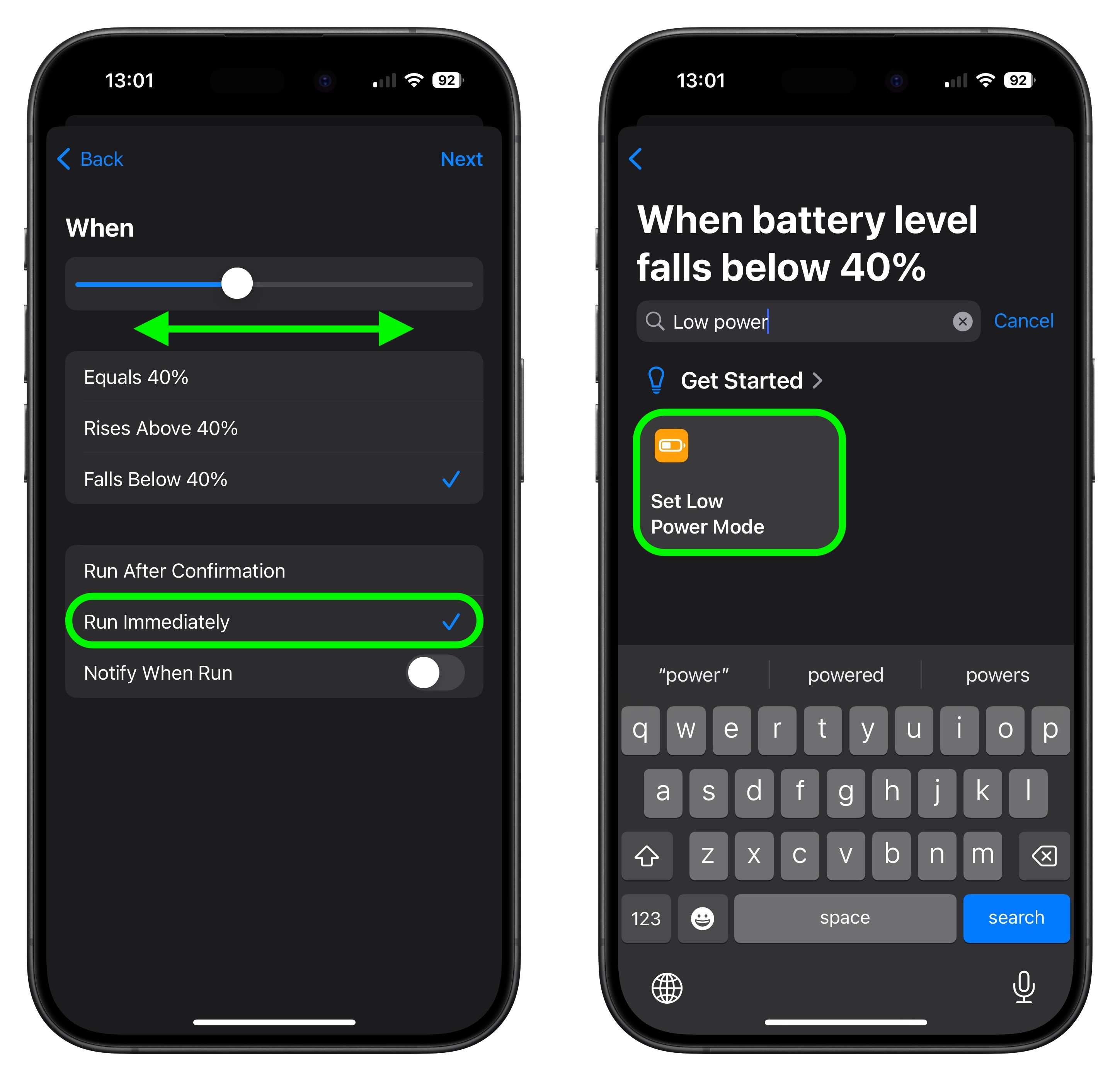
- Incorporate Flow Control: Add conditional statements (If/Otherwise blocks) to handle variable states. For example, check if the current battery level is below twenty percent before launching power-intensive background sync tasks.
- Test and Optimize: Run the automation manually via the play button in the editor. Review the debugging log to ensure data passes correctly between actions, then toggle "Run Before Running" off for instant, hands-free operation.
Comparative Analysis of iOS Automation Vectors
Different automation vectors serve distinct operational goals. Choosing the right method depends on whether you need a background system-level adjustment, a user-facing interactive menu, or a hands-free voice command.
| Automation Method | Execution Speed | User Intervention Required | Best Use Case | Technical Complexity |
|---|---|---|---|---|
| Personal Automations (Time/Location) | Instant | Optional (Toggleable) | Geofenced smart home triggers, morning routines | Low to Moderate |
| App-Specific Shortcuts | Fast | Required (Tap/Widget) | Multi-step media publishing, document scanning | Moderate |
| Siri Voice Commands | Moderate | Required (Voice Input) | Hands-free driving actions, quick queries | Low |
| NFC Tag Tap Automations | Instant | Minimal (Hold to Tag) | Instant Wi-Fi sharing, bedside sleep mode activation | Moderate |
| Focus Filter Automations | Instant | None | Hiding specific app pages during work hours | Advanced |
Advanced Troubleshooting and Failure Remedies
Even meticulously constructed automated workflows encounter roadblocks due to software updates, permission revocations, or network timeouts. Addressing these issues systematically saves hours of frustration.
Permission Revocations: Operating system updates frequently reset background app refresh permissions and location access privileges. If a location-triggered app automation fails, navigate to Privacy and Security settings to ensure the Shortcuts app maintains "Always" location access.
Action Timeouts: When an automated script relies on pulling data from a third-party app that takes longer than expected to load, the shortcut may throw a timeout error. Inserting a brief wait action (ranging from one to three seconds) directly before the dependent action resolves race conditions.
Data Type Mismatches: Passing plain text into a numerical field will immediately halt execution. Always utilize the "Set Variable" action to explicitly cast data types before passing variables between disparate applications.
Pros and Cons of Automating iPhone Applications
Implementing systemic mobile automation yields significant efficiency gains, but it also introduces specific operational trade-offs that every user must evaluate.
- Pros:
- Eliminates repetitive manual touch gestures for multi-step daily tasks.
- Enhances digital well-being by automatically hiding distracting applications during focus hours.
- Accelerates data entry and cross-app communication via dictionaries and clipboard management.
- Consolidates multiple disparate toolsets into unified single-tap dashboard widgets.
- Cons:
- Major iOS system updates can deprecate legacy app intents, requiring manual script rewrites.
- Excessive background geofencing and continuous API polling can accelerate battery drain.
- Steep learning curve for users unfamiliar with programmatic logic structures like variables and conditionals.
Frequently Asked Questions About iPhone App Automation
Can I automate any iPhone app without user confirmation?
While Apple allows most standard actions and third-party app intents to run automatically in the background, certain security-sensitive operations—such as sending financial payments, deleting core system files, or unlocking hardware devices—still mandate explicit user authentication or confirmation prompts for safety.
How do I stop an automation from running continuously in a loop?
Infinite loops typically occur when an automation triggers itself via an action loop condition. To fix this, insert a strict conditional "If" statement that checks a specific device state or time variable before executing the recursive action.
Why do my location-based app automations fail to fire?
Location triggers depend on precise GPS tracking, cell tower triangulation, and proper background app refresh permissions. Ensure that precise location is enabled for the Shortcuts app and that your device is not locked in a low-power mode that restricts background location polling.
Can I share my custom iPhone app automations with other users?
Yes, you can package any custom shortcut or personal automation as an iCloud link and distribute it securely. Recipients can download, inspect the action tree for malicious inputs, and import the workflow directly into their own Shortcuts library.
Do I need a third-party application to automate my iPhone apps?
No third-party app is strictly required, as Apple includes the native Shortcuts app pre-installed on all modern iOS devices. However, advanced users frequently pair Shortcuts with dedicated utility apps to expand text parsing capabilities and system monitoring parameters.
Take control of your mobile workspace today by auditing your daily digital friction points, mapping out your repetitive tasks, and deploying your first automated shortcut sequence to experience true operational efficiency.
/article-new/2022/11/1automate-low-power-mode-iphone.jpg)