Ad blocking on iOS is achieved through Safari Content Blockers for web filtering and DNS-based solutions for system-wide protection. Users can install apps like 1Blocker or Wipr for Safari or configure encrypted DNS profiles from providers like NextDNS to block ads in games and third-party applications without impacting battery life or device performance.
Understanding the iOS Adblocking Landscape in 2026
The evolution of ad blocking on iOS has been a journey of balancing user privacy with Apple’s strict ecosystem controls. Unlike desktop environments where extensions have broad access to browser data, iOS utilizes a "declarative" approach. This means that an adblocker does not see what you are browsing; instead, it provides a list of rules to the operating system, and the system handles the blocking. This architecture, primarily governed by the Content Blocker API, ensures that third-party developers cannot track your history while filtering out intrusive content.
As of 2026, the landscape is divided into two primary methodologies: Safari Content Blockers and DNS-level filtering. Safari Content Blockers are specifically designed to clean up the web browsing experience, removing banners, pop-ups, and auto-playing videos. DNS-level filtering, on the other hand, operates at the network layer. By intercepting requests to known ad-serving domains before they even reach your device, DNS filtering can prevent ads from loading in mobile games, news apps, and other software that Safari extensions cannot reach.
The necessity for these tools has grown as advertising technology becomes more sophisticated. Modern ads are not just visual nuisances; they are often heavy consumers of mobile data and battery life. Furthermore, "malvertising"—the use of online advertising to spread malware—remains a persistent threat. By implementing a robust adblock for iOS, users can reduce page load times by up to 40% and significantly decrease the amount of background tracking performed by data brokers.
Safari Content Blockers: The First Line of Defense
Safari remains the most popular browser on iOS due to its deep integration with the operating system. To block ads effectively within Safari, you must use apps that leverage the Content Blocker API. These apps do not "run" while you browse; they simply supply a set of rules (in JSON format) that Safari applies when loading a page.
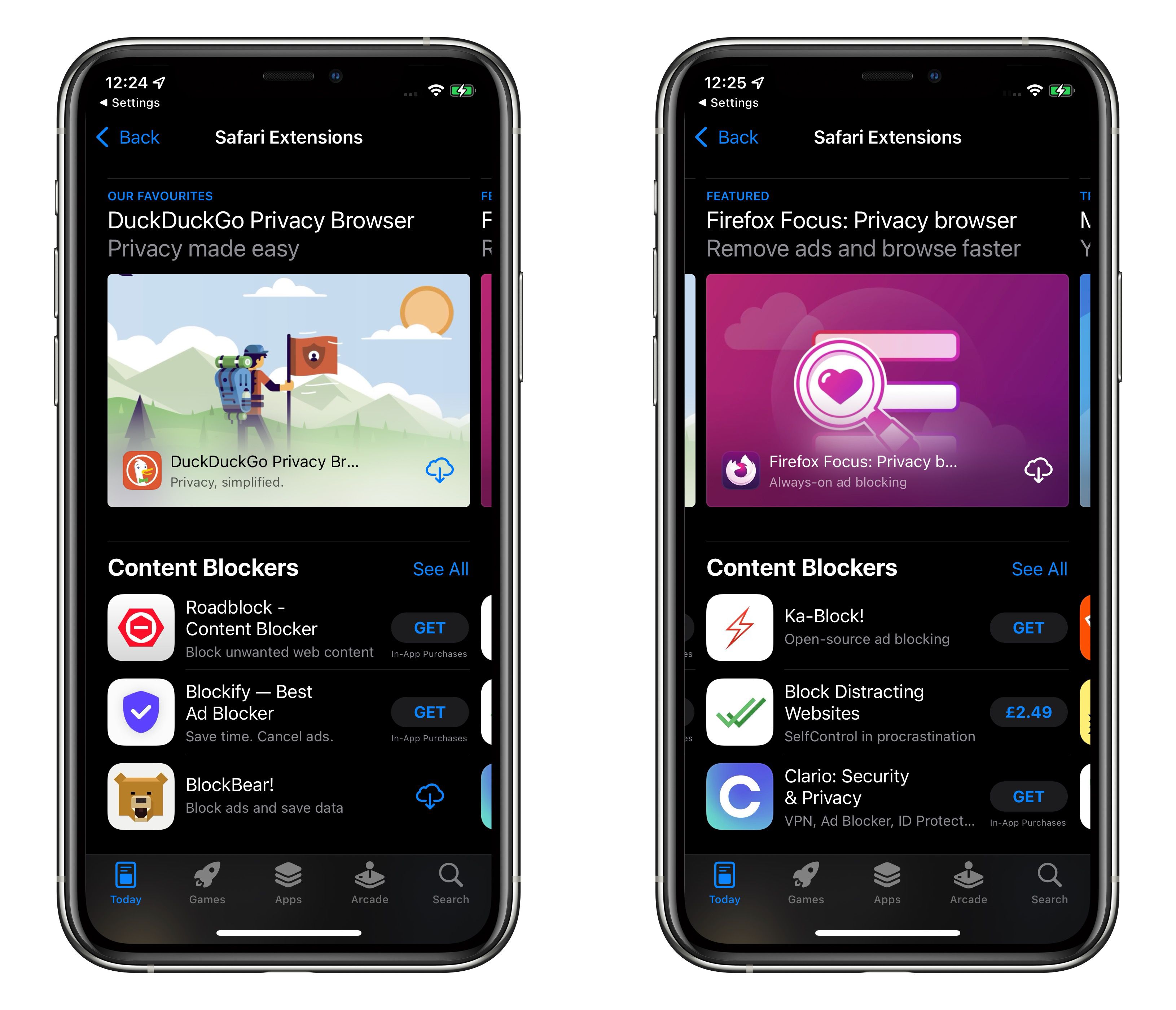
One of the most highly regarded tools in this category is 1Blocker. Known for its granular control, it allows users to toggle specific categories of blocking, such as social media widgets, cookie notices, and trackers. In 2026, 1Blocker continues to lead the market by offering frequent rule updates that keep pace with changing ad-delivery scripts. Another popular option is Wipr, which appeals to users who prefer a "set and forget" approach. Wipr has no complex settings; once enabled, it quietly blocks ads and trackers without requiring user intervention.
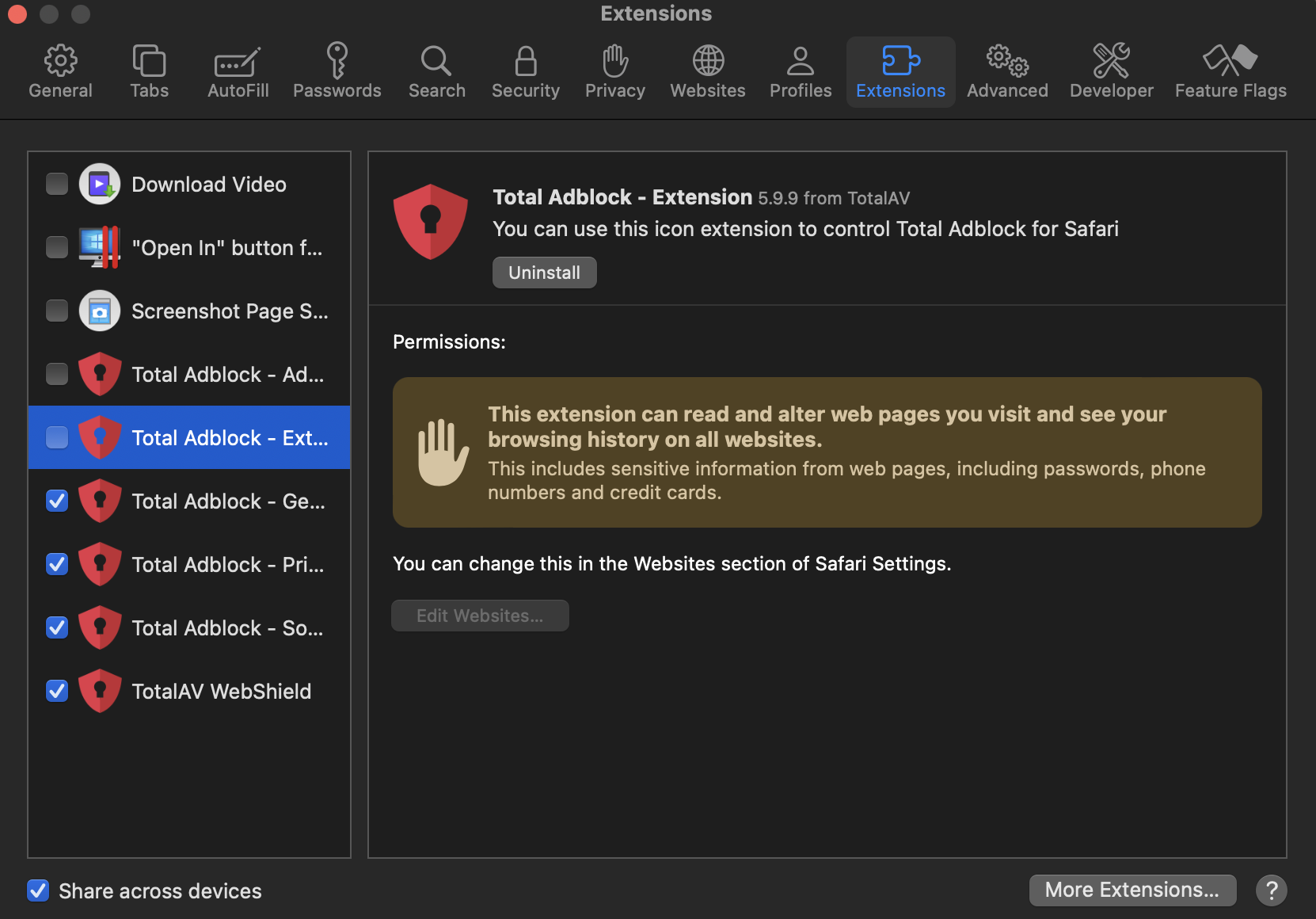
To enable these blockers, you must navigate to Settings > Apps > Safari > Extensions. From there, you can toggle the installed blocker on and grant it the necessary permissions. It is important to note that while these blockers are highly effective for most websites, they are limited by Apple's "rule limit." To circumvent this, many modern adblockers split their rule sets across multiple extensions (e.g., 1Blocker - Scripts, 1Blocker - General), all of which should be enabled for maximum effectiveness.
System-Wide Adblocking via DNS Filtering
While Safari extensions are excellent for web browsing, they cannot touch ads inside other apps like weather trackers or free-to-play games. This is where DNS (Domain Name System) filtering becomes essential. When an app tries to load an ad, it sends a request to a server (e.g., ads.google.com). A DNS blocker intercepts this request and returns an "address not found" error, preventing the ad from ever being downloaded.
In 2026, the most efficient way to implement this is through Encrypted DNS profiles (DNS-over-HTTPS or DNS-over-TLS). Services like NextDNS and Control D allow users to generate a custom configuration profile that is installed directly into iOS Settings. This method is superior to "Adblock VPNs" because it does not require a constant, battery-draining VPN tunnel to be active. The filtering happens at the server level, meaning your iPhone or iPad does not have to do the heavy lifting of sorting through millions of blocked domains.
To set this up, users typically visit the service's website, customize their blocking lists (such as the "Energized" or "OISD" lists), and download a .mobileconfig file. Once downloaded, the profile must be installed via Settings > Profile Downloaded and then activated under Settings > General > VPN & Device Management > DNS. This provides a seamless, "always-on" protection that covers every app on the device.
Comparing Top Adblock Solutions for iOS
Choosing the right solution depends on whether you want a simple setup for Safari or a comprehensive system-wide shield. The following table compares the leading options available in 2026 based on their primary function, cost structure, and blocking scope.
| Tool Name | Method | Scope | Cost Model | Best For |
|---|---|---|---|---|
| 1Blocker | Safari Extension | Safari Only | Subscription / Lifetime | Advanced users needing granular control |
| Wipr | Safari Extension | Safari Only | One-time Purchase | Users seeking a simple, automated setup |
| NextDNS | DNS Profile | System-wide | Freemium | Blocking ads in apps and games |
| AdGuard for iOS | Hybrid (DNS + Safari) | System-wide | Subscription | A comprehensive all-in-one privacy suite |
| Control D | DNS Profile | System-wide | Subscription | Multi-device management and geo-filtering |
The Challenge of YouTube and Social Media Ads
A common question among iOS users is whether these adblockers can stop ads within the official YouTube, Instagram, or TikTok apps. The short answer is: generally, no. These platforms use a technique called Server-Side Ad Insertion (SSAI). Instead of fetching an ad from a separate domain (which DNS can block), they "stitch" the advertisement directly into the video stream or social feed.
To block YouTube ads on iOS in 2026, users generally have three options:
- Safari Browsing: Use the YouTube mobile website in Safari with a content blocker like Wipr or AdGuard. This effectively removes most video ads but offers a less fluid user interface than the native app.
- Specialized Safari Extensions: Tools like Vinegar replace the YouTube proprietary player with a standard HTML5 video tag in Safari, removing ads and enabling features like Picture-in-Picture.
- YouTube Premium: This remains the only official way to remove ads within the native YouTube app across all Apple devices.
For social media apps like Instagram, "sponsored" posts are served from the same domains as regular content, making them nearly impossible to block without breaking the app entirely. For these platforms, users often turn to "sideloaded" modified apps, though this is not recommended for most users due to significant security and stability risks.
Privacy, Security, and Battery Considerations
When selecting an adblock for iOS, privacy should be the paramount concern. Since these tools interact with your network traffic or browser content, you must ensure you are using reputable software. Avoid "Free VPN" apps that promise adblocking; these often monetize your data by tracking your browsing habits and selling them to the very advertisers you are trying to avoid.
Reputable blockers like AdGuard and 1Blocker have transparent privacy policies and, in many cases, open-source their filtering rules. Because Safari Content Blockers use Apple's native API, they are inherently more private, as the app itself never sees your data. DNS filtering through encrypted profiles is also highly secure, provided you trust the DNS provider. Using DNS-over-HTTPS (DoH) ensures that your ISP cannot see which domains you are querying, adding an extra layer of privacy to your mobile browsing.
Regarding battery life, Safari extensions have a negligible impact because the "work" of blocking is done by Safari's highly optimized engine. DNS profiles are similarly efficient. However, older adblocking apps that function by running a "Local VPN" on your device can cause noticeable battery drain, as the CPU must inspect every packet of data leaving the phone. In 2026, it is advisable to move away from local VPN-based blockers in favor of native DNS profiles.
Step-by-Step: Setting Up a Safari Content Blocker
If your primary goal is to clean up your web browsing experience, follow these steps to properly configure a Safari extension:
- Download the App: Select a reputable blocker such as 1Blocker, AdGuard, or Wipr from the iOS App Store.
- Initial Launch: Open the app to allow it to download the latest filter lists. Follow any in-app prompts to initialize the rules.
- Enable in Settings: Open the iOS Settings app and navigate to Apps > Safari > Extensions.
- Toggle Extensions: You will see a list of "Content Blockers." Switch them all to On. If using AdGuard or 1Blocker, there may be several sub-extensions (e.g., Privacy, Security, Social); enable all of them for full protection.
- Configure Permissions: Under the "Allow These Extensions" section, ensure that the blocker has permission to run on all websites.
- Verify: Open Safari and visit a site known for heavy advertising (like a local news site). The page should load faster and without intrusive banners.
Troubleshooting Common Issues
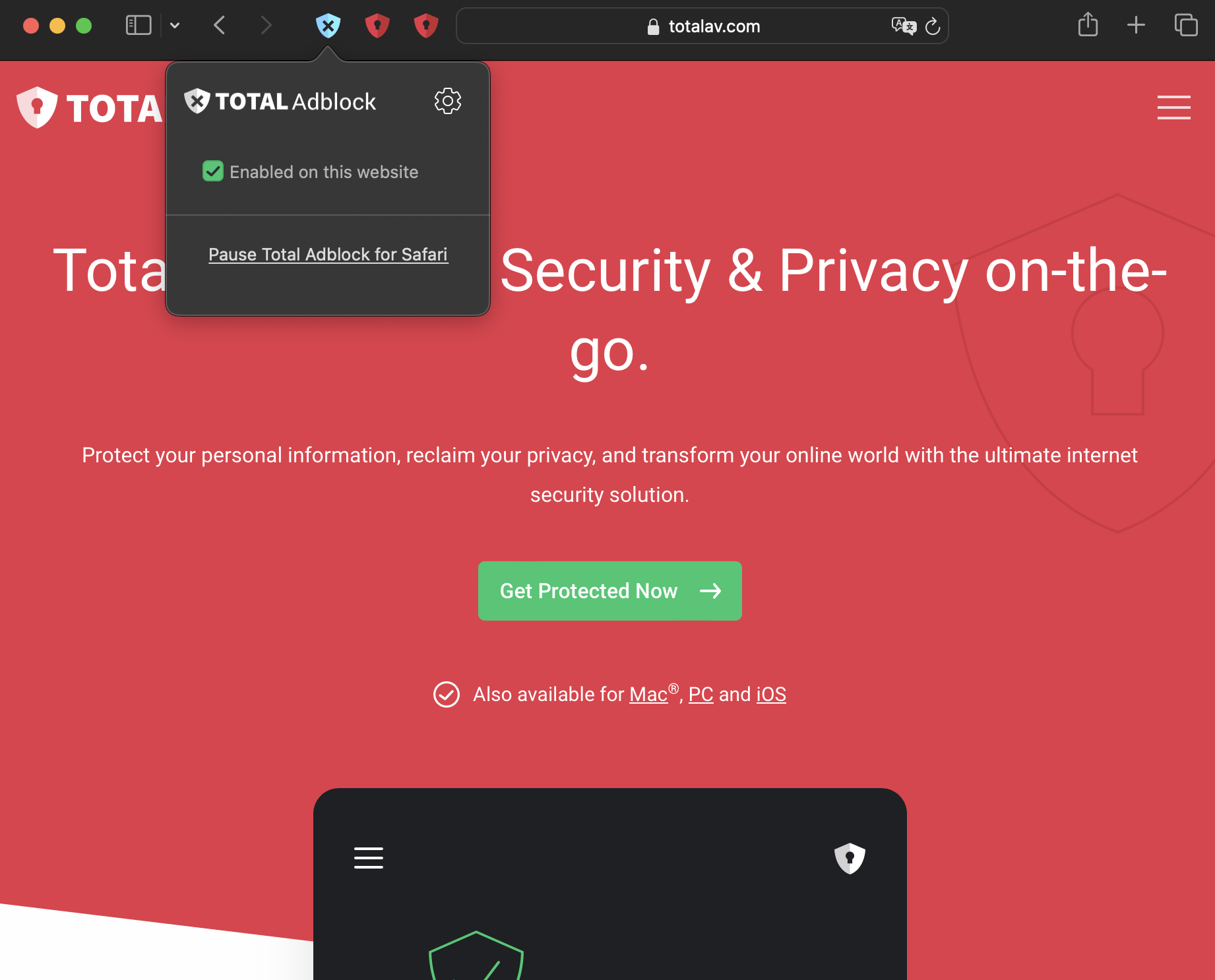
Occasionally, an adblocker may "break" a website, causing it to load incorrectly or preventing buttons from functioning. This is often referred to as "over-blocking." If you encounter a broken site, you can quickly disable the blocker for that specific page. In Safari, tap the "AA" icon (or the puzzle piece icon) in the address bar and select "Turn Off Content Blockers" or "Pause on This Site."
If you are using a system-wide DNS blocker and find that a specific app is not working (e.g., a banking app or a work-related portal), you may need to "whitelist" certain domains. Services like NextDNS provide a web dashboard where you can see a real-time log of blocked requests. If you see a legitimate request being blocked, you can add it to your "Allowlist," and the change will be applied to your iPhone instantly.
Another common issue is the failure of filter lists to update. Most apps handle this automatically in the background, but if you start seeing ads again, open your adblocker app and manually trigger a "Check for Updates" to ensure you have the latest definitions to combat new ad-delivery methods.
FAQ
Does Apple have a built-in adblocker for iOS? While Apple does not have a single "On/Off" switch for ads, it provides the Content Blocker API that allows third-party apps to filter Safari. Additionally, Apple’s "Hide IP Address" and "Intelligent Tracking Prevention" features (found in Safari settings) work alongside adblockers to limit the ability of advertisers to follow you across the web.
Will an adblocker speed up my iPhone? Yes, significantly. Most mobile websites load several megabytes of advertising scripts and tracking pixels. By preventing these from downloading, your processor does less work, and your data connection is freed up for the actual content you want to see. This results in faster page renders and, in some cases, improved battery longevity.
Are free adblockers for iOS safe? It depends on the provider. Many free extensions for Safari are safe because they cannot access your data. However, be extremely wary of free system-wide "Adblock VPNs." These often act as data harvesters. Stick to well-known, community-vetted tools or "Freemium" services like NextDNS, which has a generous free tier but a clear, paid business model.
Can I block ads in the Spotify or Instagram apps? Standard adblockers cannot remove ads from these apps because the advertisements are served from the same internal servers as the music or photos. DNS blocking these servers would stop the entire app from working. For these services, the only reliable way to remove ads on iOS is through their respective "Pro" or "Premium" subscriptions.
Why do some websites ask me to disable my adblocker? Many websites rely on ad revenue to stay operational. They use "Adblock Detection" scripts to sense if their banners are being hidden. In Safari, you can temporarily disable your blocker for that site via the address bar menu, or you can use a blocker like AdGuard that includes specific "Anti-Adblock" filters designed to hide the fact that you are using a blocker.
Recommended Next Actions
For the best balance of privacy and performance in 2026, a hybrid approach is recommended. Start by installing Wipr or 1Blocker for a cleaner Safari experience. Once that is configured, set up a NextDNS account and install their configuration profile to provide system-wide protection for the rest of your apps. This combination ensures that you are protected against both web-based trackers and intrusive in-app advertisements while maintaining optimal device speed.