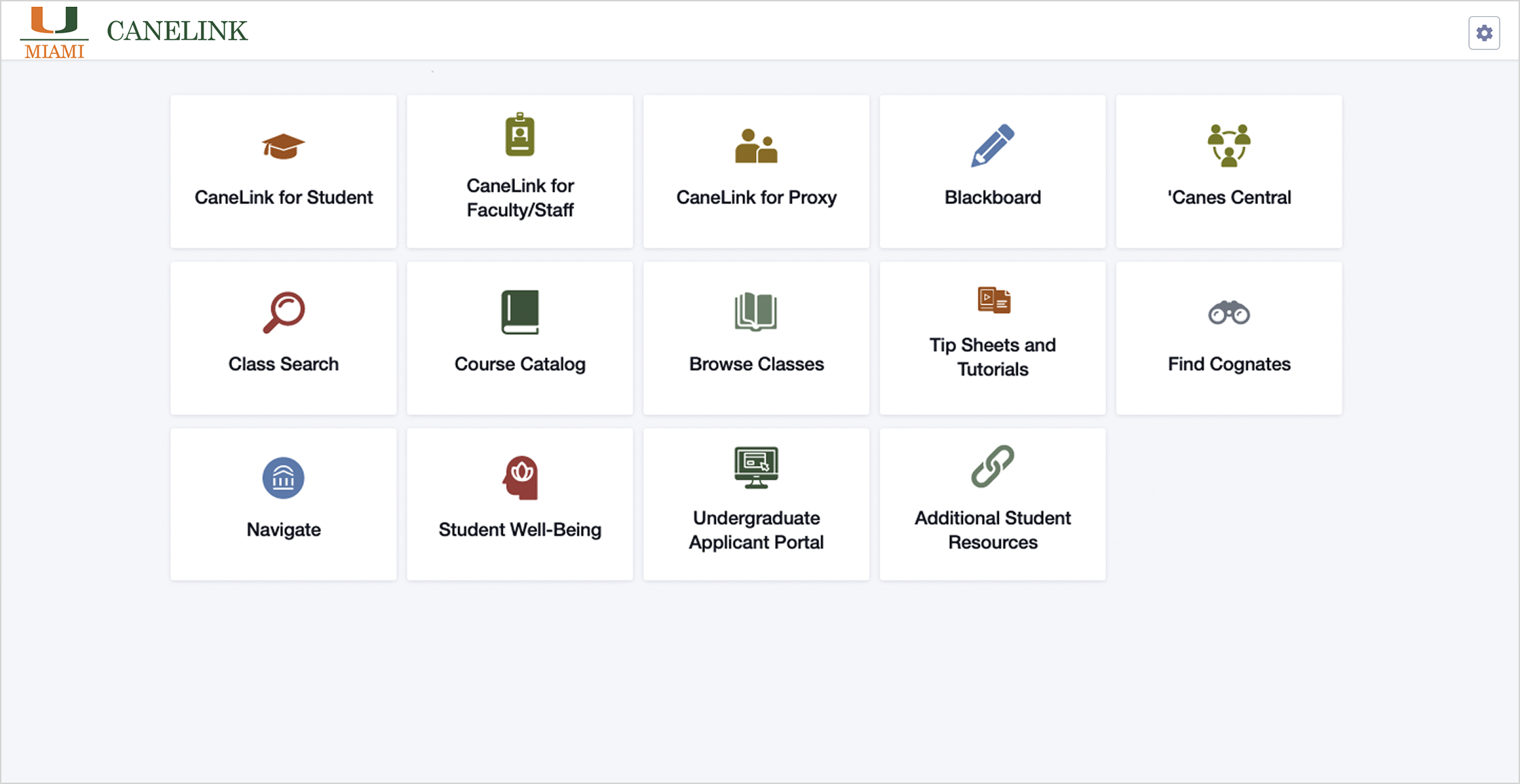
UMiami CaneLink serves as the central administrative and academic portal for the University of Miami, enabling students, faculty, and staff to manage course registration, financial aid, billing, grades, and personal records in one unified system.
Introduction to UMiami CaneLink and Its Role at the University of Miami
The University of Miami operates on complex administrative infrastructure designed to support thousands of undergraduate, graduate, and professional students across multiple campuses. At the center of this technological ecosystem is UMiami CaneLink, the official enterprise resource planning (ERP) portal built on Oracle PeopleSoft architecture. For anyone affiliated with the university, navigating this platform successfully is a fundamental requirement of academic and professional life.
CaneLink acts as the single point of entry for a wide array of university services. Rather than forcing students to visit separate offices for financial aid adjustments, grade checks, tuition payments, and class enrollment, the platform consolidates these functions into a secure web-based interface. Understanding how the system works, who can access it, and how to troubleshoot common navigation errors ensures that students and faculty can focus on their primary goals—education, research, and campus life—rather than administrative hurdles.
Eligibility, Access Requirements, and Account Setup
Access to UMiami CaneLink is not open to the general public; it is strictly regulated based on an individual's active role within the university community.
User Categories and Access Levels
- Admitted and Enrolled Students: Full access to course search, shopping cart, enrollment, financial aid awards, fee payment, academic history, and personal contact updates.
- Faculty Members: Access to class rosters, grading interfaces, advisee lists, and scheduling tools.
- Staff and Administrators: Role-based permissions to manage departmental operations, student services, and institutional data.
- Applicants: Limited access to check admission status, review checklist items, and submit required documentation prior to enrollment.
Setting Up Your ‘Cane ID and Multi-Factor Authentication
Before logging into CaneLink for the first time, users must establish their university credentials. The process relies on a unique 'Cane ID and a secure password.
- Receive University Credentials: Upon admission or employment, individuals receive an official notification containing their 'Cane ID and a temporary activation code.
- Activate the Account: Users navigate to the University of Miami identity management portal to establish a permanent password.
- Enroll in Duo Security (MFA): To protect sensitive educational records and financial data, the university mandates Multi-Factor Authentication (MFA) via Duo Security. Users must register a smartphone, tablet, or hardware token to verify their identity during every login attempt.
- Log In to CaneLink: With the 'Cane ID, password, and Duo configuration complete, users can access the main login portal using modern web browsers such as Google Chrome, Mozilla Firefox, Apple Safari, or Microsoft Edge.
Core Features and Academic Management Functions
Once authenticated, users are directed to the CaneLink dashboard, which organizes tools into functional tiles and menus. The architecture separates student services, academic records, and financial management into distinct modules.
Course Registration and Enrollment
The enrollment module is among the most heavily utilized components of CaneLink, particularly during registration windows.
- Class Search: Students can filter courses by subject, catalog number, instructional mode (in-person, hybrid, online), campus location, and general education requirements.
- Shopping Cart System: Prior to their official registration appointment time, students can build a schedule by placing classes into a shopping cart. This allows for schedule simulation and conflict checking.
- Enrolling and Swapping: When registration opens, students execute their cart. CaneLink features a "swap" function that permits students to drop a currently enrolled course and add a new one simultaneously, ensuring they do not accidentally lose their seat in an existing class if the alternative is closed.
- Waitlists: If a class is full, eligible students can opt to join a waitlist. If a seat opens, the system automatically enrolls the next student in line based on university rules and notifies them via their official university email address.
Academic Records and Progress Tracking
Students do not need to wait for paper transcripts to understand their academic standing. CaneLink provides real-time access to key performance metrics.
- Unnoficial Transcripts: Students can generate and view an unofficial PDF transcript outlining every course taken at the university, earned credits, semester grade point averages (GPA), and cumulative GPA.
- Degree Audit (To Do / Advising Tools): The system integrates with degree audit software to track progress toward graduation requirements, major prerequisites, and minor completion.
- Grade Reporting: At the conclusion of each term, final grades are posted directly to the student's academic record within CaneLink.
Financial Management: Tuition, Billing, and Financial Aid
Managing the financial aspects of higher education is a central function of the platform. The system connects directly with the University of Miami Office of Student Account Services and the Office of Financial Assistance.
Viewing and Paying Tuition Bills
University bills are not typically mailed as paper statements; instead, billing notifications are sent electronically.
- Account Inquiry: Students can view current charges, itemized fee breakdowns (including health insurance, student activity fees, housing, and tuition), and historical transaction ledgers.
- Payment Gateway: CaneLink provides secure links to authorize payments via electronic check (ACH), credit card, or international wire transfer. Payment plans can also be established and managed through the portal depending on seasonal deadlines.
- Authorized Payers: Students have the ability to grant parents or guardians "Authorized Payer" access, allowing third parties to view bills and make payments without logging in with the student's primary 'Cane ID.
Financial Aid Awards and Disbursement
Navigating financial aid requires regular monitoring of the portal.
- Award Notification: Scholarships, grants, federal loans, and work-study offers appear in the financial aid summary section.
- Accepting or Declining Aid: Students must review their aid package and formally accept or decline specific loan amounts or awards.
- Requirement Checklist: The portal lists outstanding documents required by the financial aid office, such as tax verification forms or promissory notes. Clearing these items is necessary for aid disbursement.
UMiami CaneLink Module Comparison
| Module Name | Primary Users | Key Functions & Capabilities | Common Actions Performed |
|---|---|---|---|
| Student Center | Students, Advisors | Course enrollment, schedule viewing, personal contact updates, holds check. | Registering for classes, checking weekly schedules, updating phone numbers. |
| Financial Account | Students, Authorized Payers | Tuition billing, payment processing, tax form generation (1098-T). | Paying term tuition, setting up payment plans, downloading tax documents. |
| Financial Aid | Students, Aid Administrators | Award viewing, loan acceptance, tracking verification documents. | Accepting scholarship awards, submitting requested verification paperwork. |
| Academic Records | Students, Faculty, Registrars | Grade reporting, unofficial transcripts, graduation applications, degree audit. | Viewing final term grades, applying for graduation, ordering official transcripts. |
| Faculty Center | Instructors, Department Chairs | Class roster management, grade entry, student advising notes. | Inputting final course grades, viewing student email lists, clearing advisor holds. |
Common Navigation Errors and Troubleshooting
Even with an intuitive interface, users occasionally encounter technical hurdles or system restrictions while using CaneLink. Knowing how to resolve these issues prevents administrative delays during critical periods like registration or fee payment deadlines.
Holds and Service Indicators
One of the most frequent reasons students cannot register for classes or view transcripts is the presence of an active "Hold" or service indicator on their account.
- Types of Holds: Holds can be financial (unpaid tuition balance), administrative (missing immunization records or Title IX compliance training), or academic (mandatory meeting required with an academic advisor).
- Locating Holds: Holds appear prominently on the right-hand side of the student dashboard. Clicking on a specific hold reveals the office responsible for placing it and instructions on how to clear it.
- Resolution: Students must contact the issuing department directly or fulfill the stated requirement (such as submitting vaccination forms to Student Health Services) to have the hold lifted by the system.
Browser Compatibility and Cache Issues
Because CaneLink relies on enterprise software frameworks, browser-related errors are common.
- Popup Blockers: Many transactional pages and report generators (such as unofficial transcripts) open in new browser windows or tabs. Strict popup blockers can cause the portal to freeze or appear unresponsive.
- Cache and Cookies: Corrupted browser cache can cause login loops or formatting errors. Clearing browser data or attempting to log in via an Incognito / Private browsing window often resolves transient display bugs.
- Mobile Access: While mobile browsers can load CaneLink, certain complex functions like multi-column schedule building are best performed on a desktop or laptop computer to ensure optimal viewing and input accuracy.
Frequently Asked Questions
What should I do if I forget my 'Cane ID password?
Users who cannot remember their password should utilize the University of Miami’s official identity management and password reset utility online. Never share your password or Duo authentication prompts with anyone, as university administrators will never ask for your login credentials.
Why is the registration button grayed out in my Student Center?
A grayed-out registration button typically indicates one of three issues: your assigned registration appointment time has not yet arrived, you have an active hold on your account that blocks enrollment, or you do not have an active enrollment appointment assigned for the selected term. Check the "Enrollment Dates" box in your student center to verify your exact registration window.
How do I grant my parents access to view my tuition bill?
To comply with federal privacy regulations (FERPA), the university cannot share financial records with parents without student consent. Students can grant access by navigating to the financial section of CaneLink, selecting the authorized payer setup option, and entering the parent's email address to generate login credentials for the billing portal.
Where can I find my official 1098-T tax form for the IRS?
The 1098-T tax statement, which details qualified tuition and related expenses for tax reporting purposes, is housed within the student financial account module of CaneLink. Students can navigate to the tax form section to view and download past and current year statements as soon as they are published by the university.
Who should I contact if CaneLink experiences a system outage?
If the portal is entirely inaccessible due to a system-wide outage, users should consult the University of Miami Information Technology (UMIT) help desk. For module-specific questions regarding course content, schedule conflicts, or financial aid eligibility, contact the specific academic department or the Office of the Registrar.
Conclusion and Next Actions
Mastering UMiami CaneLink is essential for a smooth academic journey at the University of Miami. By regularly checking the dashboard for holds, managing your shopping cart ahead of registration windows, and monitoring financial aid requirements, you can eliminate administrative stress. To get started or verify your current status, log in directly through the official University of Miami CaneLink Portal using your verified credentials.