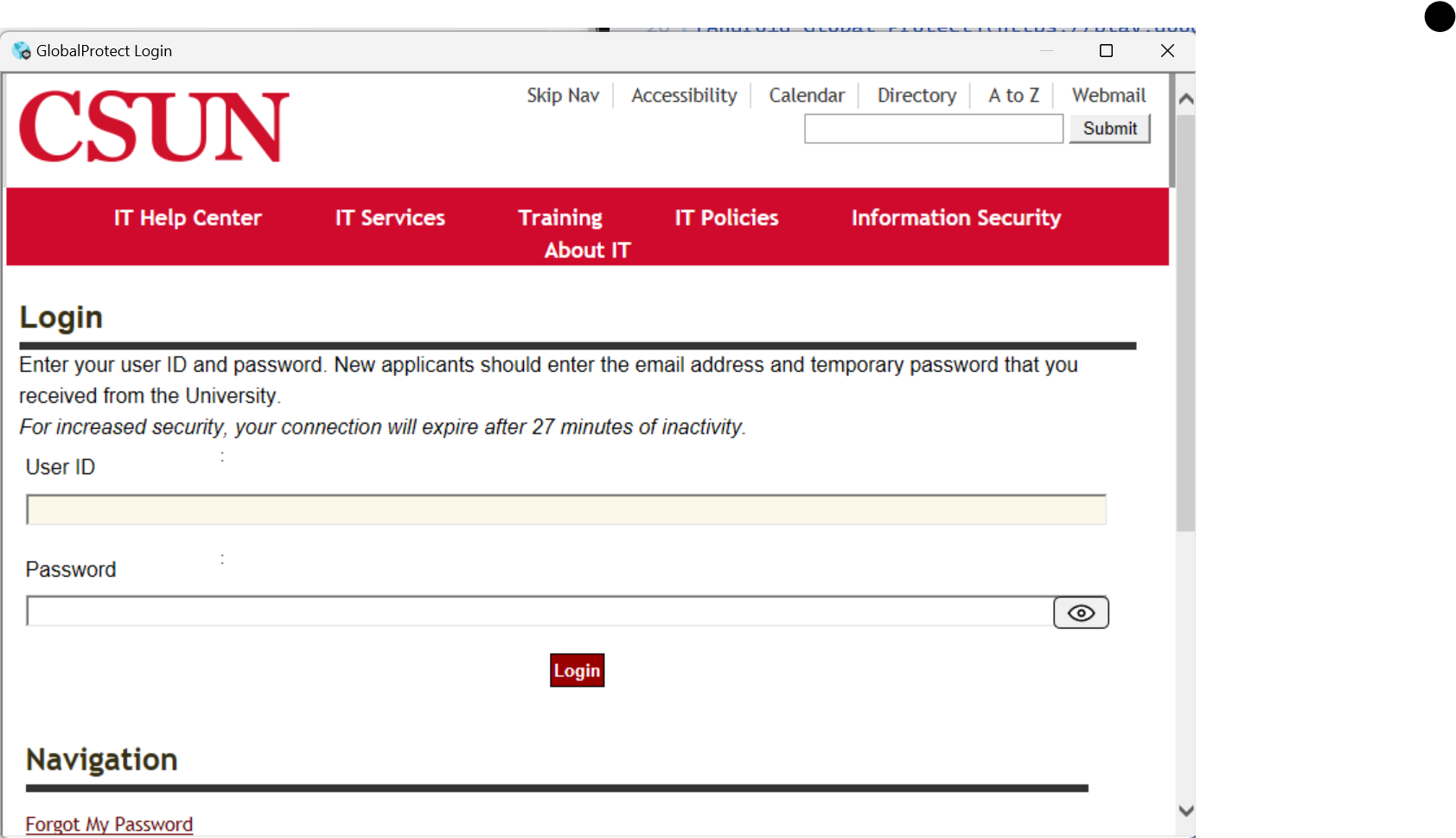
The CSUN Portal, officially known as the myNorthridge Portal, is the centralized digital gateway for California State University, Northridge students, faculty, and staff. It provides secure access to essential university services, including class registration, financial aid records, the Canvas learning management system, and personal administrative data. Users must authenticate with a university-issued User ID and Duo Multi-Factor Authentication to manage their academic and professional lifecycle.
The CSUN Portal serves as the digital backbone of the university experience. Whether you are a prospective student checking your application status, a current student registering for the upcoming semester, or a faculty member submitting final grades, the portal is the primary interface for all official business. In 2026, the system continues to integrate various third-party and proprietary tools into a single, cohesive dashboard, reducing the need for multiple login credentials and streamlining administrative tasks.
Understanding the Core Architecture of myNorthridge
The portal is designed as a "single sign-on" (SSO) environment. This means that once a user is authenticated, they can move between different sub-systems—such as the SOLAR Student Center, CSUN Gmail, and Canvas—without being prompted to log in again. This architecture is critical for maintaining security while ensuring that the high volume of traffic during peak periods, such as the first week of registration, does not compromise system stability.
The interface is divided into several functional "portlets" or tabs. These are customized based on the user’s role. For instance, a student will see a "Student" tab featuring academic and financial resources, while an employee will see "HR" and "Payroll" modules. This role-based access control (RBAC) ensures that sensitive data, such as student records protected under the Family Educational Rights and Privacy Act (FERPA), is only accessible to authorized personnel.
The Role of the SOLAR Student Center
At the heart of the CSUN Portal for students is the SOLAR (Student On-Line Administrative Resources) Student Center. Built on the PeopleSoft platform, SOLAR is the engine that handles the university’s most critical administrative data. Within the portal, the Student Center allows users to:
- Search for Classes: Access the real-time Schedule of Classes, filter by GE requirements, and check for open seats.
- Manage Enrollment: Add, drop, or swap classes during the registration periods.
- View Academic Progress: Access the Degree Progress Report (DPR) and Planner to ensure all graduation requirements are being met.
- Monitor Financials: View tuition balances, make payments via eCheck or credit card, and accept or decline financial aid awards.
Prerequisites for Accessing the CSUN Portal
Before attempting to log in to the CSUN Portal, users must meet specific technical and administrative requirements. Since the university handles highly sensitive personal and financial data, the security protocols are rigorous.
1. CSUN User ID and Password
New students receive their CSUN User ID (usually a combination of initials and numbers) and a temporary password via the personal email address provided on their Cal State Apply application. Upon first login, users are required to change their password and set up security questions. As of 2026, CSUN enforces strict password complexity requirements, requiring a mix of uppercase letters, numbers, and special characters, with mandatory resets occurring periodically to mitigate the risk of credential theft.
2. Multi-Factor Authentication (Duo Security)
Multi-factor authentication (MFA) is mandatory for all portal users. CSUN utilizes Duo Security to provide this layer of protection. When logging in, after entering your password, you must verify your identity via a secondary device. Most users choose the Duo Mobile app, which provides a "push" notification to their smartphone. Alternatively, users can receive a passcode via SMS or use a hardware token (U2F key) purchased through the university bookstore.
3. Browser Compatibility and Cache Management
The CSUN Portal is optimized for modern browsers, including Google Chrome, Mozilla Firefox, and Apple Safari. Users are frequently advised to clear their browser cache and cookies if they encounter "Looping" login screens or if the portal fails to load certain portlets. This is a common technical hurdle caused by stale session data from previous logins.
Detailed Navigation of Portal Modules
To maximize productivity, users should familiarize themselves with the specific modules available within the myNorthridge environment. The system is designed to be intuitive, but the sheer volume of information can be overwhelming for new users.
The "Home" Tab and Notifications
Upon logging in, the Home tab displays the "My Checklist" portlet. This is perhaps the most important area for students to monitor. It lists "Incomplete Tasks" such as missing transcripts, immunization records, or mandatory Title IX training. Failure to complete these items often results in an Advisement Hold or Registration Hold, preventing the student from enrolling in future classes.
Academic Management and Canvas
While the portal handles administrative data, Canvas handles the actual learning experience. A dedicated link within the portal takes students directly to their Canvas dashboard, where they can find:
- Course syllabi and reading materials.
- Assignment submission portals.
- Discussion boards and peer communication tools.
- Current course grades (not to be confused with the "Official Grades" found in SOLAR).
Financial Aid and Scholarships
The "Financial Matters" tab is the central hub for managing the cost of attendance. Students can view their FAFSA or California Dream Act status, see a breakdown of their "Cost of Attendance" versus "Estimated Financial Aid," and access the CSUN Scholarship Site (myMatador Scholarships). It is vital to check this section regularly, as the university may request additional documentation to verify income or household size during the "Verification" process.
| Module Name | Primary Function | Target User | Key Action Item |
|---|---|---|---|
| SOLAR Student Center | Academic Records & Billing | Students | Register for classes; Pay tuition |
| Canvas LMS | Coursework & Instruction | Students & Faculty | Submit assignments; Post lectures |
| CSUN Gmail | Official Communication | All Users | Check for university alerts/deadlines |
| Employee Self Service | HR & Payroll | Faculty & Staff | View pay stubs; Report time |
| Degree Progress (DPR) | Graduation Tracking | Students | Verify GE and Major requirements |
| Matador Scholarships | Financial Support | Students | Apply for institutional grants |
Step-by-Step Guide: Registering for Classes via the Portal
Class registration is the most high-traffic activity within the portal. To ensure a smooth process, students should follow these verified steps during their designated registration appointment:
- Check for Holds: Log in to the portal 48 hours before your registration appointment. Check the "My Checklist" portlet for any holds that might block enrollment.
- Access the Schedule of Classes: Use the "Class Search" feature to find sections that fit your schedule. Note the five-digit Class Number for each section.
- Add to Shopping Cart: Similar to an e-commerce site, you can place classes in a "Shopping Cart" within the SOLAR Student Center before your registration window opens. This does not reserve a seat but saves time on registration day.
- Enrollment: When your appointment time arrives, go to your Shopping Cart, select the classes, and click "Finish Enrolling."
- Verify Results: Ensure that a green checkmark appears next to each class. A red "X" indicates an error, such as a time conflict, a missing prerequisite, or a full class.
Troubleshooting Common Portal Issues
Even with a robust system, users may encounter technical difficulties. Understanding how to resolve these independently can save time during critical deadlines.
Password Recovery and Account Lockouts
If you forget your password, you can use the "Forgot Password" link on the login page. This will require you to answer your pre-set security questions or receive a reset link at your recovery email address. If your account is locked due to too many failed attempts, you must contact the CSUN IT Help Center.
Duo MFA Errors
If you replace your smartphone, your Duo account will not automatically transfer. You will need to use a "Bypass Code" generated during your initial setup or contact the IT Help Center to verify your identity and register the new device. In 2026, the use of "Duo Restore" on iOS and Android has made this transition easier, provided the user has enabled cloud backups.
Issues with the "Page Not Found" or 404 Errors
These errors often occur when the university is performing system maintenance. Scheduled maintenance typically occurs on Sunday mornings. If the error persists during normal hours, try using an "Incognito" or "Private" window in your browser to determine if the issue is related to your local cache.
Security Best Practices for 2026
As cyber threats evolve, maintaining the security of your CSUN Portal account is a shared responsibility. The university employs advanced encryption and monitoring, but the "human element" remains the most common point of failure.
- Phishing Awareness: Be wary of emails that appear to be from "CSUN Administration" asking you to "validate your account" by clicking a link and entering your portal credentials. CSUN will never ask for your password via email.
- Public Wi-Fi Risks: Avoid accessing the portal, especially the financial sections, over unsecured public Wi-Fi networks. If you must use public Wi-Fi, use a Virtual Private Network (VPN).
- Authorized Access Only: Never share your CSUN User ID or password with anyone, including family members. If you wish to allow a parent or guardian to view your financial records, use the "Parent/Guest Access" feature within the SOLAR Student Center, which allows you to create a separate, limited login for them.
Frequently Asked Questions
How do I find my registration appointment date in the portal?
Your registration appointment is located in the SOLAR Student Center under the "Enrollment Dates" section. It is usually posted a few weeks before the registration period begins. These dates are assigned based on your class standing (e.g., Seniors and Priority groups register first, followed by Juniors, Sophomores, and Freshmen).
Can I access the CSUN Portal on a mobile device?
Yes, the portal is mobile-responsive and can be accessed through any smartphone browser. Additionally, the CSUN Mobile App provides a simplified version of many portal features, such as campus maps, class schedules, and a digital ID card. However, for complex tasks like the Degree Progress Report or detailed financial aid verification, a desktop or laptop is recommended for better visibility.
What should I do if my "My Checklist" shows a hold that I have already resolved?
System updates are not always instantaneous. It can take 24 to 48 hours for a hold to be cleared automatically after a requirement (like a payment or document submission) has been met. If the hold remains after two business days, contact the specific department that placed the hold (e.g., Admissions, Records, or Cashier's Office) to request a manual refresh.
Where can I find my official grades at the end of the semester?
While Canvas shows your scores on individual assignments, your official final grades are housed in the SOLAR Student Center under "Grades" or "Unofficial Transcript." Instructors have a specific deadline after finals week to submit these grades. Once submitted, they are processed by the Office of the Registrar and become part of your permanent academic record.
How do I update my contact information in the portal?
It is critical to keep your "Personal Information" up to date so you receive emergency alerts and official mailings. In the CSUN Portal, navigate to the SOLAR Student Center and scroll down to the "Personal Information" section. Here, you can edit your phone number, home address, and "Preferred Name" which will then be reflected across university systems like Canvas and the class roster.
Recommendation for Next Actions
To ensure you are fully prepared for the 2026 academic year, log in to the CSUN Portal today and navigate to the "My Checklist" section. Identifying and resolving outstanding items now—such as submitting final transcripts or completing mandatory health screenings—will prevent last-minute stress during registration. Furthermore, ensure your Duo Mobile app is updated and that you have generated a set of backup codes to keep in a secure physical location. Taking these proactive steps will ensure that the CSUN Portal remains a tool for your success rather than a barrier to it.