Managing document workflows on macOS Sonoma and subsequent 2026 iterations requires precision and efficiency. Whether you are aggregating financial reports, merging technical documentation, or consolidating scanned contracts, macOS provides robust, native tools that eliminate the need for insecure third-party browser extensions or paid subscription software. This guide outlines the most effective methodologies for file concatenation on Apple hardware, focusing on the native Preview application, the Finder interface, and Automator workflows.
Native macOS Preview: The Gold Standard for Document Merging
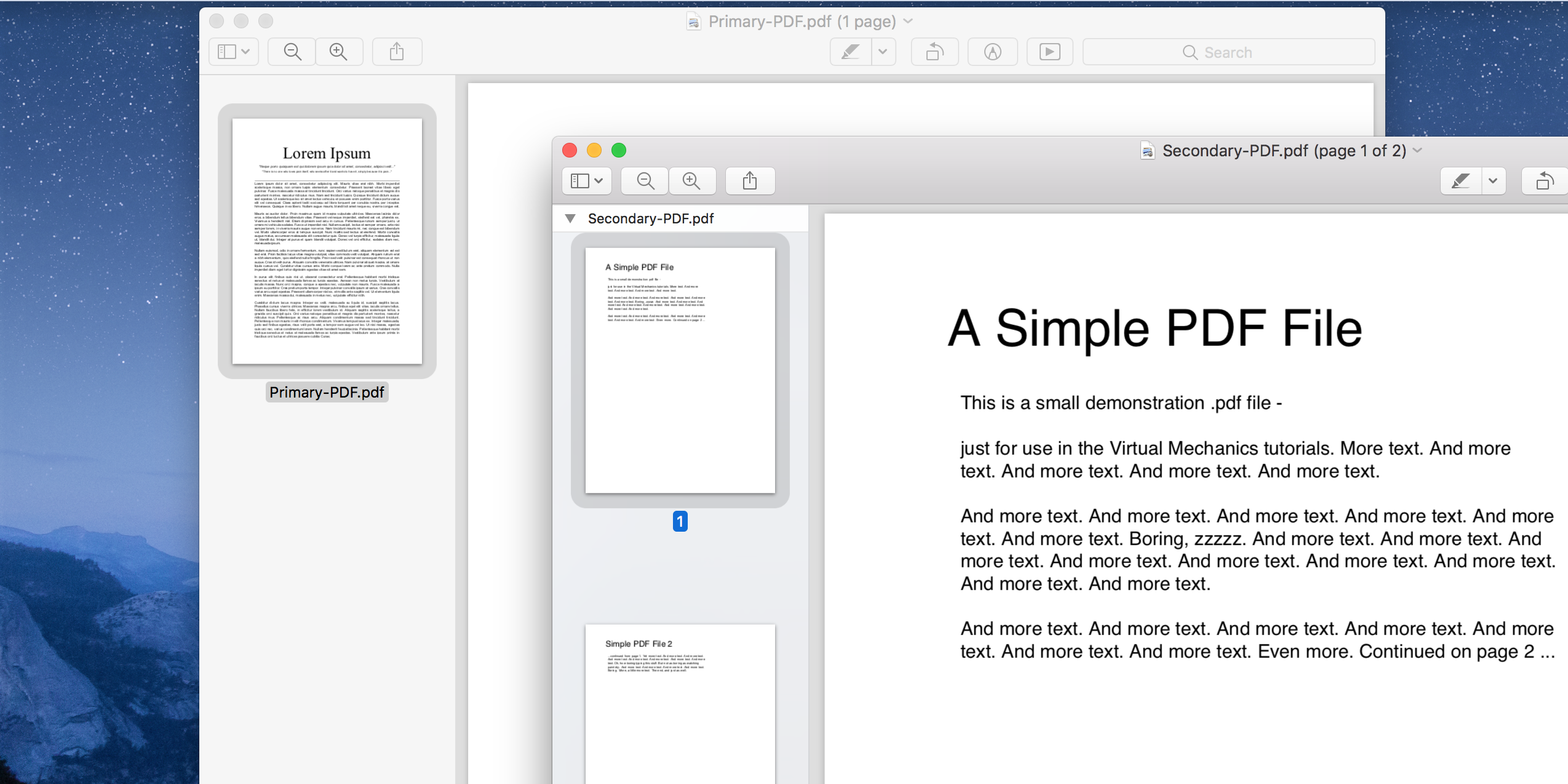
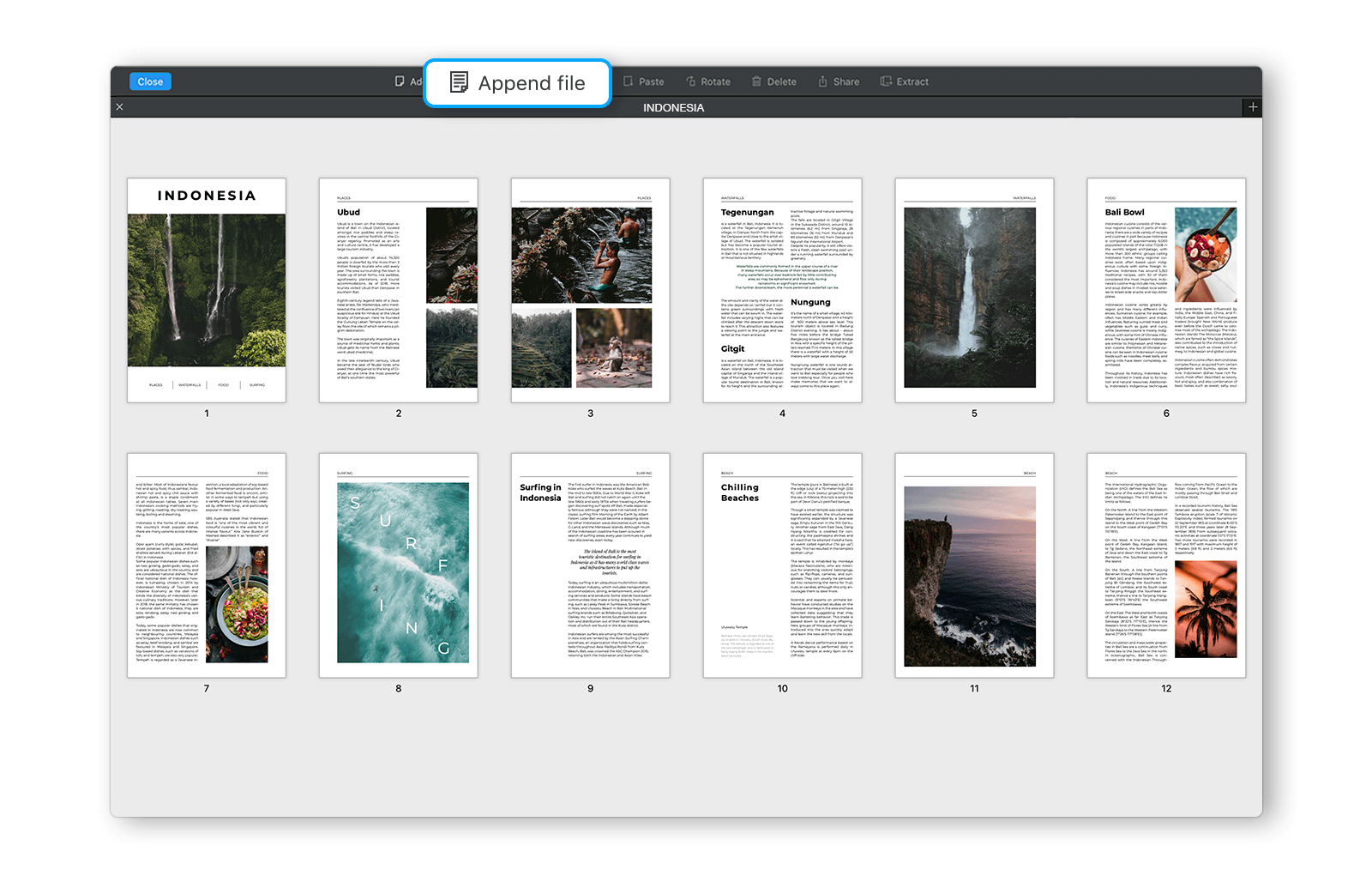
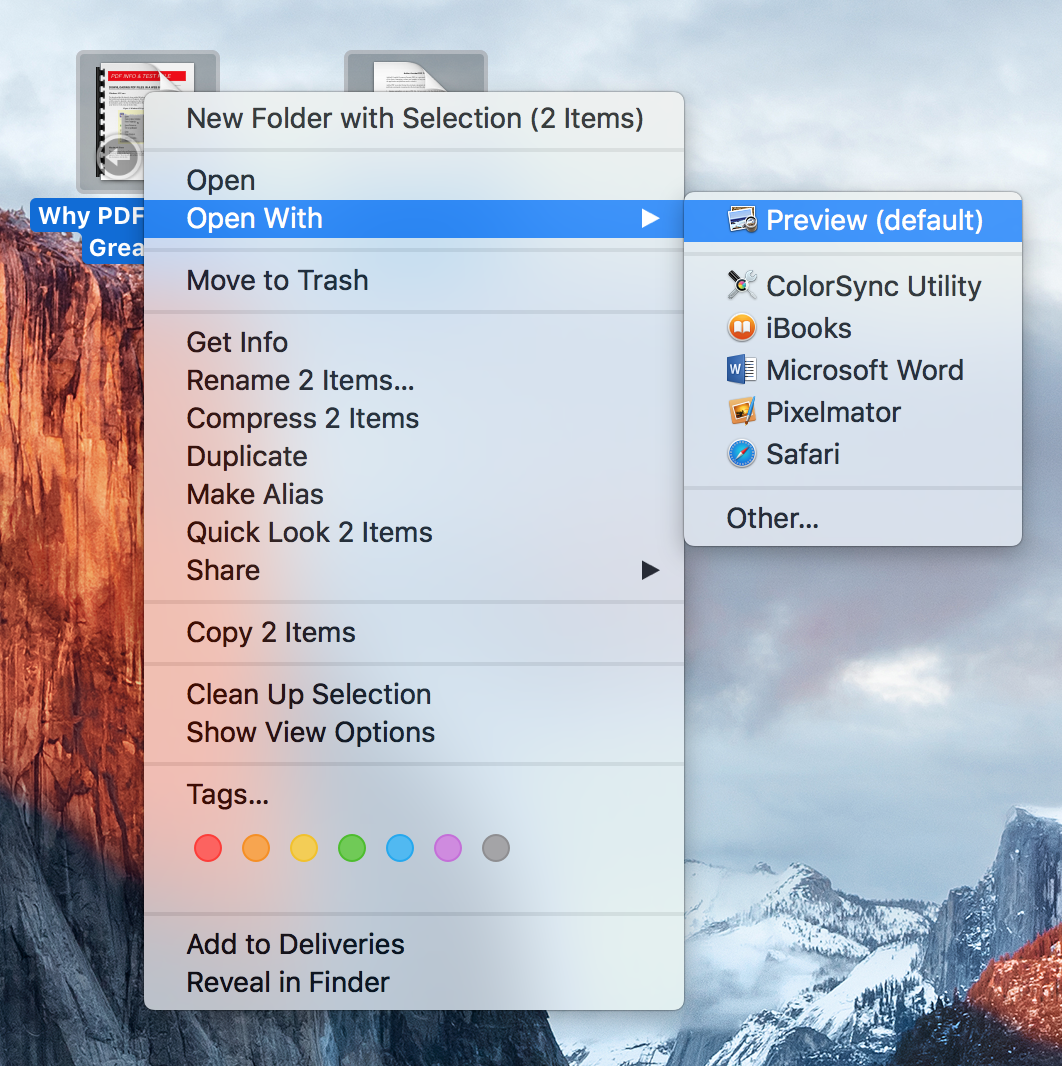
The Preview application remains the most reliable utility for handling Portable Document Format (PDF) files. By 2026 standards, Apple has refined the drag-and-drop mechanics to ensure that metadata and internal hyperlinks are preserved during the merging process.
- Open the primary PDF file you wish to use as the base in Preview.
- Navigate to the View menu and select Thumbnails to reveal the sidebar.
- Select the specific page thumbnail in the sidebar where you want the new document to be inserted.
- Go to the Edit menu, select Insert, and choose Page from File.
- Select the PDF files you wish to add to your existing document and click Open.
- Alternatively, open a second Finder window, select the PDF files you intend to merge, and drag them directly into the thumbnail sidebar of the active document.
Using this method ensures that your documents remain local, adhering to privacy standards required for sensitive information. There is no risk of cloud-based data leakage, as all rendering occurs within the macOS sandbox environment.
Advanced Batch Processing with Finder Quick Actions
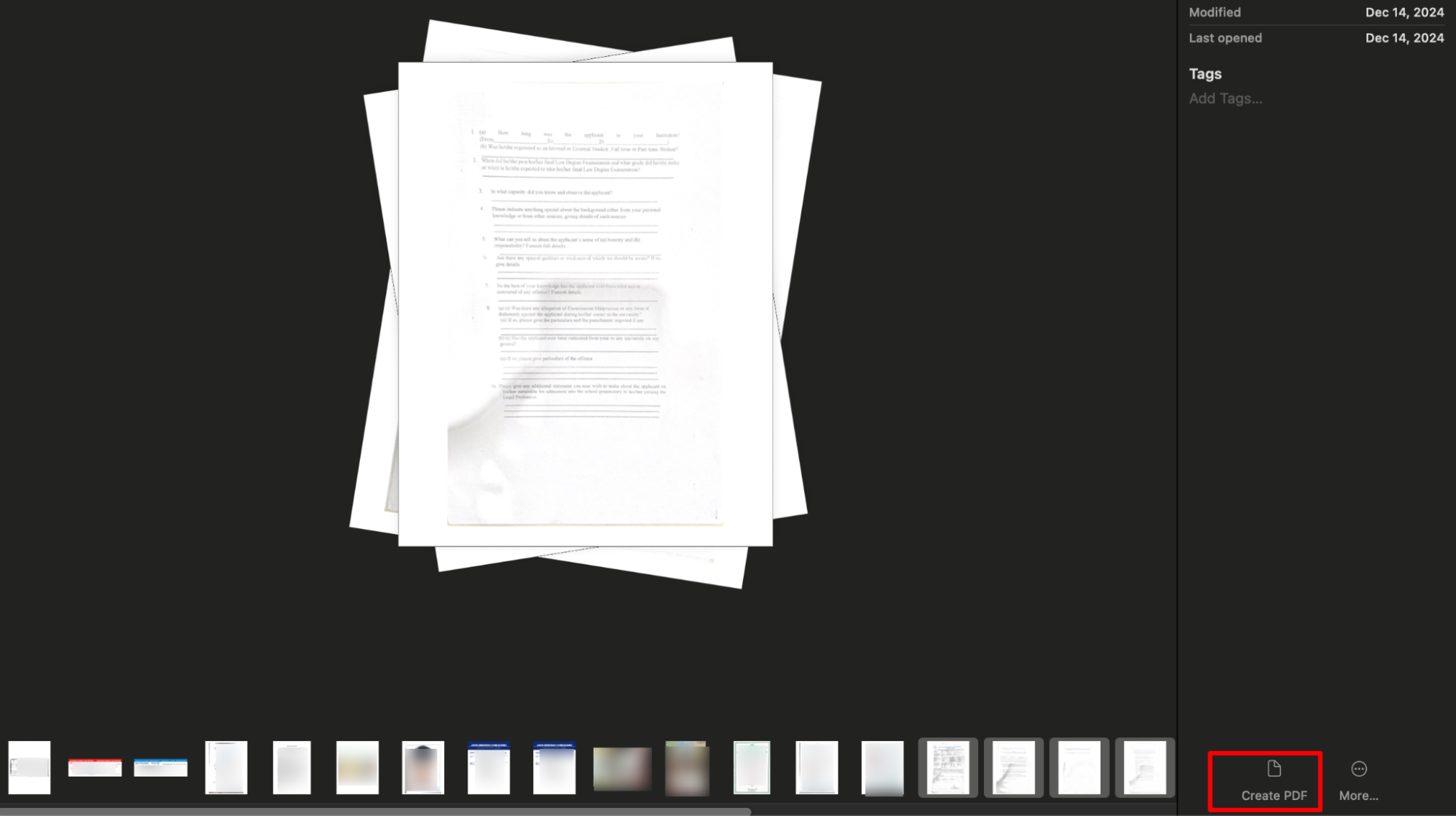
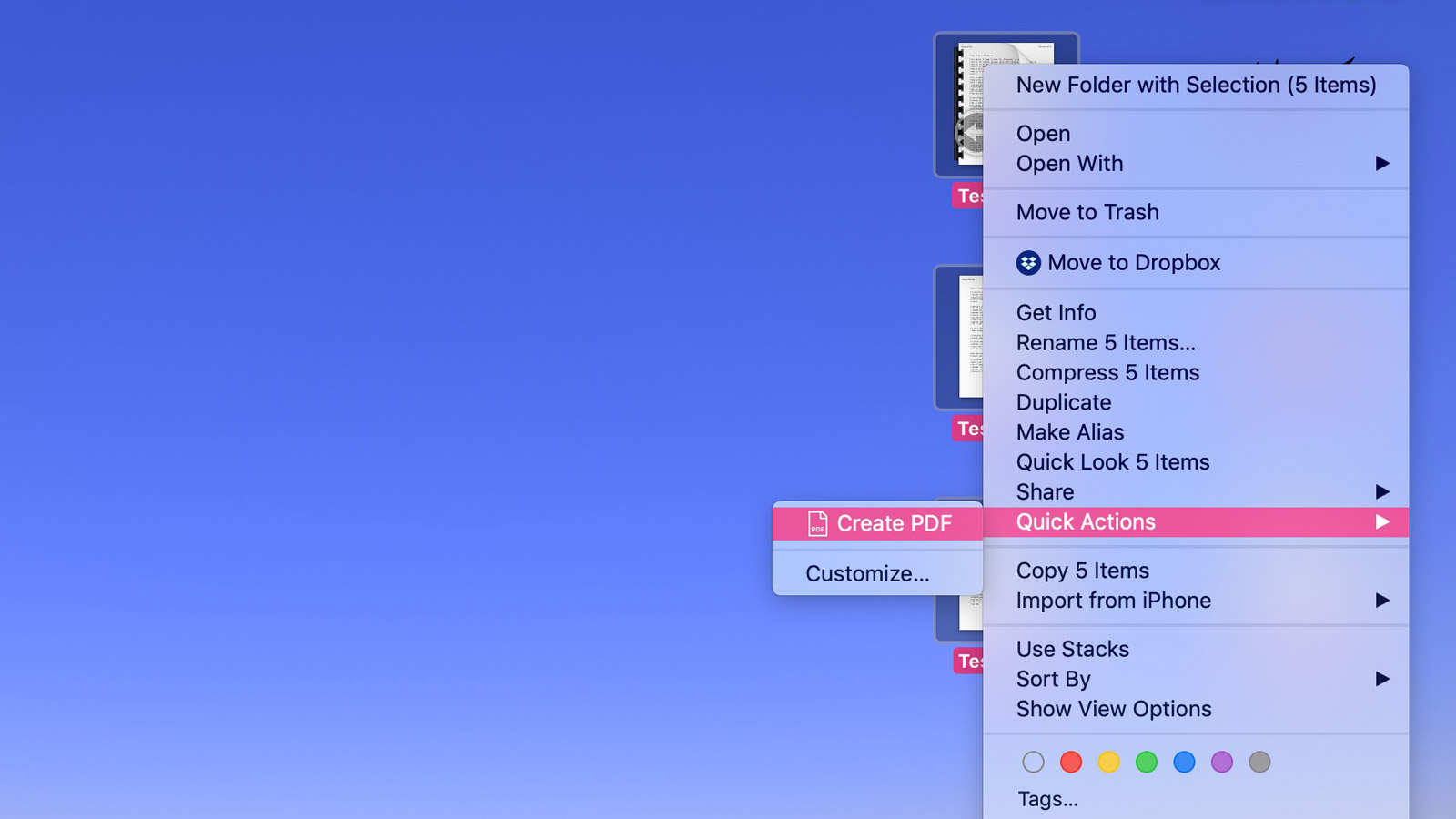
For power users managing high-volume document workflows in 2026, opening individual files is inefficient. The Quick Actions feature in macOS allows for batch processing directly from the desktop or Finder without launching a dedicated application.
- Navigate to the folder containing your PDFs.
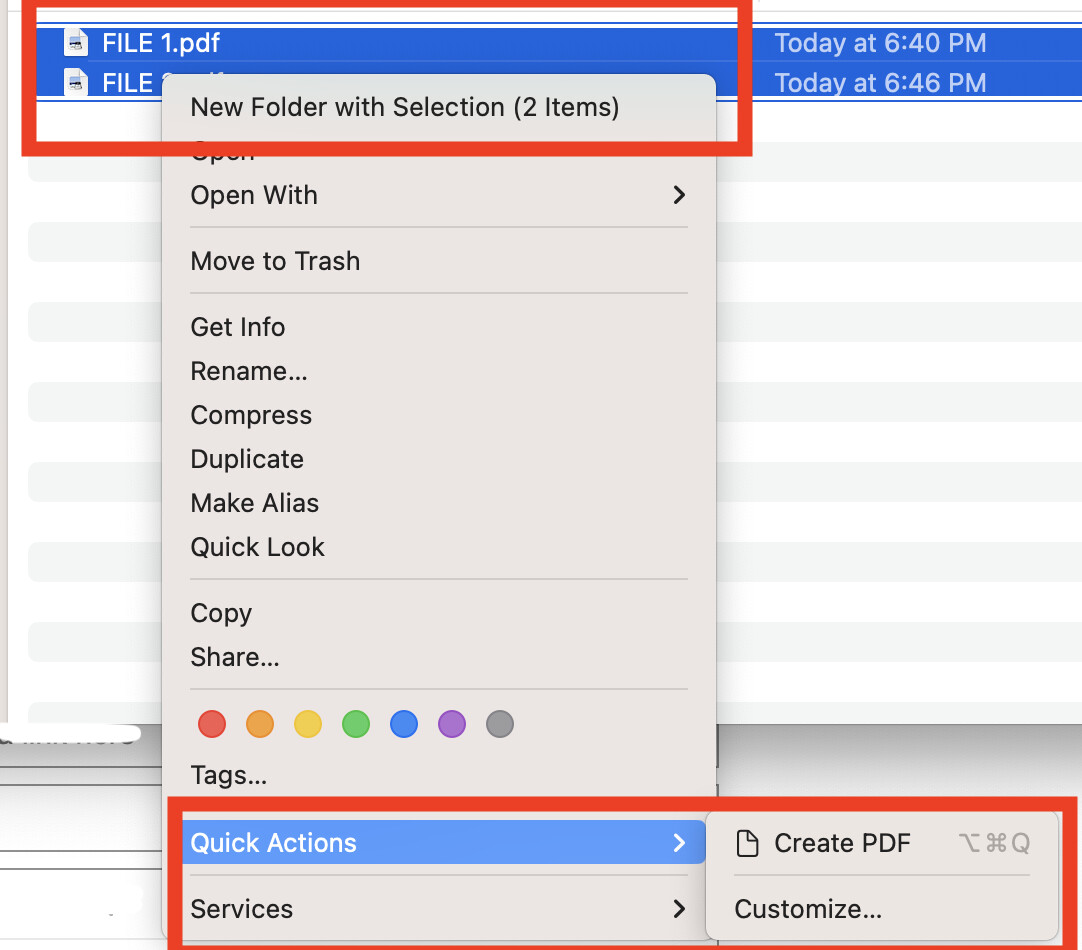
- Highlight all files you intend to merge in the desired order (hold Command to select non-adjacent files).
- Right-click (or Control-click) the selection.
- Select Quick Actions, then click Create PDF.
Note that this method automatically generates a new file containing the combined pages. It is critical to ensure that your Finder view is set to Sort by Name or Date to control the sequence of the pages before executing the command.
Comparing PDF Management Strategies for 2026
Choosing the right tool depends on the volume of files and the requirement for technical precision. The table below compares the most common methods available on macOS.
| Feature | Preview App | Finder Quick Actions | Automator Workflow |
|---|---|---|---|
| Sequence Control | Manual Drag-and-Drop | Alphabetical/Numerical | Programmatic Logic |
| Speed for <5 Files | Fast | Instant | Slow to Setup |
| Speed for >50 Files | Moderate | Very Fast | Highly Efficient |
| Metadata Retention | Excellent | Moderate | High (Customizable) |
| Privacy Rating | Maximum | Maximum | Maximum |
Automating Document Aggregation with Shortcuts
The integration of the Shortcuts app in the 2026 macOS ecosystem allows users to create custom "Merge PDF" actions. This is particularly useful for legal or accounting professionals who frequently combine monthly statements or invoice packages.
Technical Implementation Strategy Define the Trigger Set up a folder action or a Finder context menu trigger that activates a specific workflow. This reduces repetitive manual input and standardizes the output format of your documents. Logic Construction Use the "Combine PDF" action within the Shortcuts editor. You can define specific parameters such as page orientation preservation and file renaming conventions to ensure your archive follows your firm’s specific naming taxonomy.
Managing File Size and Image Quality Post-Merge
When combining multiple PDFs, especially those containing high-resolution scans, the resulting file size can become prohibitive for email or portal uploads. Apple’s Preview utility offers a native method to compress these files while maintaining sufficient visual fidelity for standard business review.
After merging your documents, navigate to File and select Export. Within the Quartz Filter dropdown menu, select Reduce File Size. This filter is calibrated for 2026 standards, providing an optimal balance between compression ratio and OCR (Optical Character Recognition) readability. If you require higher precision, you may need to use the ColorSync Utility to create a custom filter with lower DPI settings for images.
Troubleshooting Common Errors
Even with native tools, users may occasionally encounter issues when attempting to merge documents. Common failure points and their resolutions are detailed below.
- Encrypted Files: If a document is protected by a password, the system will not permit the insertion of additional pages. You must remove the security restriction before the file can be modified.
- Corrupted PDF Structures: PDFs generated by legacy software or non-standard scanners may occasionally fail to render during the merge. In these instances, printing the file to PDF (File > Print > PDF > Save as PDF) creates a "flattened" version that is typically compatible with standard merge tools.
- Permission Errors: Ensure your user profile has read/write permissions for the target directory. If you are merging files from a read-only disk image or a locked network volume, move the files to your local Documents folder first.
Frequently Asked Questions
Can I merge PDFs on macOS without third-party software?
Yes, macOS includes native capabilities via Preview, Finder, and Shortcuts that allow for secure, high-quality document merging. These tools are included by default in the 2026 operating system version.
Does merging PDFs affect the quality of the embedded images?
By default, native macOS processes maintain the original resolution of the embedded images. If you use the Reduce File Size feature, the system will compress images, which may impact quality but will drastically decrease the final file size.
Is it safe to use online PDF merging websites?
Sending sensitive documents to third-party web servers creates a significant security risk for data breaches. Using local macOS utilities ensures that your data remains entirely within your control and is not intercepted by unauthorized parties.
How do I change the order of pages after they are combined?
Once the documents are merged in the Preview sidebar, you can click and hold any page thumbnail to drag it to a new position within the document.
Are there limits to the number of files I can combine at once?
While macOS does not have a hard-coded limit, physical system memory (RAM) is the primary constraint. For batches involving hundreds of high-resolution images, ensure your system has sufficient background resources available to process the render task.
Optimize Your Workflow Today
Mastering native PDF manipulation on your Mac in 2026 is an essential skill for maintaining digital security and document integrity. By leveraging Preview and the built-in Quick Actions, you ensure that your files remain private, correctly formatted, and easily searchable. If your professional requirements involve high-volume document aggregation, transition your process to the Shortcuts application to achieve a fully automated, consistent, and error-free result.