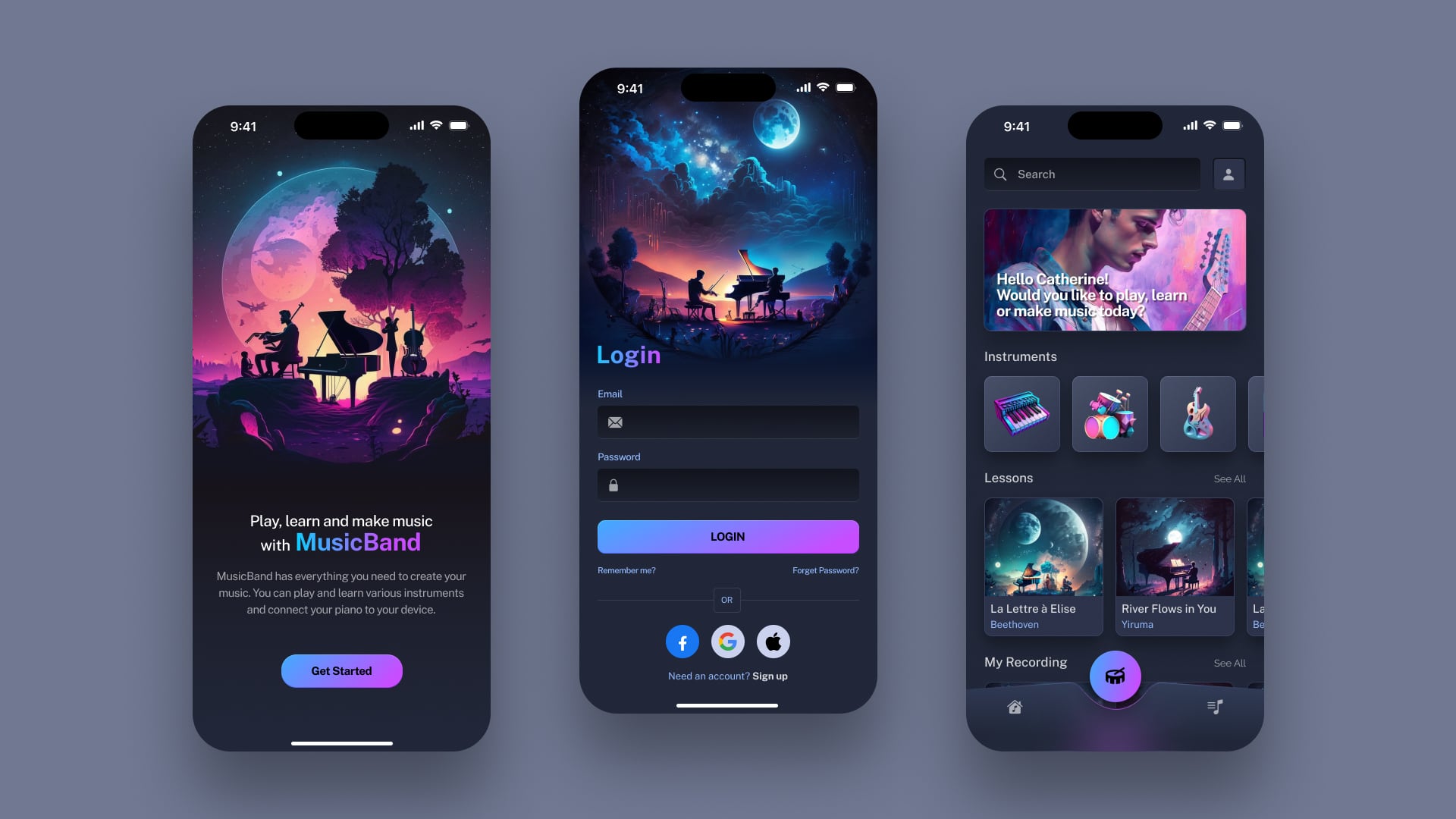
Designing for the iOS ecosystem in 2026 requires a sophisticated blend of aesthetic precision, platform-specific logic, and seamless handoff capabilities. The premier tools for iOS app design are currently Figma, Sketch, and Apple’s own suite of resources, including SF Symbols and Xcode Previews. These platforms allow designers to implement Apple’s Human Interface Guidelines (HIG) while leveraging advanced features like variable components, AI-assisted layouts, and high-fidelity prototyping.
The Evolution of iOS Design Tooling
The landscape of mobile application design has shifted from static image creation to the development of living design systems. In 2026, the distinction between a "drawing tool" and a "development bridge" has nearly vanished. Designing for iOS is no longer just about how an app looks on a single iPhone screen; it is about how the interface adapts across the Dynamic Island, the various aspect ratios of the iPhone 17 and 18 series, and the increasing integration with spatial computing elements derived from visionOS.
Apple’s ecosystem is uniquely rigorous. Unlike the fragmented nature of Android, iOS demands a high level of "deference"—the concept that the UI should stay out of the way of the user’s content. To achieve this, design tools must support specific technical requirements such as points-based scaling (pt), San Francisco typography variants, and native blur effects (vibrancy).
1. Figma: The Industry Standard for Collaborative iOS Design
As of 2026, Figma remains the dominant force in the industry. Its browser-based architecture combined with a powerful desktop application makes it the primary choice for teams that require real-time collaboration.
Advanced Auto Layout and Responsive Design
Figma’s Auto Layout feature has evolved to mirror CSS Flexbox and SwiftUI stacks more closely than ever. For iOS designers, this is critical because it allows for the creation of components that automatically adjust to different screen widths—from the SE series to the Pro Max models. In 2026, Figma’s "Variables" feature allows designers to toggle between Light and Dark modes instantly, or even switch between "Compact" and "Regular" size classes, which are fundamental concepts in Apple’s adaptive layout system.
Dev Mode and SwiftUI Handoff
One of the most significant hurdles in app development is the "handoff" from design to code. Figma’s Dev Mode provides developers with exact Swift and SwiftUI code snippets. Instead of guessing the corner radius of a button or the tracking of a label, developers can inspect the design and see the precise values used in the iOS SDK. This reduces friction and ensures that the final product matches the "pixel-perfect" design vision.
Real-Time Prototyping
Prototyping in Figma allows designers to simulate the iOS experience without writing a single line of code. Features like "Smart Animate" can replicate native iOS transitions, such as the spring-loaded animations found in the Control Center or the smooth expansion of a notification tile.
2. Sketch: The Native Powerhouse for macOS
While Figma leads in collaboration, Sketch remains a favorite for designers who prefer a native macOS experience. Since it is built specifically for Mac, Sketch offers a level of performance and integration with macOS features that browser-based tools cannot fully replicate.
Local Control and Privacy
In 2026, many enterprise-level organizations prefer Sketch for its robust local file management. For industries with strict data sovereignty requirements, the ability to work offline and store design files on secure, internal servers is a significant advantage over cloud-only platforms.
Symbols and Design Systems
Sketch’s approach to "Symbols" is highly structured, making it excellent for building massive iOS design systems. Designers can create a "Master Symbol" for a standard iOS Navigation Bar and propagate changes across hundreds of screens instantly. Sketch also maintains deep compatibility with the Apple Design Resources, ensuring that the latest system components (like the new 2026 iOS status bars and home indicators) are easily accessible.
3. Apple’s Proprietary Design Tools and Resources
Apple provides a suite of first-party tools that are indispensable for any designer serious about the platform. These are not alternatives to Figma or Sketch, but rather essential companions.
SF Symbols 7
By 2026, SF Symbols has grown into a library of over 6,000 icons designed to integrate seamlessly with the San Francisco system font. SF Symbols 7 introduces even more advanced variable color states and animation presets. These icons are technically "fonts," meaning they support different weights (Thin to Black) and scales (Small, Medium, Large) to match the surrounding text perfectly. Using SF Symbols ensures that your app feels like a native part of the operating system.
Apple Design Resources
Apple provides official UI kits for Figma, Sketch, and Adobe XD. These kits include every standard system component:
- System Buttons and Controls: Toggles, sliders, and segmented controls.
- Modals and Sheets: Precise corner radii and backdrop filter values.
- Typography Styles: Pre-configured sets for Large Title, Body, and Caption. Using these official resources is the best way to ensure your app follows the Human Interface Guidelines, which is often a prerequisite for being featured on the App Store.
Xcode Previews and Swift Playgrounds
While traditionally seen as "developer tools," in 2026, many UI designers use Xcode Previews to see how their designs look when rendered by the actual iOS layout engine. Swift Playgrounds has also become a viable tool for designers to "prototype with code," allowing them to experiment with SwiftUI's declarative syntax to create high-performance animations that are difficult to replicate in traditional design software.
Comparison of Top iOS Design Tools
| Feature | Figma | Sketch | Adobe XD | Framer |
|---|---|---|---|---|
| Platform | Browser / Windows / macOS | macOS Only | Windows / macOS | Browser / macOS |
| Collaboration | Real-time (Best in class) | Real-time (Via Cloud) | Limited | Real-time |
| Offline Mode | Limited | Comprehensive | Yes | No |
| Code Handoff | High (SwiftUI/CSS) | Moderate | Moderate | Excellent (React/Swift) |
| Pricing (2026) | Subscription-based | Subscription or License | Part of Creative Cloud | Subscription-based |
| Best For | Multi-member teams | macOS purists / Solo designers | Legacy CC workflows | High-fidelity motion |
4. Specialized Prototyping Tools: Framer and ProtoPie
When basic transitions are not enough, designers turn to specialized tools to simulate complex interactions, such as gyroscope-based movements or multi-finger gestures.
Framer
Framer has transitioned into a powerful "site and app builder," but it remains a staple for iOS prototyping. Its strength lies in its ability to use real data. Instead of "Lorem Ipsum," designers can pull real content from APIs into their iOS mockups. This is vital for testing how an app behaves with varying text lengths or different languages (Localization), which is a key part of iOS design.
ProtoPie
ProtoPie is the gold standard for high-fidelity mobile prototyping without coding. It allows designers to use the sensors in an actual iPhone (like the accelerometer, haptic engine, and proximity sensor) within the prototype. If you are designing an iOS health app that relies on movement or a camera-based app, ProtoPie can simulate these experiences with a level of realism that Figma cannot reach.
Understanding iOS Technical Specifications
To use these tools effectively, a designer must understand the technical constraints of the hardware. In 2026, designing for iOS involves several core specifications that differ from web or Android design.
Points (pt) vs. Pixels (px)
iOS design is performed in "Points." A standard iPhone screen might have a physical resolution of 1290 x 2796 pixels, but designers work on a canvas that is 430 x 932 points. The system then scales the design at 3x (@3x) for the high-density Super Retina displays. All design tools mentioned above handle this scaling automatically, but the designer must ensure that all assets are exported in the correct "vector" format (typically PDF or SVG) or as multiple PNG scales (@1x, @2x, @3x).
The "Safe Area" and Layout Margins
With the introduction of the Dynamic Island and the removal of the physical Home button, the "Safe Area" has become a critical concept. Design tools now include specific guides to ensure that UI elements do not overlap with the system clock, signal indicators, or the home indicator at the bottom of the screen. Standard iOS margins are typically 16pt or 20pt from the edge, and adhering to these creates the "breathable" layout Apple is known for.
Integrating AI into the iOS Design Workflow
By 2026, Artificial Intelligence has been integrated directly into tools like Figma and Sketch to accelerate the iOS design process.
- Automated Accessibility Checking: Tools now scan your iOS designs in real-time to ensure color contrast ratios meet WCAG 2.1 standards and that touch targets are at least 44x44 points, as recommended by Apple.
- Layout Suggestions: Based on the Human Interface Guidelines, AI assistants can suggest the optimal placement for a "Done" button or a "Search" bar within a standard navigation stack.
- Asset Generation: Designers can now generate customized icons and backgrounds that maintain the "Glassmorphism" and "Neumorphism" aesthetics popular in the latest iOS versions using generative AI plugins.
Practical Steps for Choosing the Right Tool
Selecting the right tool depends on your specific project needs and your team's hardware.
- Assess Your Team's OS: If your entire team is on macOS, Sketch offers a more integrated feel. If you have a mix of Windows and Mac users, Figma is the only logical choice.
- Determine the Fidelity Required: For a standard utility app, Figma's prototyping is sufficient. For a revolutionary new gesture-based social media app, you will likely need ProtoPie.
- Check Developer Alignment: Ask your engineering team which tool they prefer for handoff. Many iOS developers favor Figma because of its robust SwiftUI code generation.
- Download the Official UI Kits: Regardless of the tool you choose, start by downloading the latest Apple Design Resources for 2026. This prevents you from "reinventing the wheel" for standard components like keyboards or pickers.
Common Pitfalls in iOS Design
Even with the best tools, certain mistakes are common among designers transitioning from other platforms:
- Ignoring Dynamic Type: iOS allows users to change the system-wide font size for accessibility. Professional design tools allow you to test your layouts with "Dynamic Type" to ensure the UI doesn't break when the text is enlarged.
- Over-Customizing System Elements: While it is tempting to create a custom "Back" button, using the native iOS chevron ensures that users instantly recognize the action. Use your tools to enhance the brand, not to confuse the user experience.
- Neglecting Haptics and Sound: Design isn't just visual. Tools like ProtoPie allow you to specify when a "Haptic Feedback" (vibration) should occur, which is a key part of the premium iOS feel.
Frequently Asked Questions
Which tool is best for beginners in iOS design?
Figma is generally the best for beginners because it is free for individuals, works on any operating system, and has the largest community library of templates and tutorials. Its "Auto Layout" feature also helps beginners learn the logic of responsive design without needing to code.
Do I need a Mac to design iOS apps?
While Figma and Framer work on Windows, you will eventually need access to a Mac to run Xcode and upload your app to App Store Connect. Additionally, Sketch is a Mac-exclusive application. For the design phase, Windows is fine, but for the full lifecycle, a Mac is highly recommended.
How do I ensure my designs are compatible with the latest iPhone?
Always use the latest "Frame" presets in your design tool. In 2026, ensure you are using the dimensions for the iPhone 17 and iPhone 18 series. Furthermore, always utilize the "Safe Area" symbols provided in the official Apple UI kits to avoid overlaps with the Dynamic Island.
Is Adobe XD still relevant for iOS design in 2026?
Adobe XD is primarily used by teams already deeply integrated into the Adobe Creative Cloud ecosystem. While it is capable of iOS design, it has lost significant market share to Figma. Most new iOS design libraries and community plugins are now developed for Figma first.
What is the standard touch target size for iOS?
According to the Apple Human Interface Guidelines, the minimum touch target should be 44x44 points. This ensures that elements are easily tappable by users with different finger sizes and helps prevent accidental taps of nearby buttons.
Final Recommendations
To succeed in iOS design in 2026, focus on mastering Figma for your primary layout and collaboration work, while keeping SF Symbols open as your primary iconography source. If your project requires high-end interaction design, integrate ProtoPie into your workflow. Always keep a copy of the Human Interface Guidelines bookmarked; tools are only as effective as the logic applied to them. By aligning your toolset with Apple’s native standards, you ensure a smoother development process and a more intuitive experience for your end users.