"Hey Google" is the primary wake word and voice command phrase used to activate Google Assistant across a vast ecosystem of smartphones, smart displays, smart speakers, and Internet of Things (IoT) devices. By speaking this phrase aloud, users can initiate hands-free interactions to manage schedules, control smart home automation, play media, and search the web using natural language processing.
Understanding the "Hey Google" Wake Word Ecosystem
The phrase "Hey Google" serves as the cryptographic and acoustic trigger that transitions compatible microphones from a low-power local listening state—designed solely to detect the wake phrase—to an active processing state. Understanding how this ecosystem functions requires looking closely at both hardware implementation and software integration.
The Technology Behind Voice Activation
At the silicon level, modern devices equipped with Google Assistant utilize specialized low-power digital signal processors (DSPs). These DSPs run acoustic models optimized to recognize the phonetic structure of "Hey Google" or its predecessor, "OK Google." This local processing ensures that the device is not constantly streaming raw audio to remote servers, preserving local privacy until the specific wake word is recognized with a high degree of confidence.
Once the local processor detects the phrase, a visual or auditory cue—such as glowing LEDs or a chime—signals that the device is recording the subsequent command. This audio snippet is then transmitted securely over the internet to Google's cloud servers, where advanced speech-to-text engines and machine learning models interpret the intent and formulate a response.
Device Compatibility and Hardware Variations
The "Hey Google" wake word is integrated into a wide variety of hardware form factors, each serving distinct functional purposes within a household or mobile environment:
- Smartphones and Tablets: Android devices feature deep system integration, allowing users to unlock phones, launch applications, and manage notifications entirely through voice. iOS devices require the Google Assistant application to be running or a dedicated widget/shortcut to be triggered, due to operating system-level restrictions on default wake-word handlers.
- Smart Speakers (Google Nest / Home series): Designed for stationary room placement, these devices rely on far-field microphone arrays equipped with beamforming and noise-cancellation technology to isolate the user's voice from ambient room noise, music playback, or television audio.
- Smart Displays: Combining far-field microphones with visual touchscreens, devices like the Google Nest Hub provide visual cards, video playback, and camera feeds alongside vocal responses.
- Third-Party Integrations: Soundbars, televisions, headphones, and automotive systems running Android Automotive or Android Auto also support the wake word, standardizing the hands-free experience across disparate manufacturers.
Initial Setup and Voice Match Configuration
To ensure that your devices respond accurately to your voice while ignoring background chatter or other speakers, Google utilizes a feature called Voice Match. Configuring this correctly is essential for personalized responses, such as accessing personal calendars, sending text messages, or making purchases.
Step-by-Step Configuration Process
- Open the Google Home or Google Assistant App: Ensure you are logged into the primary Google Account you wish to associate with the device.
- Navigate to Assistant Settings: Tap your profile icon in the top right corner and select Assistant settings (or Settings within the Google Home app).
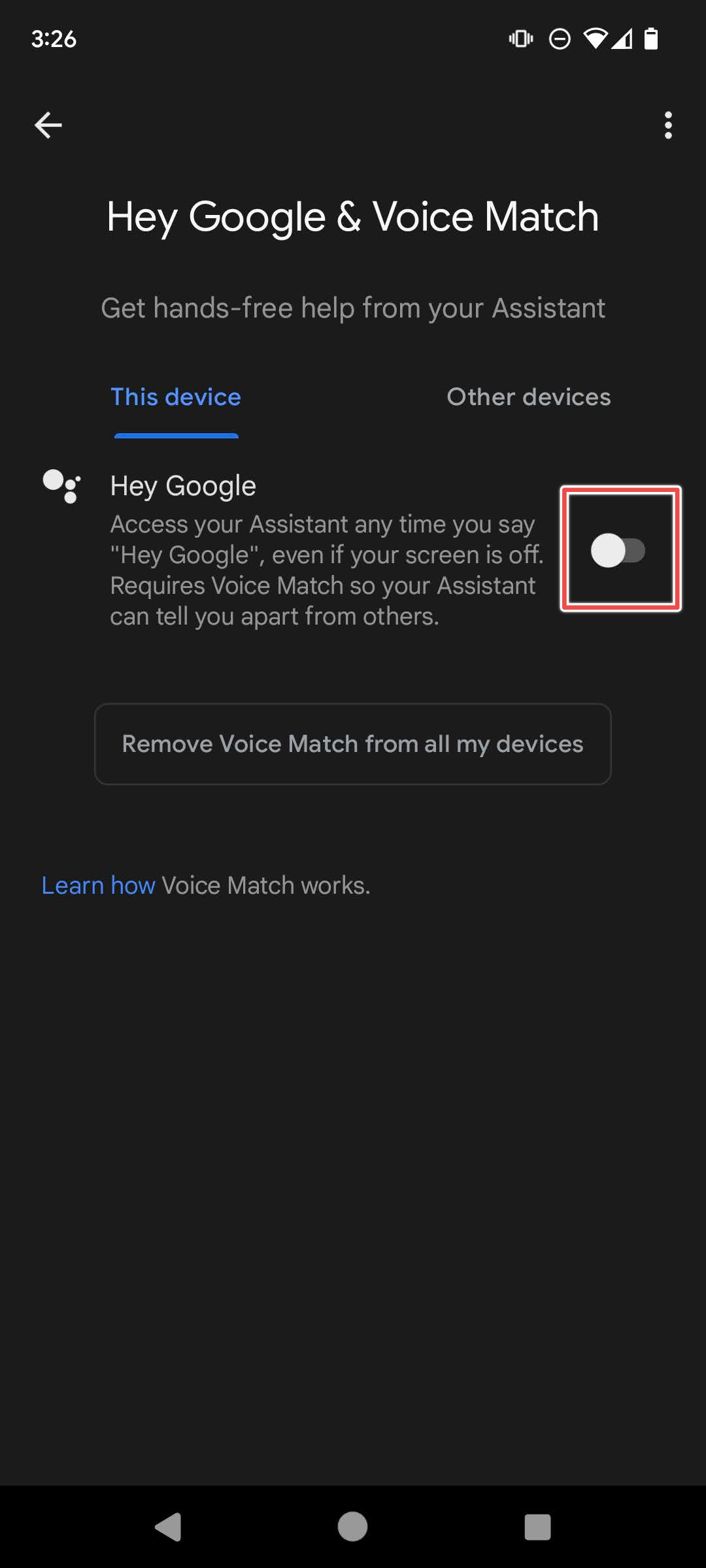
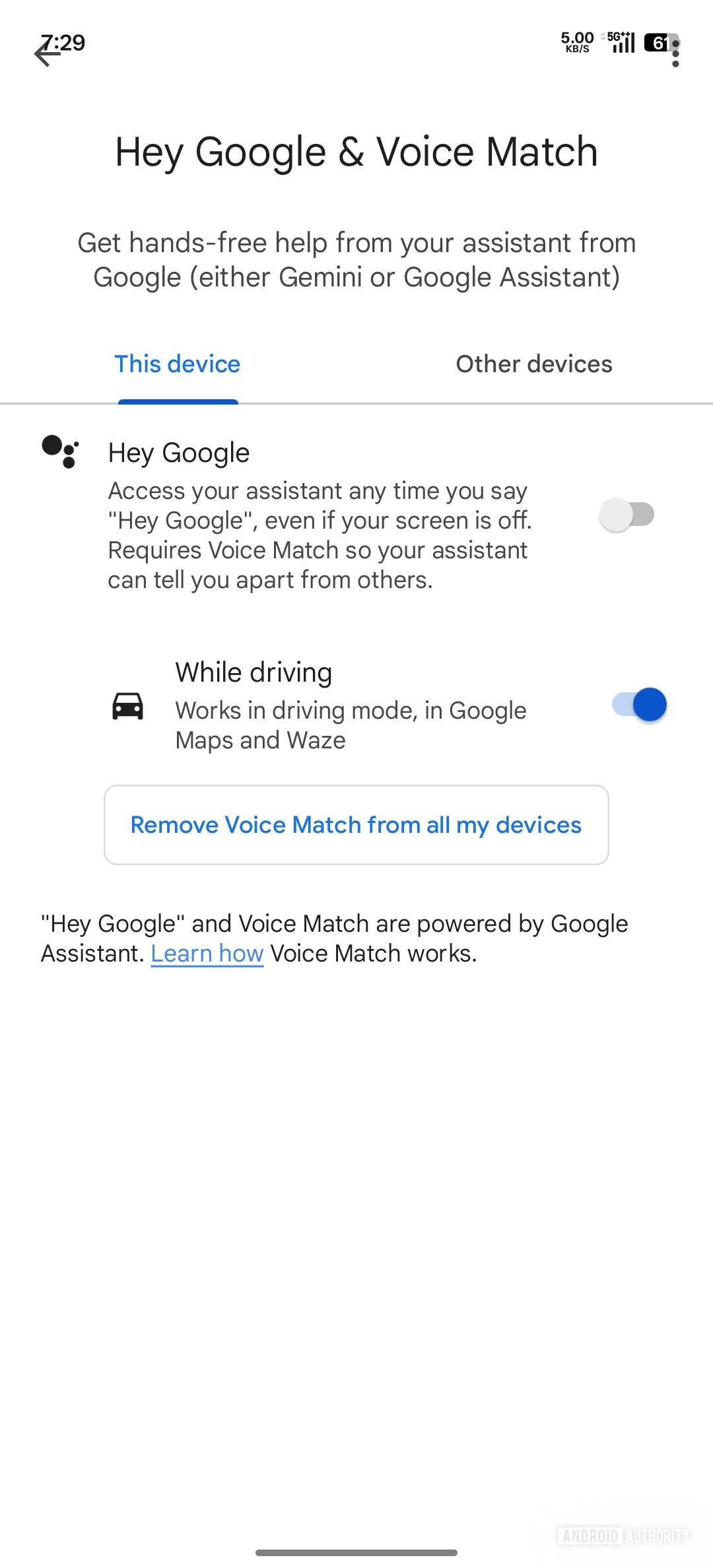
- Locate Hey Google & Voice Match: Scroll down to select Hey Google & Voice Match.
- Enable the Toggle: Turn on the switch next to "Hey Google" to allow your device to respond when you speak the phrase.
- Train the Acoustic Model: Follow the on-screen prompts to say "Hey Google" and "OK Google" multiple times. This trains the machine learning algorithm to recognize your specific vocal pitch, cadence, and timbre.
Multi-User Environments and Personalization
In shared living spaces, multiple household members can configure Voice Match on the same smart speakers or displays. When a user says "Hey Google," the device analyzes the vocal characteristics in real-time, matching the audio against enrolled profiles. If a match is found, the assistant tailors its output—providing calendar events, reminders, and media recommendations specific to that individual. If an unrecognized voice speaks the command, the device treats the user as a guest, restricting access to sensitive personal data while still permitting general queries, weather checks, and smart home control.
Managing Privacy, Data Collection, and Security
Because voice-activated assistants rely on ambient microphone monitoring, data privacy is a central consideration for users. Google provides granular controls to manage what audio data is stored, how long it is retained, and whether human reviewers analyze anonymized snippets.
Controlling Audio Recording Retention
Users can choose whether to store audio recordings captured by Google Assistant when interacting with devices. By navigating to your Google Account's Data & Privacy settings under Web & App Activity, you can modify these preferences:
- Inclusion of Audio Recordings: When enabled, short snippets of audio associated with your "Hey Google" commands are saved to your account to help improve transcription accuracy and product features.
- Deletion Settings: You can configure automatic deletion schedules to purge activity data after 3, 18, or 36 months, or manually delete specific interactions at any time via the My Activity portal.
- Opting Out of Audio Storage: Users can disable the audio storage setting entirely. While voice commands will still function in real-time, raw audio files will not be saved or reviewed.
Physical Mute Switches and Indicator Lights
To guarantee physical privacy in private spaces such as bedrooms and bathrooms, hardware devices feature dedicated physical mute switches or buttons. Flipping this switch hardware-disconnects the microphone array, preventing the device from listening for "Hey Google" regardless of software settings. Additionally, multi-colored LED lights on Nest devices visually indicate operational states—pulsing or glowing when listening, processing, or responding, and remaining solid amber or red when muted.
| Feature / Setting | Description | Management Location | Privacy Impact |
|---|---|---|---|
| Voice Match | Recognizes specific user voices for personalized responses. | Google Home / Assistant App Settings | Ensures personal data is only shown to authorized speakers. |
| Audio Recordings | Saves vocal snippets to improve speech recognition algorithms. | Google Account > Data & Privacy > Web & App Activity | Optional; can be disabled to prevent storage of raw voice files. |
| Physical Mute Switch | Mechanically disconnects power or signals from the microphone array. | Physical button/slider on device chassis | Provides absolute privacy by disabling acoustic detection entirely. |
| Activity Controls | Manages retention periods for assistant queries and search history. | Google My Activity Dashboard | Allows manual or automated deletion of historical voice data. |
Practical Applications and Advanced Voice Commands
Once configured, "Hey Google" opens access to thousands of integrations. Moving beyond basic weather checks and timer settings involves structuring commands to leverage the full utility of the assistant.
Smart Home Automation and Routines
Voice commands can control individual smart devices—such as smart bulbs, thermostats, and locks—or execute complex multi-device automation through Routines. By saying a custom phrase after the wake word, or scheduling a routine, users can automate daily workflows:
- "Hey Google, good morning" can trigger a sequence that turns off security cameras, adjusts the thermostat to a comfortable daytime temperature, raises smart blinds, and reads out today's weather forecast and calendar appointments.
- "Hey Google, movie time" can dim living room lights to 20%, turn on the television, and switch the audio input to the soundbar.
Media Control, Productivity, and Information Retrieval
Managing digital life hands-free reduces friction during work or household chores. Common operational categories include:
- Media Casting: Instructing speakers to stream music, podcasts, or audiobooks from default services like Spotify, YouTube Music, or Pandora using specific track, artist, or genre requests.
- Productivity Management: Adding items to shared grocery lists, setting recurring reminders, creating calendar events, and sending hands-free text messages or initiating phone calls.
- Information Retrieval: Querying complex factual questions, real-time flight status, traffic conditions for commuting routes, and currency conversion rates.
Troubleshooting Common "Hey Google" Issues
When a device stops responding to the wake word, troubleshooting requires isolating whether the failure stems from hardware settings, network connectivity, or software glitches.
Common Failure Points and Resolution Steps
- Device Not Responding to "Hey Google":
- Check Mute Status: Ensure the physical microphone mute switch on the back or bottom of the smart speaker/display is not engaged (often indicated by orange or red lights).
- Verify Wi-Fi Connection: Confirm that the device is connected to a stable Wi-Fi network and can reach the internet. Offline devices cannot process cloud-based wake-word requests.
- Re-train Voice Match: If the device responds to other people's voices but ignores yours, navigate to the Assistant settings and re-record your voice profile samples.
- False Activations (Triggering Unintentionally):
- Adjust "Hey Google" Sensitivity: In the Assistant settings for individual speakers, you can adjust the sensitivity slider to make the device require a clearer, closer, or louder pronunciation of the wake word, reducing accidental triggers from television audio or household conversations.
- Connectivity and Response Delays:
- Restart the Device: Power cycling smart speakers by unplugging them for 10 seconds clears temporary cache and re-establishes router handshakes.
- Network Interference: Ensure smart speakers are positioned away from heavy electromagnetic interference sources like microwave ovens or thick concrete load-bearing walls.
Frequently Asked Questions
Can I change the wake word from "Hey Google" to something else?
Google allows limited customization depending on the device. While you cannot program an entirely custom wake phrase, many Google Nest and Home devices support "OK Google" interchangeably. On certain Google Pixel smartphones, you can bypass the wake word entirely for specific incoming calls or alarms by using quick phrases, but a fully customizable wake word like those found on some competing ecosystems is not supported out of the box.
Does "Hey Google" record everything I say inside my house?
No. Devices maintain a local, rolling buffer in memory solely to listen for the acoustic pattern of the wake word. Raw audio is neither streamed to the cloud nor saved locally until the wake word is positively identified. Once triggered, the recording window opens for the duration of the command and closes shortly after the interaction concludes.
Why do multiple devices respond when I say "Hey Google"?
Google utilizes an algorithm called Quick Phrase coordination or multi-device arbitration. When multiple Assistant-enabled devices hear the wake word simultaneously, they communicate via local Wi-Fi to determine which device is closest to the user (based on signal strength and acoustic clarity) so that only that single device responds. If multiple devices are answering, ensure your devices are assigned to the correct rooms within the Google Home application.
Is an internet connection required for "Hey Google" to function?
An active internet connection is strictly required for cloud-based speech processing, third-party smart home integration, web searches, and media streaming. Without internet access, local devices cannot translate the audio file into actionable commands or retrieve responses.
How do I delete my past voice recordings from Google Assistant?
You can delete voice history by opening the Google Home app, navigating to your Google Account settings, selecting Data & Privacy, and opening Web & App Activity. From there, you can view your history, delete specific voice interactions manually, or set up auto-deletion rules to purge logs older than a specified timeframe automatically.
Conclusion and Next Actions
Mastering the "Hey Google" ecosystem involves balancing convenience with privacy awareness. To optimize your voice assistant experience, verify that your Voice Match profile is accurately trained, configure room-specific device placements to avoid multi-device conflicts, and review your data privacy settings to match your personal comfort level regarding audio storage and retention. Review your Google Home app settings today to audit active devices and refine your automated daily routines.
.png)
:quality(75)/hey_google_01_dea1fb2e01.jpg)