The primary intent of this search is to identify methods to suppress intrusive advertisements and malicious redirects within the Safari browser and third-party applications on iOS 2026. This guide focuses on native configuration and verified content-filtering extensions.
Understanding the iOS 2026 Native Browser Security Architecture
As of 2026, Apple has integrated more aggressive privacy protections into iOS. The Safari engine, WebKit, includes a built-in pop-up blocker that is enabled by default. However, sophisticated advertising scripts often utilize complex JavaScript triggers that bypass traditional blocking mechanisms. Understanding how your iPhone handles web traffic is the first step toward reclaiming your browsing experience.
When a website attempts to spawn a new window, Safari evaluates the request against its internal security policy. If the action was not triggered by a direct user interaction—such as a tap or a gesture—the browser suppresses the event. Modern sites frequently circumvent this by using "on-click" triggers that are deceptive, forcing a new window to open even when the user intended to simply click a functional button.
Step-by-Step Configuration of Native Safari Blocking
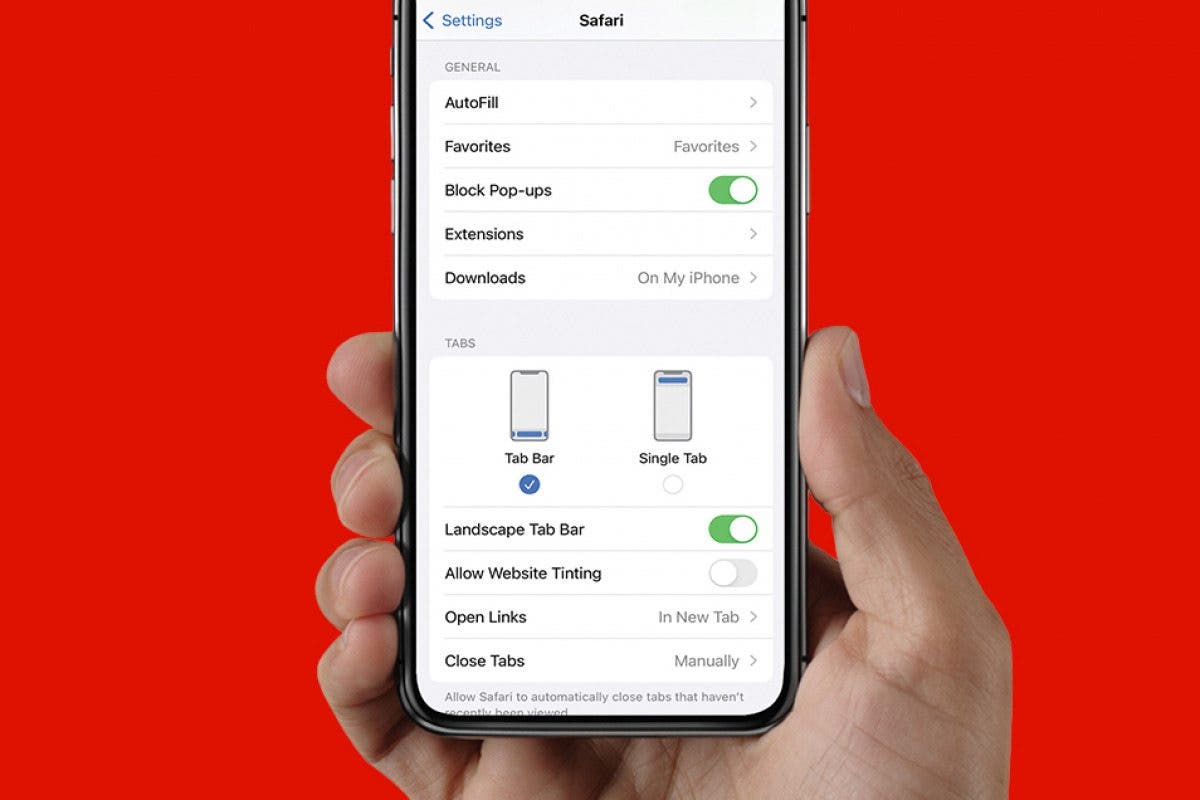
To ensure your baseline protections are active, follow these mandatory steps for the 2026 iOS interface:
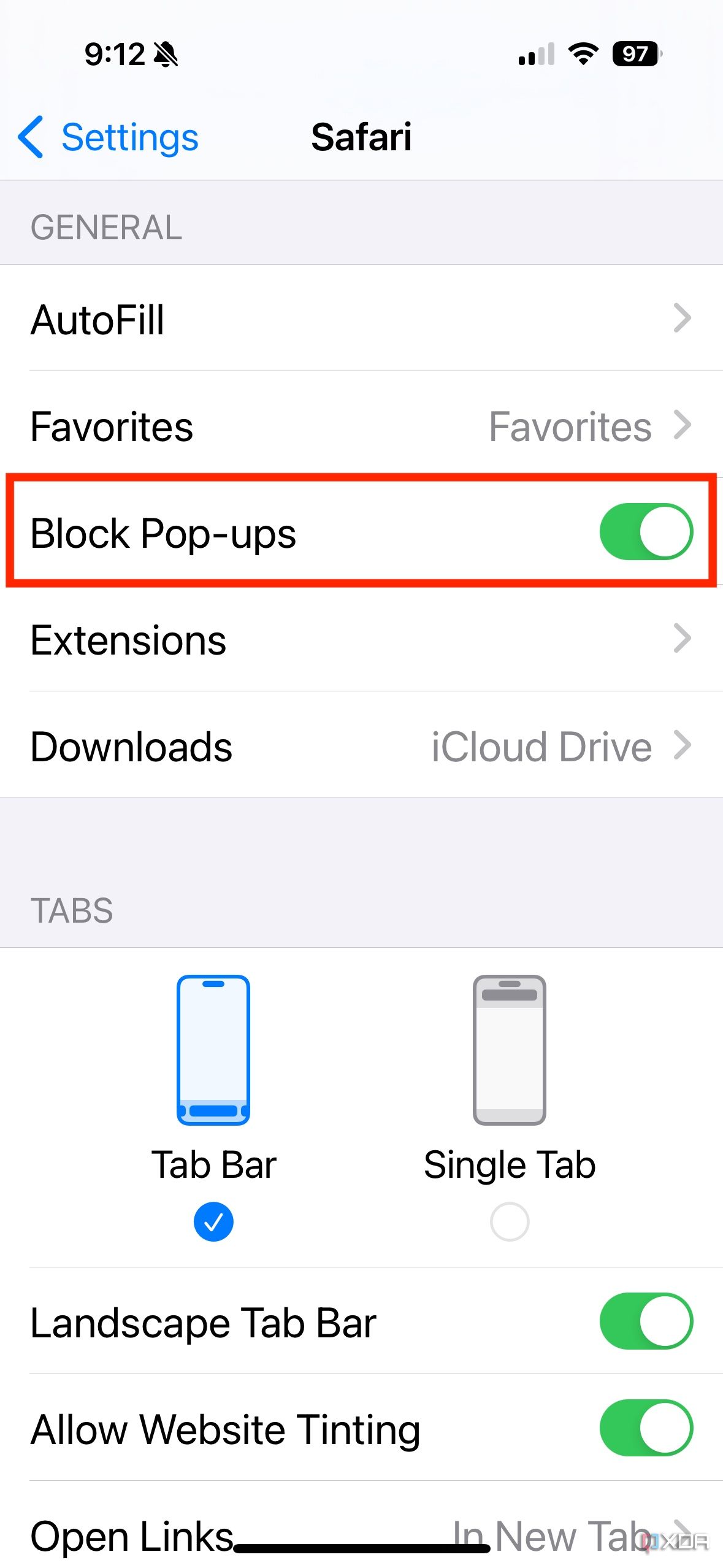
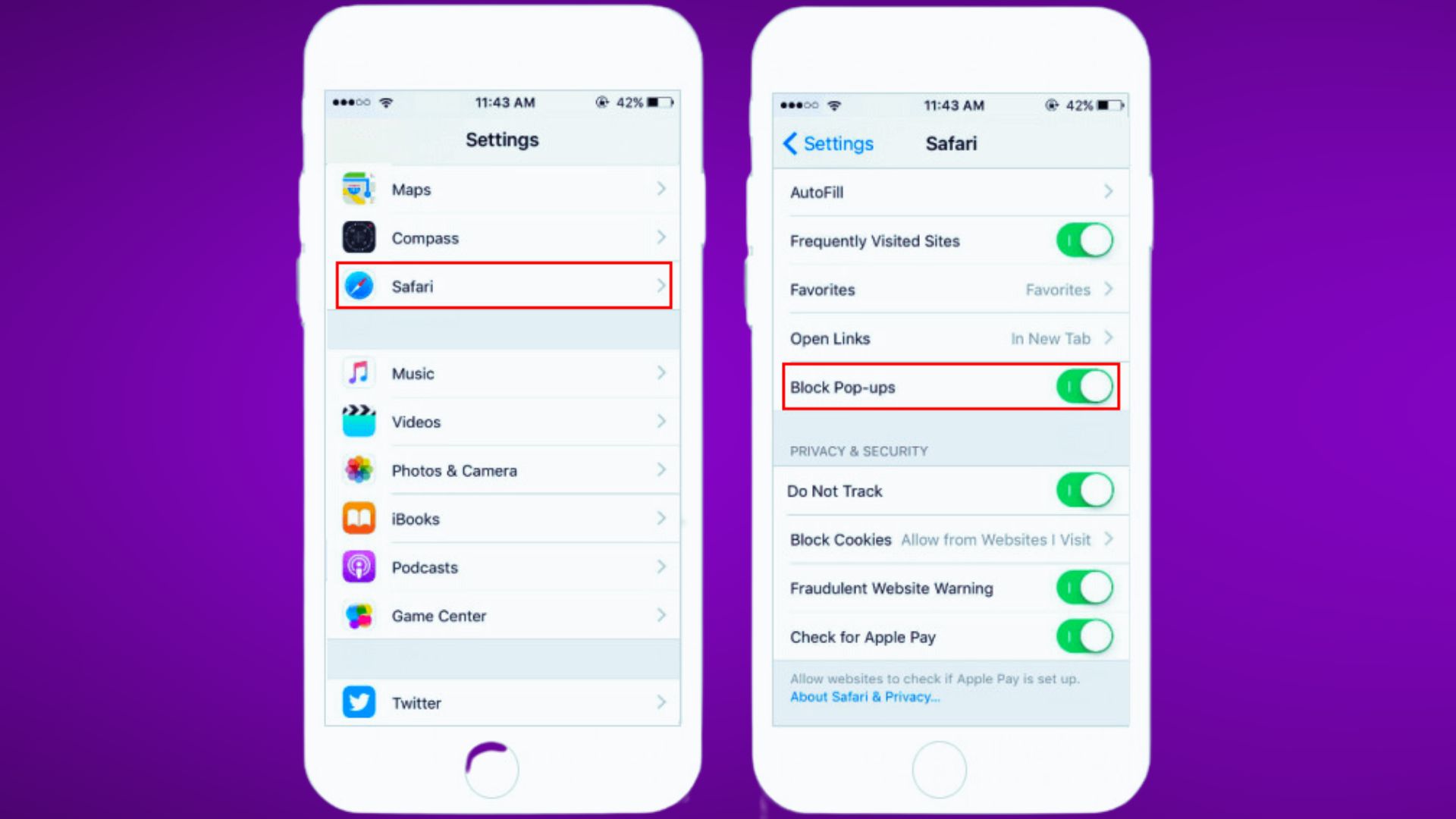
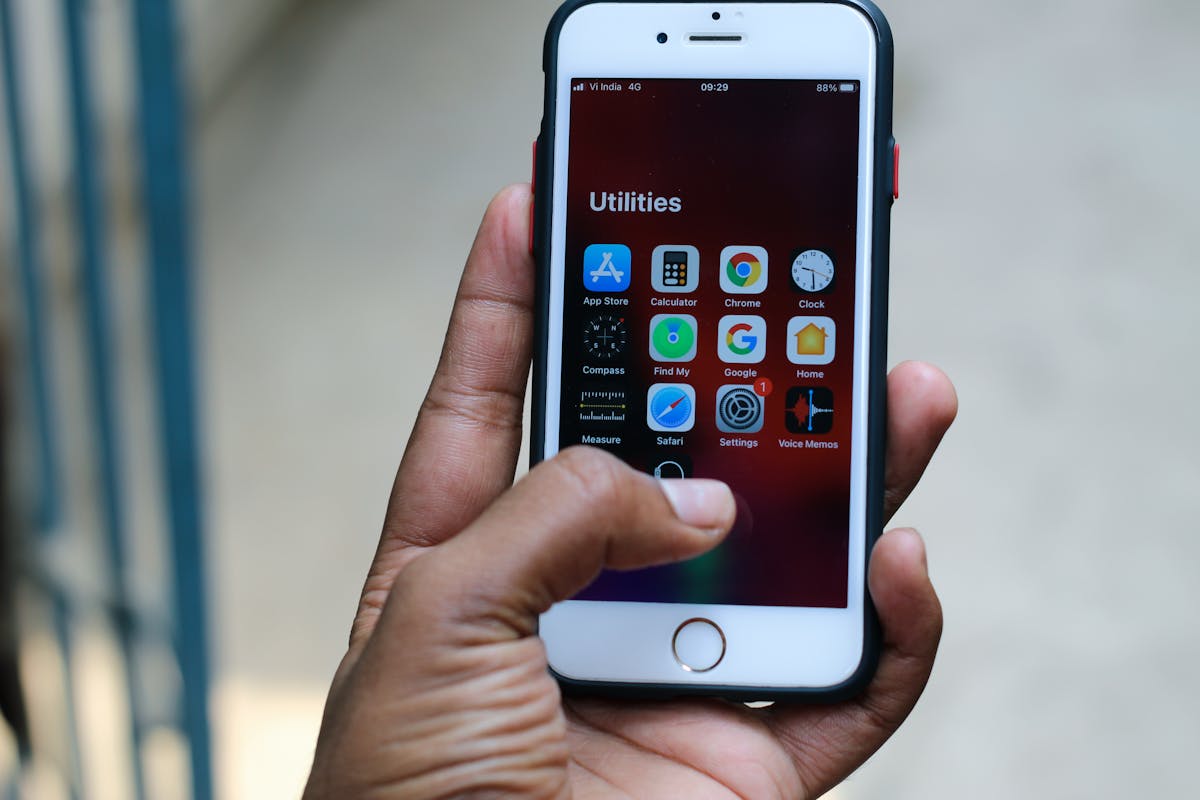
- Open the Settings app from your home screen.
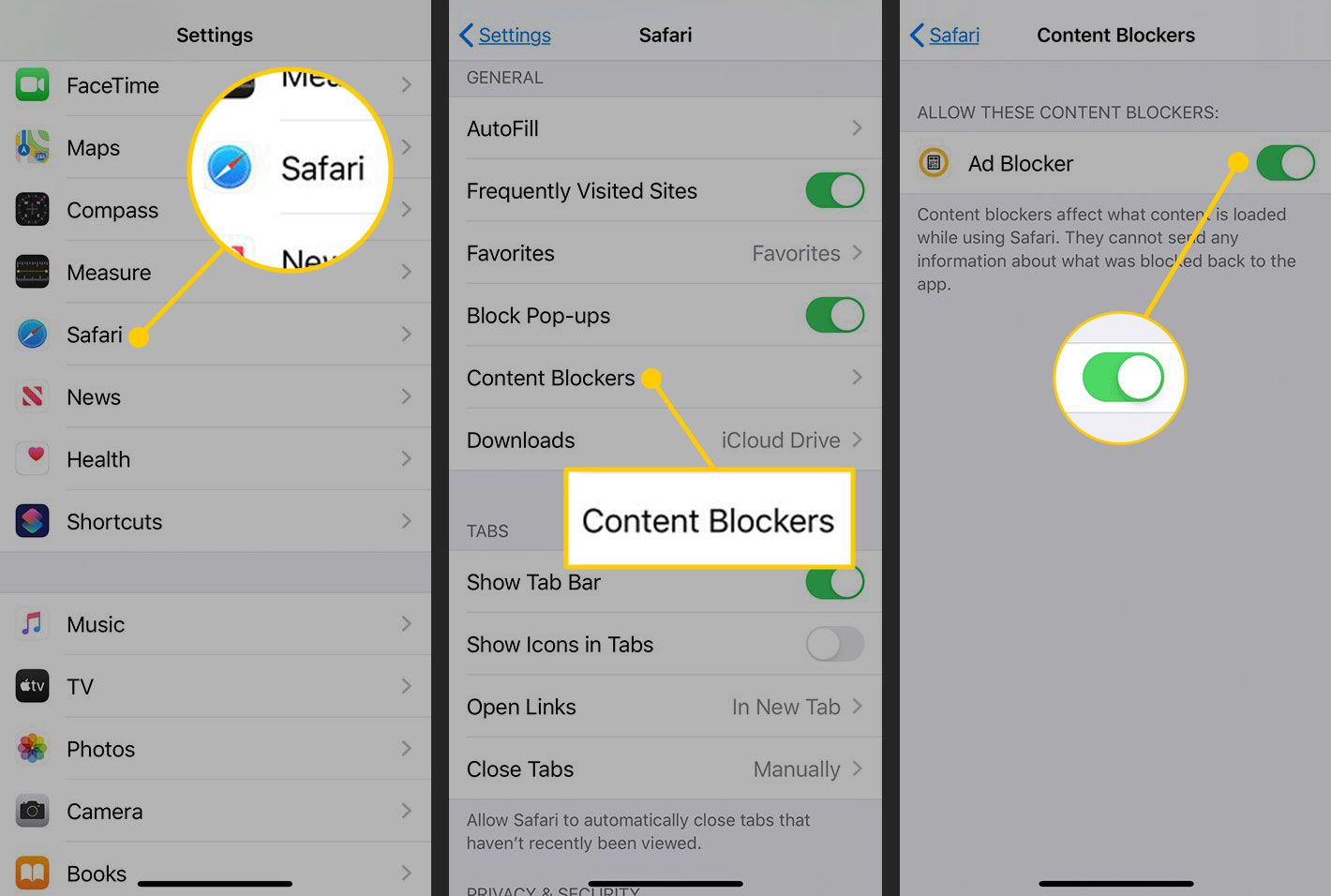
- Scroll down until you identify the Safari icon and tap to open the sub-menu.
- Locate the General category header.
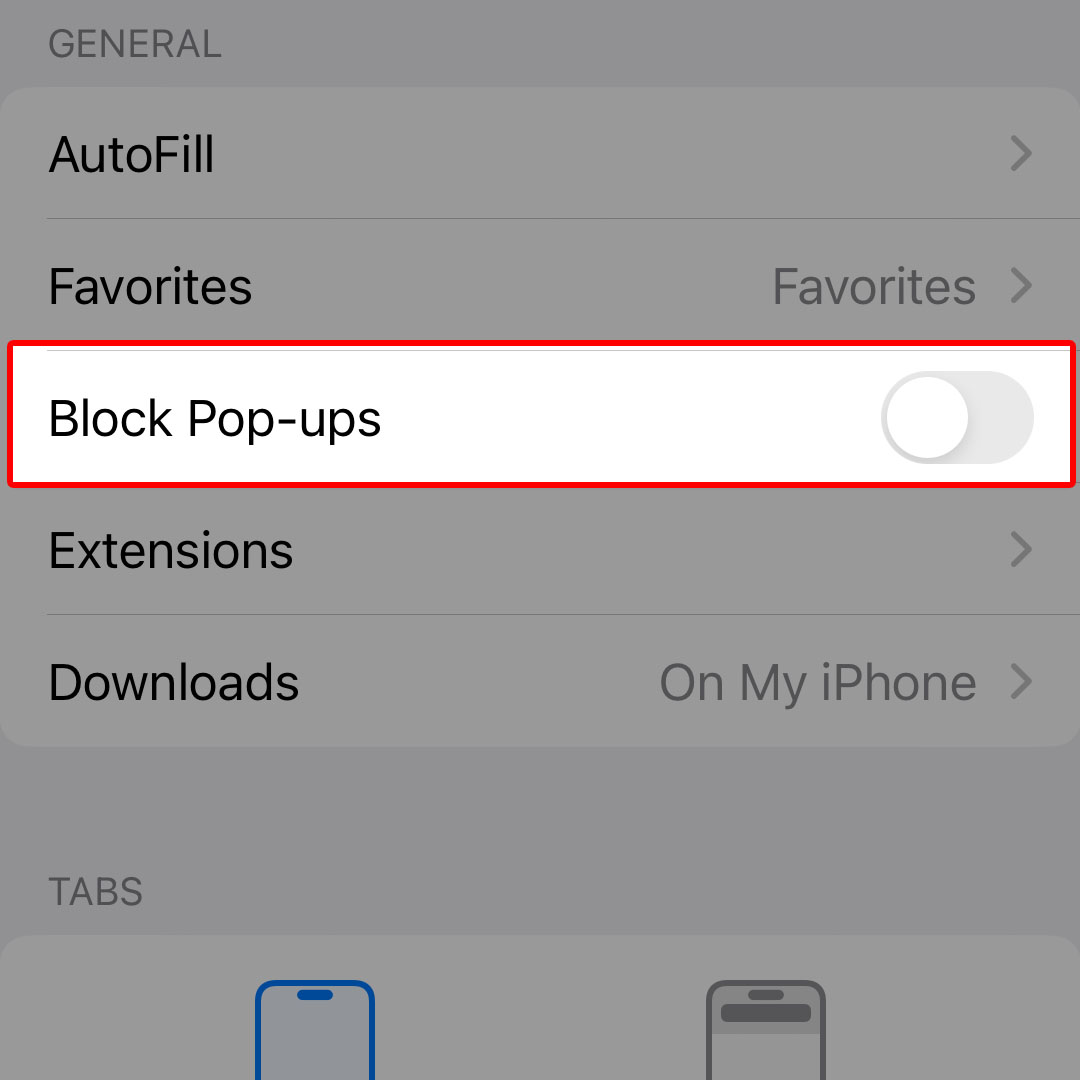
- Verify that the toggle for Block Pop-ups is set to the ON position (green).
- Navigate to the Advanced menu at the bottom of the Safari settings.
- Ensure that JavaScript remains enabled for site functionality, as disabling it will break the vast majority of web content in 2026, though it is the most effective way to stop all pop-ups.
Leveraging Content Blocking Extensions for Enhanced Filtering
While the native blocker is efficient, it does not possess the granular control of dedicated content-filtering extensions. These extensions utilize the Safari Content Blocker API to intercept requests before they render on your screen. This architecture is significantly more performant than legacy ad-blockers, as it does not require a proxy or a VPN to function.
| Feature | Native Safari Blocker | Third-Party Extension (Premium) |
|---|---|---|
| Resource Consumption | Negligible | Low to Moderate |
| Anti-Tracking Protection | Moderate | Advanced / Deep |
| Pop-up Heuristics | Standard | Machine Learning / Real-time |
| Privacy Policy | Managed by Apple | Managed by Developer |
| Configuration Complexity | Minimal | Requires App Setup |
To implement an extension:
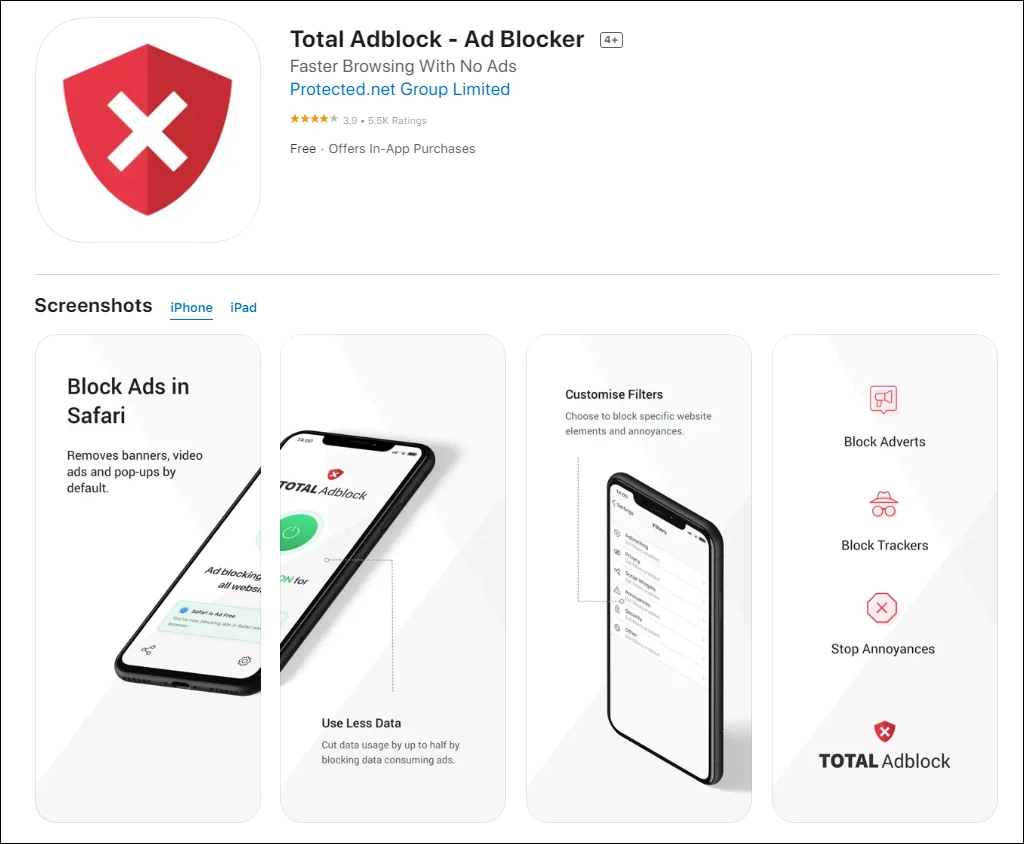
- Download a reputable content blocker from the App Store.
- Return to Settings > Safari > Extensions.
- Tap on the installed extension and toggle it to ON.
- Return to the main Safari settings page and ensure that the extension is granted permission to access all websites you frequent.
Managing Deceptive Redirects and Persistent Overlay Ads
Some websites in 2026 employ "overlay" tactics that are technically not pop-ups but function identically. These are often legitimate content blocks designed to push newsletters or cookie consent forms. If you find yourself frequently clearing these, the best approach is to leverage the "Reader View" feature in Safari.
When you enter Reader View by tapping the double-A (AA) icon in the address bar, the browser strips away the layout scripts, tracking pixels, and overlay advertisements, presenting only the primary text and image content. This is the most robust method for maintaining a clean reading experience without requiring invasive third-party software.
Operational Security Protocol
Avoid Profile-Based Ad Blockers. Be cautious of security profiles that ask for root certificate installation. These profiles are often marketed as ad-blockers but function as Man-in-the-Middle (MitM) proxies that decrypt your HTTPS traffic, effectively nullifying the encrypted security Apple provides. Stick exclusively to extensions that utilize the official WebKit Content Blocker API.
Troubleshooting Common Ad-Blocker Failures
If you continue to see advertisements despite your configuration, consider these technical factors:
- Site-Specific Cache: Safari may be loading a cached version of a site that includes the pop-up script. Clear your cache via Settings > Safari > Clear History and Website Data.
- DNS-Level Filtering: Some users employ private DNS providers (such as NextDNS or Cloudflare Gateway) to filter traffic at the network level. If you are using a custom DNS in your Wi-Fi settings, it may be conflicting with your on-device blockers.
- App-Specific Webviews: Apps like Facebook or TikTok use an in-app browser (SFSafariViewController). These browsers do not always inherit your Safari settings. If you are seeing ads inside an app, you must navigate to that specific app's settings to see if it provides an "Open in Safari" option, which allows you to view the content through your configured, protected browser instance.
Frequently Asked Questions regarding iOS 2026 Ad Blocking
Does a pop-up blocker slow down my iPhone battery life? No, modern content blockers actually improve battery life by reducing the number of background scripts and high-bandwidth advertisement images your processor is required to render. By preventing these trackers from loading, you conserve CPU cycles and data usage.
Are there free blockers that are safe to use? Yes, several open-source content blockers are available on the App Store that prioritize privacy by running entirely on-device without sending your browsing data to external servers. Always check the developer’s privacy disclosures to ensure they do not collect browsing history.
Why do some websites detect that I am using a blocker? Anti-adblock scripts analyze the "DOM" (Document Object Model) of a page to see if elements were successfully rendered. If you encounter these, it is a sign that the website is forcing a specific delivery protocol; you may need to whitelist the site or use Reader View to circumvent the wall.
Will an ad-blocker protect me from viruses? While they prevent malicious scripts and "malvertising" (advertisements containing malware) from loading, they are not a substitute for standard cybersecurity hygiene. Keep your iOS updated to the latest 2026 security patches to ensure the kernel remains protected against browser-based exploits.
Can I block ads in YouTube? Safari extensions can block YouTube ads on the web version of the platform, but they cannot influence the ad-load within the native YouTube application, as that app utilizes a proprietary delivery system.
Maintaining Your Privacy Configuration
As we progress through 2026, the cat-and-mouse game between ad-tech providers and browser security will continue. To remain protected, audit your Safari Extensions monthly. Remove any extensions that have not received an update in more than six months, as these are unlikely to be effective against current obfuscation techniques. Regularly clearing your website data and cookies ensures that tracking tokens cannot follow your activity across different domains, which is often the catalyst for targeted, invasive pop-ups. For those requiring a highly secure environment, pairing a reliable content blocker with a strict Private Browsing configuration offers the most robust defense available on the iOS platform.