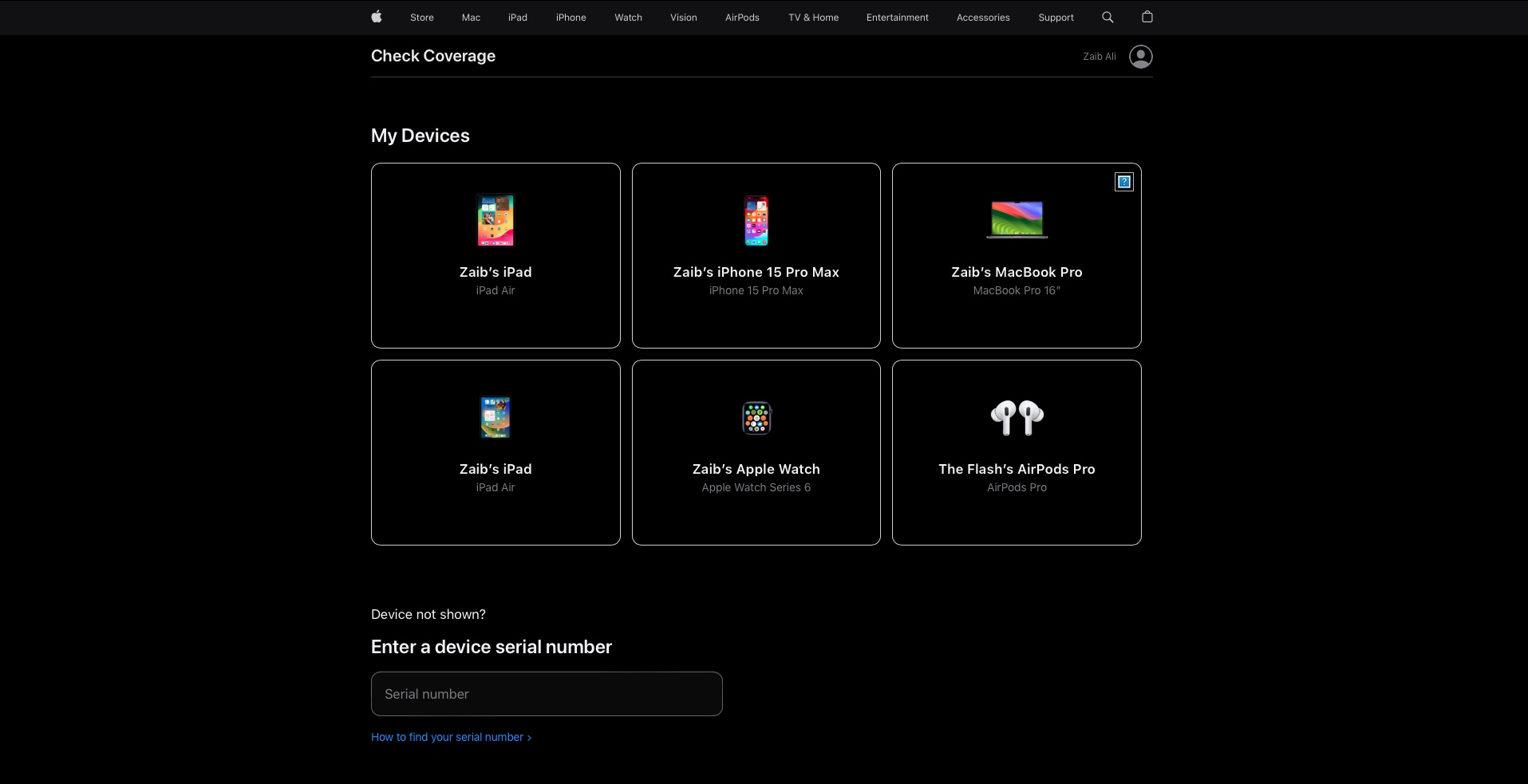
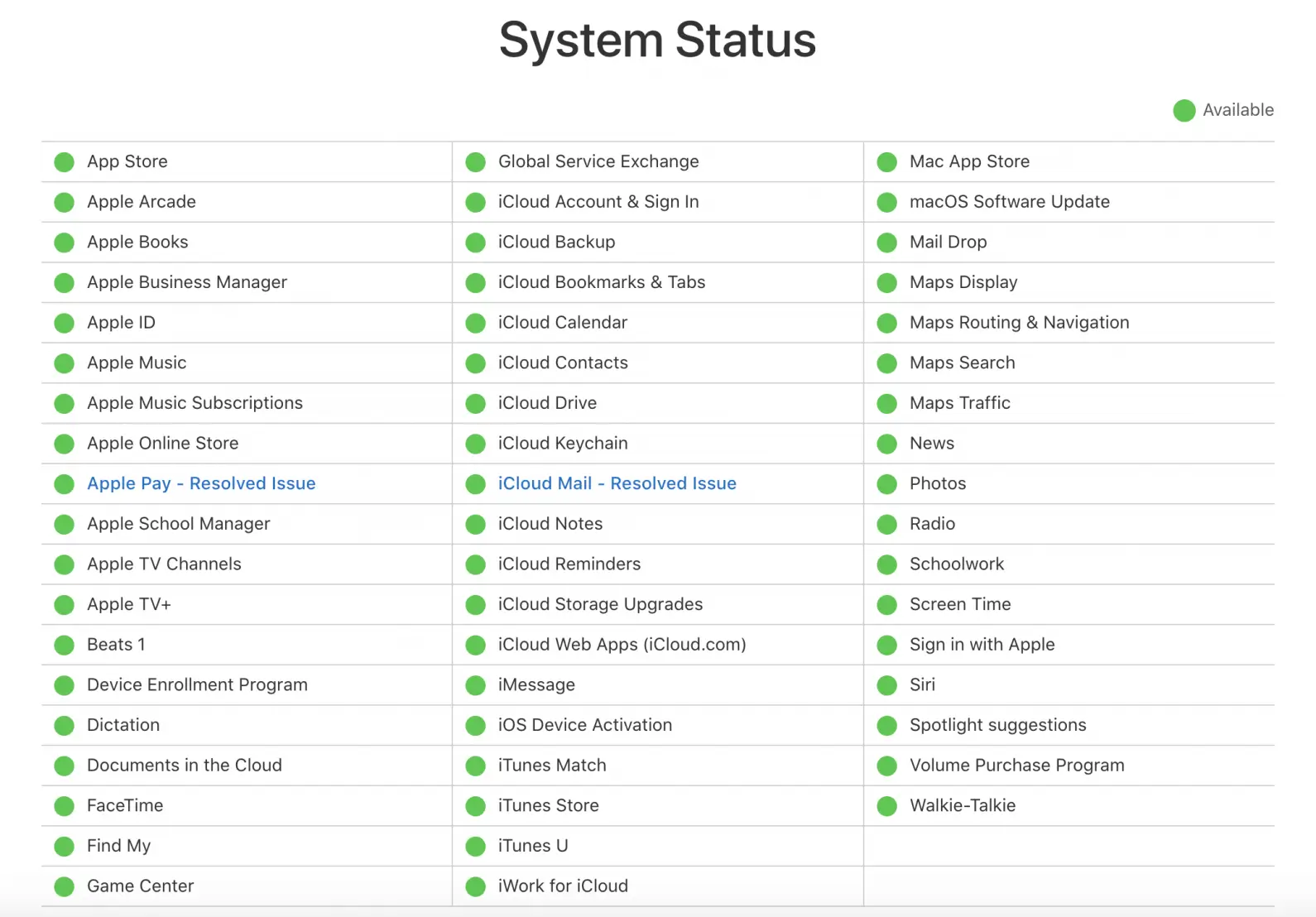
To check your Apple device status or warranty, locate your serial number in Settings > General > About and enter it on the official Apple Check Coverage website. For real-time service outages, visit the Apple System Status page. These tools verify authenticity, remaining AppleCare+ coverage, and the functional health of Apple’s cloud services.
Navigating the Apple ecosystem requires a clear understanding of how to verify the integrity, security, and support status of your hardware and software. Whether you are purchasing a used iPhone, troubleshooting a sync issue with iCloud, or confirming if your MacBook is still under warranty, knowing how to "check Apple" effectively is a critical skill for any user. In 2026, Apple has streamlined these processes, integrating many verification tools directly into the operating systems while maintaining robust external portals for secondary verification.
Locating Your Apple Serial Number or IMEI
Before you can use any of Apple’s official verification tools, you must identify the unique identifier for your specific piece of hardware. This is the foundational step for any hardware-related check.
On iPhone, iPad, and Apple Watch
For devices running iOS, iPadOS, or watchOS, the software interface is the fastest way to find your information.
- Open the Settings app.
- Navigate to General.
- Tap About.
- Look for the Serial Number. You may also need the IMEI/MEID (found further down the same screen) if you are checking cellular connectivity or blacklisting status.
On Mac Computers
If your Mac is functional, follow these steps:
- Click the Apple Menu () in the top-left corner of your screen.
- Select About This Mac.
- A window will appear showing your model name and serial number. In macOS versions available in 2026, this information is also mirrored in System Settings > General > About.
On Peripheral Devices (AirPods, Apple Pencil)
For accessories, the serial number is often printed on the underside of the device or inside the charging case. For AirPods, if they are paired to an iPhone, you can find the serial number by going to Settings > [Your AirPods Name] while the lid is open.
If the Device Won't Power On
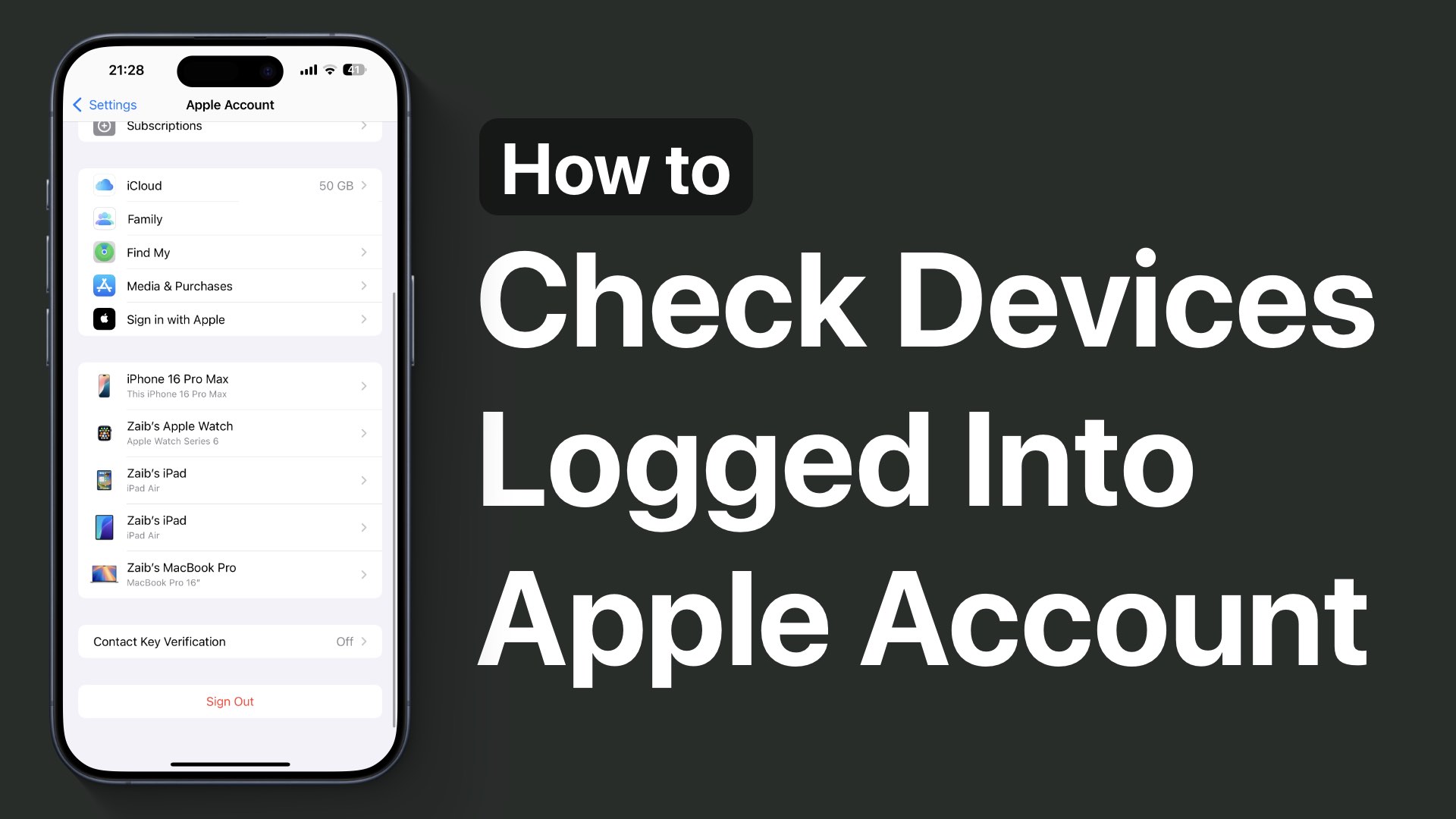
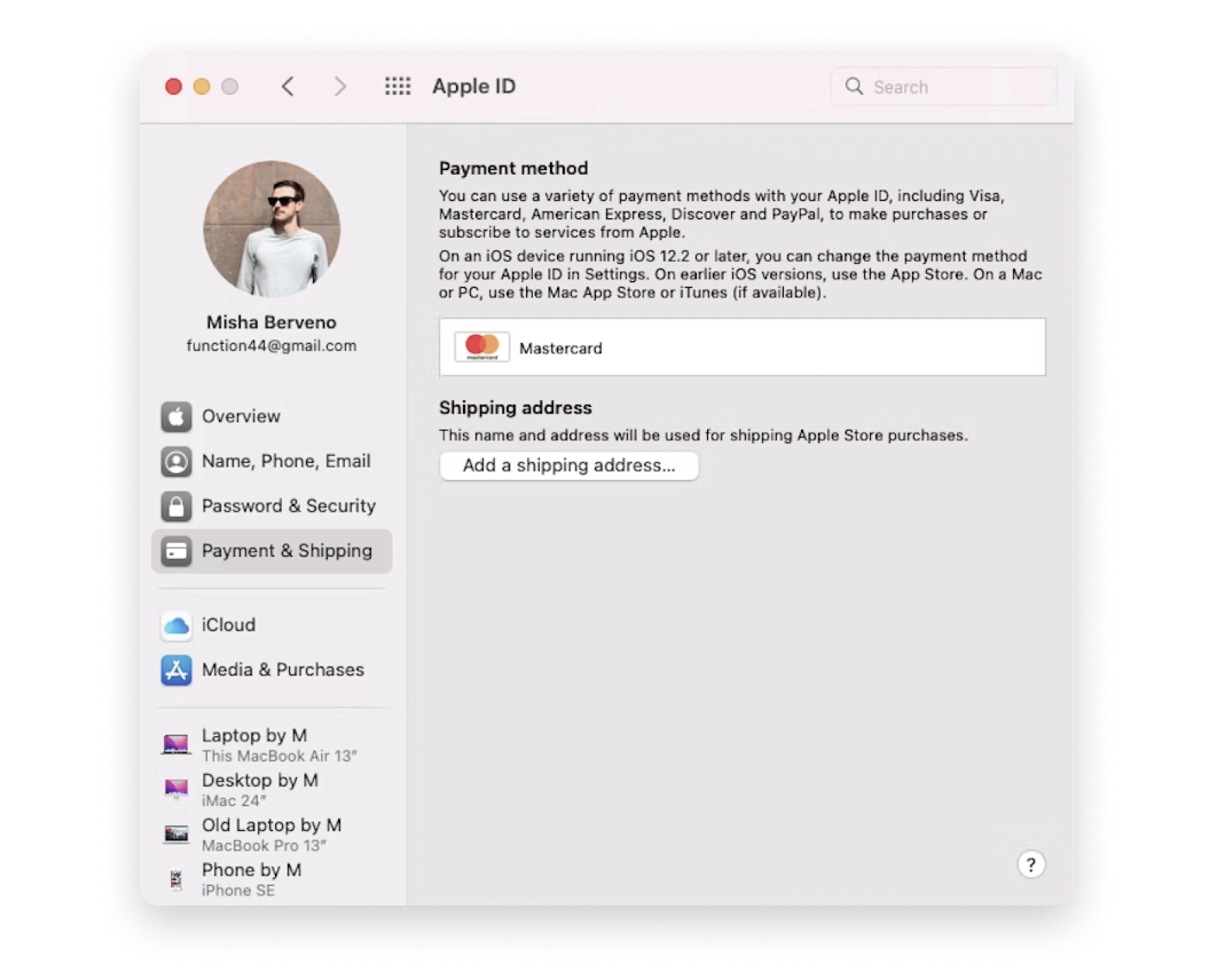
If a device is unresponsive, you can find the serial number printed on the original packaging near the barcode. Additionally, for most iPhones, the serial number is etched on the SIM tray or the back of the device (though newer models have moved away from physical etchings for aesthetic reasons). You can also log into appleid.apple.com to see a list of all devices currently signed into your account along with their serial numbers.
Checking Apple Warranty and Coverage Status
The most frequent reason users "check Apple" is to determine the remaining duration of their warranty or AppleCare+ plan. This is vital before booking a repair or selling a device.
Using the Check Coverage Portal
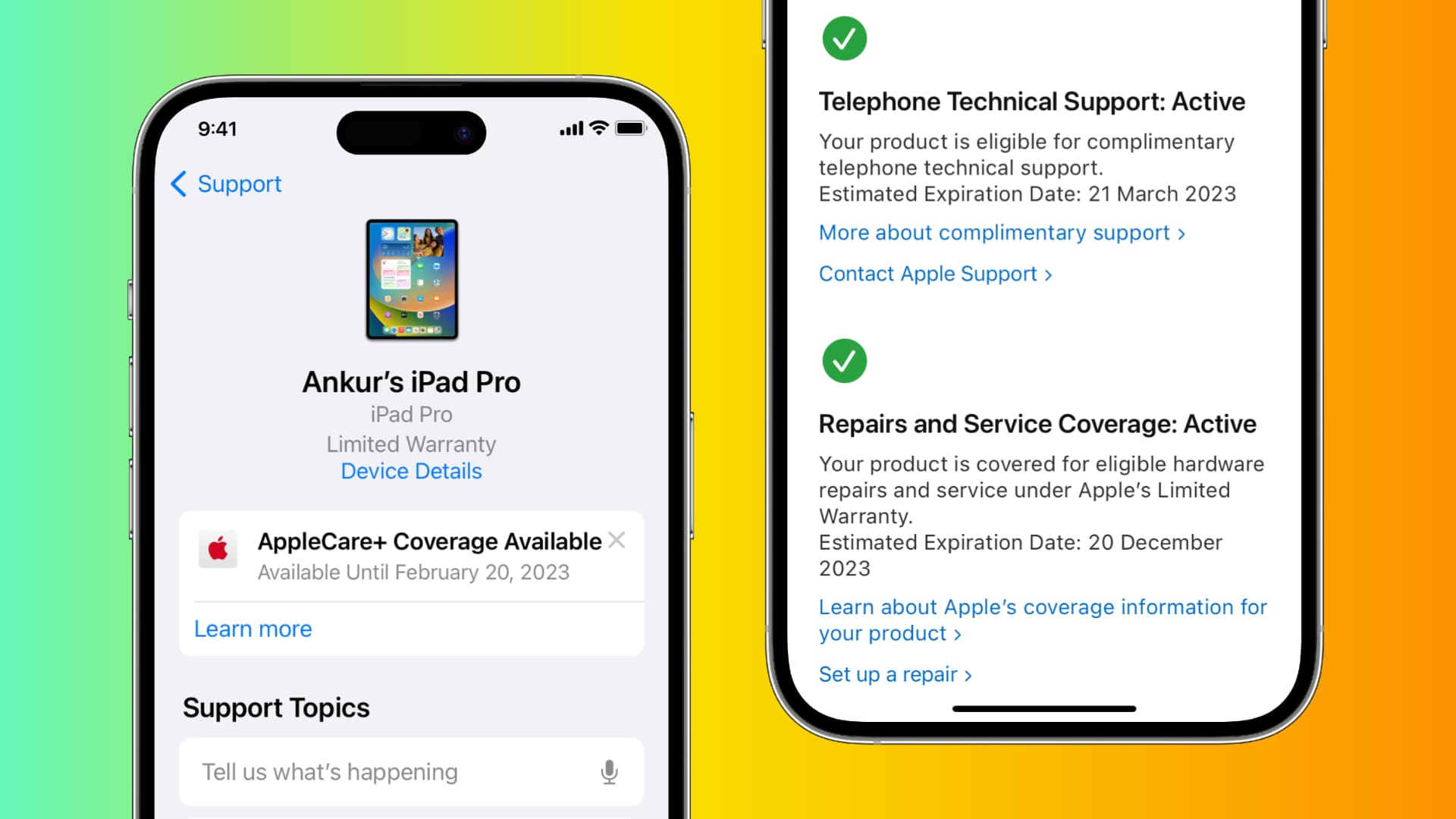
The primary tool for this is the official Apple Check Coverage website. Once you enter your serial number and a CAPTCHA code, the system retrieves the official records from Apple’s database. The results typically display:
- Valid Purchase Date: Confirms the device was sold through an authorized channel, which is essential for warranty eligibility.
- Telephone Technical Support: Indicates if you are still eligible for free phone support (usually 90 days from purchase).
- Repairs and Service Coverage: This section shows if the hardware is still covered by the one-year limited warranty or an extended AppleCare+ plan.
Understanding the Results
If the page displays "Expired," the device is no longer covered under the standard manufacturer's warranty. However, depending on your jurisdiction (such as the EU or UK), you may still have rights under local consumer law. It is important to distinguish between the Apple Limited Warranty, which covers manufacturing defects, and AppleCare+, which includes accidental damage protection.
| Feature | Standard Limited Warranty | AppleCare+ (Subscription or 2-Year) |
|---|---|---|
| Duration | Typically 1 year | 2+ years or ongoing monthly |
| Manufacturing Defects | Covered | Covered |
| Accidental Damage | Not Covered | Covered (with service fees) |
| Battery Service | Only if defective | If capacity drops below 80% |
| Theft and Loss | No | Optional Add-on |
Verifying Device Authenticity and Activation Lock
With the rise of sophisticated counterfeit electronics, checking the authenticity of an Apple product is paramount, especially when buying from third-party marketplaces.
Checking for Activation Lock
Activation Lock is a security feature that prevents anyone else from using an iPhone, iPad, or Mac if it is lost or stolen. When checking a used device, ensure that the previous owner has signed out of Find My. If you see a "Locked to Owner" screen during setup, the device is effectively a "brick" unless the original owner provides their Apple ID credentials.
Apple does not currently provide a standalone web-based Activation Lock status checker for public use due to privacy concerns, so the best way to check is to attempt a clean setup. If the device reaches the "Hello" screen and allows you to sign in with your own Apple ID, the lock is disabled.
Spotting Counterfeits
A valid serial number on the Check Coverage site is a good sign, but it is not definitive, as counterfeiters often clone genuine serial numbers. To verify further:
- Check the App Store: Counterfeit iPhones often run a skinned version of Android. If you open the "App Store" and it redirects to the Google Play Store or a web browser, the device is fake.
- Check Handoff Features: Features like AirDrop and seamless switching for AirPods require proprietary Apple silicon. Fakes rarely replicate these protocols correctly.
- Examine the Display: Genuine Apple devices use high-quality Retina displays. Look for "backlight bleed" or lower resolutions that suggest a non-Apple panel.
Monitoring Apple System and Service Status
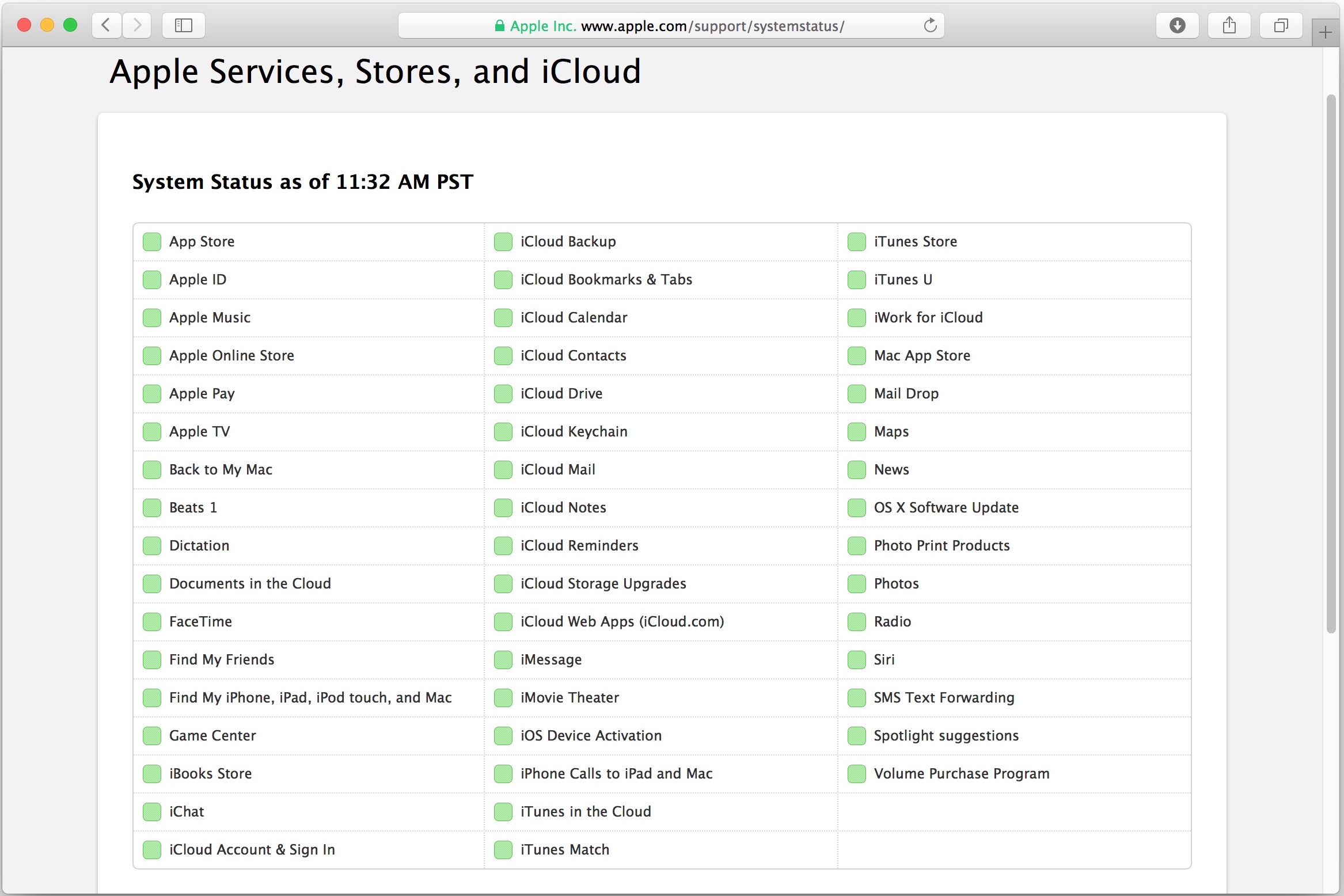
Sometimes the problem isn't your device, but Apple's infrastructure. If you cannot sign into iCloud, send an iMessage, or download an app, you should check Apple's server status.
The Apple System Status page provides a real-time dashboard of every major Apple service.
- Green Circle: The service is operating normally.
- Yellow Triangle: The service is experiencing an issue or slowdown.
- Red Square: The service is currently down (an outage).
In 2026, this dashboard includes granular details for services like Apple Intelligence, Private Cloud Compute, and HomeKit Secure Video. If you notice a widespread issue, checking this page first can save you hours of unnecessary local troubleshooting, such as resetting your router or wiping your device.
Checking Apple ID Security and Account Health
Your Apple ID is the key to your entire digital life within the Apple ecosystem. Regularly checking its security status is as important as checking your hardware.
Reviewing Trusted Devices
Go to Settings > [Your Name] on any of your devices. Scroll down to see a list of every device currently logged into your Apple ID. If you see an unfamiliar device—for example, an older MacBook you sold or a device in a different city—tap it and select Remove from Account. This immediately revokes its access to your iCloud data and iMessages.
Security Recommendations
Within the Apple ID settings, look for the Sign-In & Security section. Apple provides automated "Security Recommendations" that flag issues such as:
- Leaked passwords (detected via data breach monitoring).
- Weak passwords that are easily guessable.
- Inactive recovery contacts or legacy contacts.
Ensuring that Two-Factor Authentication (2FA) is active is the single most important "check" you can perform for your account. By 2026, Apple has made 2FA a near-mandatory requirement for most iCloud services to protect user privacy.
Troubleshooting Common Verification Issues
Occasionally, you may encounter errors when trying to check your device or service status.
Serial Number Not Recognized
If the Check Coverage tool says, "We're sorry, but this serial number is not valid," double-check your typing. Characters like "0" (zero) and "O" (the letter) are frequently confused. If the number is definitely correct and still not recognized, the device may have been replaced by Apple (and the old serial deactivated), or it could be a counterfeit.
"Purchase Date Not Validated"
This message often appears for new devices or those bought from smaller retailers. It simply means Apple hasn't received the sales record yet. You can usually fix this by signing in with your Apple ID and manually updating the purchase date by uploading a copy of your receipt to the Apple Support portal.
iCloud Sync Status
If your data isn't moving between devices, check the "iCloud" section in Settings. Look for the "Status" bar at the bottom of categories like Photos or Notes. It will often tell you if the sync is "Paused" due to low battery or if the "iCloud Storage is Full."
Summary of Essential Apple Check Tools
| Tool Purpose | Official Link / Location | What you need |
|---|---|---|
| Warranty & Repair Status | checkcoverage.apple.com | Device Serial Number |
| Server/Outage Status | apple.com/support/systemstatus | Internet Connection |
| Account Security | appleid.apple.com | Apple ID & Password |
| Repair Pricing Estimates | support.apple.com/repair | Device Model |
| Find My / Activation Lock | icloud.com/find | Apple ID & Password |
Frequently Asked Questions
How can I check if an Apple device is refurbished?
You can check if an iPhone is refurbished by looking at the Model Number in Settings > General > About. If the model number starts with "M," it was purchased new. If it starts with "F," it was refurbished by Apple. If it starts with "N," it was issued as a replacement device by Apple Support. "P" indicates the device was personalized with an engraving.
Is there a way to check an Apple serial number for free?
Yes, checking your serial number on the official Apple Check Coverage website is completely free. You should be cautious of third-party websites that ask for payment to provide "IMEI reports" or "history checks," as they often scrape the same free data available from Apple or cellular carriers.
How do I check the battery health on my Apple devices?
For iPhone and iPad (in 2026), go to Settings > Battery > Battery Health & Charging. This screen shows the maximum capacity relative to when it was new. For Mac, go to System Settings > Battery and click the "i" icon next to Battery Health. Anything above 80% is generally considered healthy.
Can I check my Apple repair status online?
Yes, if you have sent a device in for repair or took it to an Apple Store, you can check its progress at the Apple Repair Status page. You will need your Repair ID or Case ID and your device's serial number or your ZIP code.
How do I check if my Apple device is blacklisted?
If you suspect a device is blacklisted (usually due to being reported stolen to a carrier), the Apple Check Coverage tool will not necessarily show this. You should use a reputable IMEI checker or contact your cellular service provider, as blacklisting is managed by a global database (GSMA) shared by telecommunications companies.
Final Recommendation
To keep your Apple ecosystem running smoothly in 2026, perform a "health check" once every six months. Start by verifying your Apple ID security settings to ensure your recovery information is current. Next, use the Check Coverage portal to monitor the remaining time on your AppleCare+ plans, especially before embarking on international travel. Finally, always verify the Activation Lock status before any secondary-market transaction to ensure the hardware you are buying is legitimate and usable. Taking these proactive steps ensures that when you need your technology most, it is verified, protected, and ready to perform.