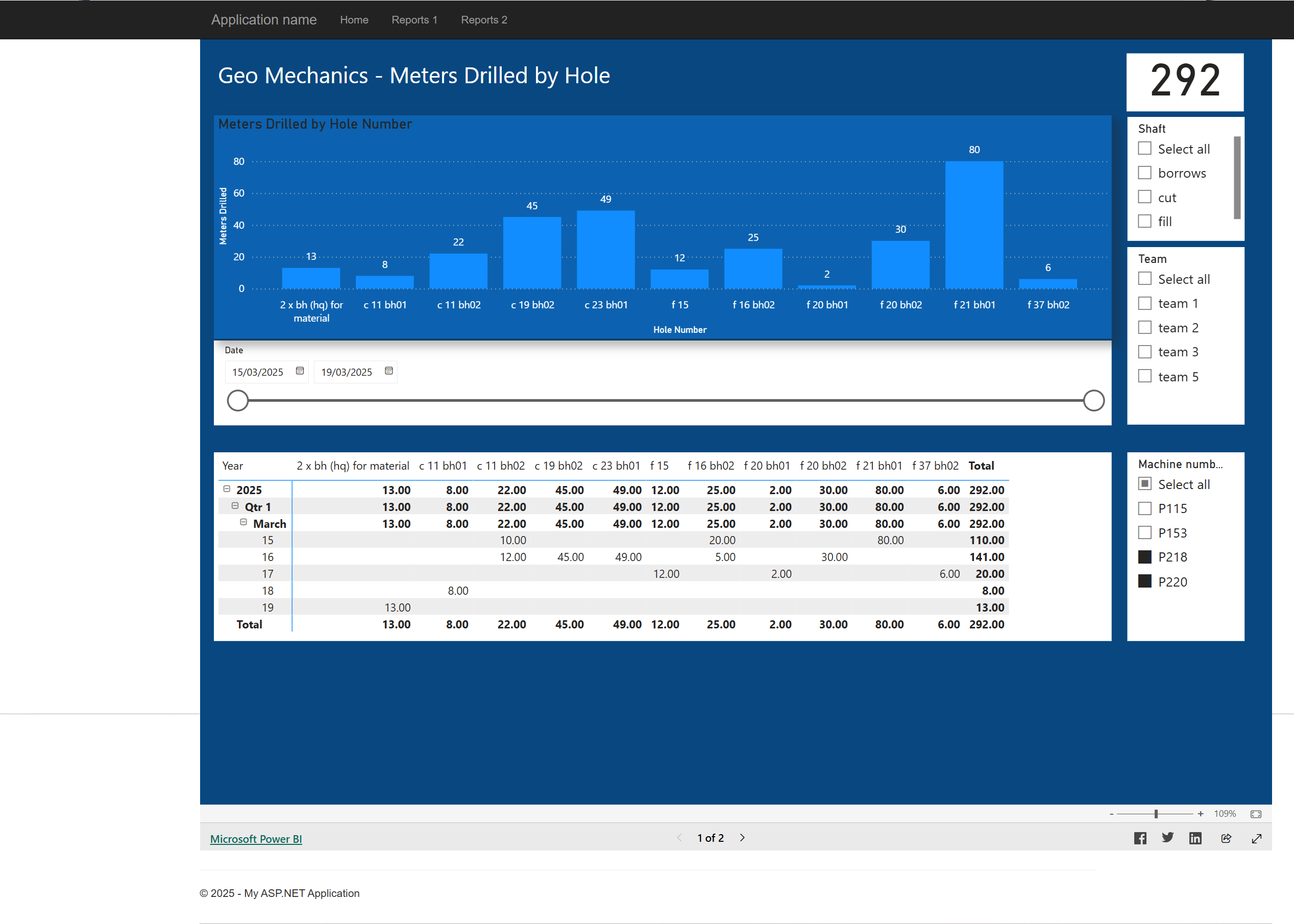
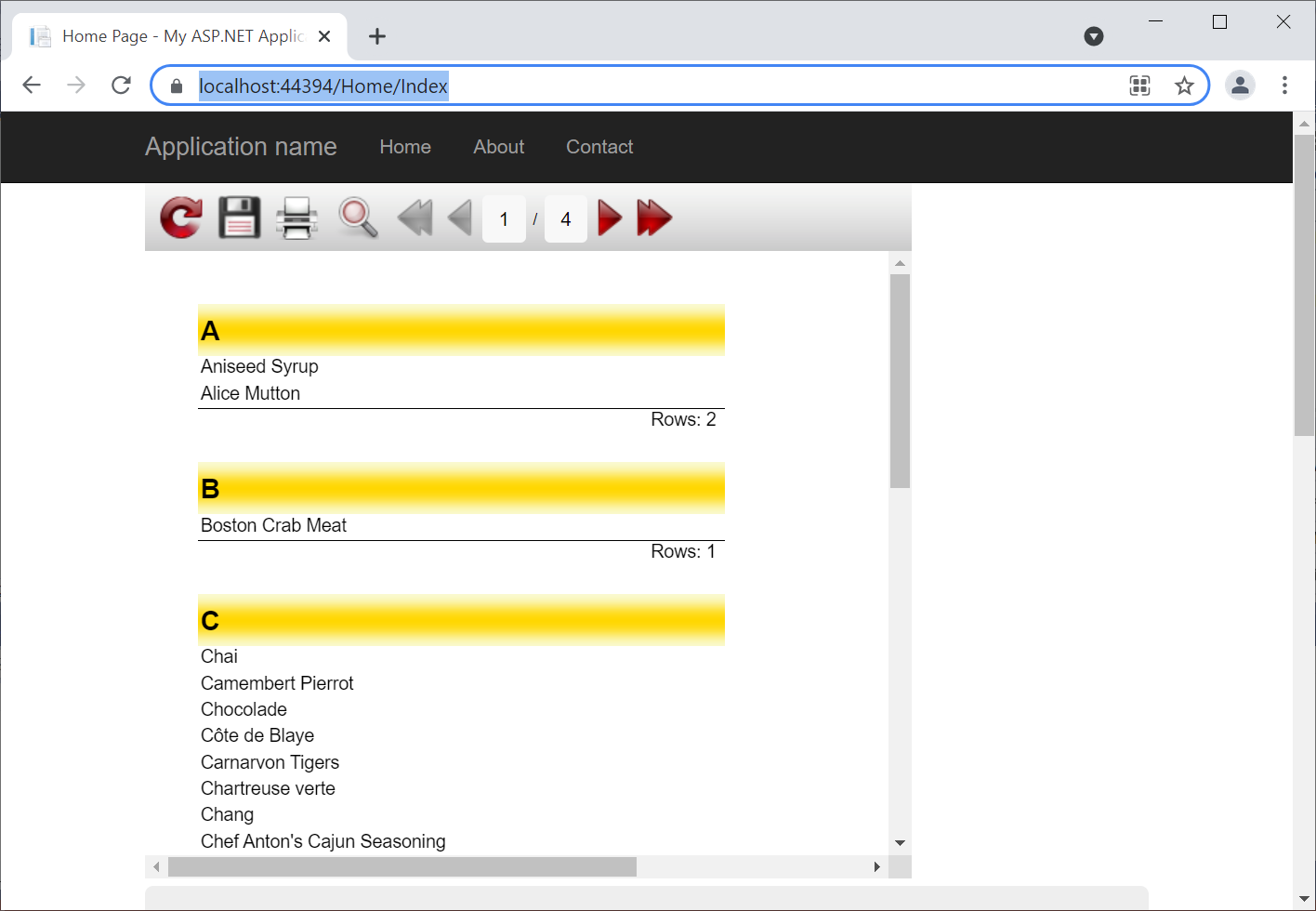
ASP reports are data visualization and documentation tools integrated into web applications built using the ASP.NET framework. They allow developers to retrieve data from various sources—such as SQL databases, APIs, or cloud storage—and present it to end-users in structured, readable, and exportable formats like PDF, Excel, and HTML. In 2026, while the underlying technologies have evolved toward ASP.NET Core and Blazor, the fundamental goal remains the same: transforming raw application data into actionable business intelligence.
The Evolution of ASP Reports: From Classic to Core
To understand reporting in the ASP ecosystem, one must recognize the transition from legacy systems to modern architectures. Historically, "ASP reports" referred to Active Server Pages (Classic ASP) using VBScript to fetch records and manually format HTML tables. This was labor-intensive and lacked sophisticated export capabilities.
With the advent of the .NET Framework, Microsoft introduced SQL Server Reporting Services (SSRS) and the ReportViewer control, which revolutionized how developers handled data. By 2026, the landscape has shifted further toward ASP.NET Core and ASP.NET 8/9, where reporting is often decoupled from the UI. Modern applications now utilize a combination of server-side processing and client-side rendering engines (like React, Angular, or Blazor) to deliver interactive dashboards and pixel-perfect documents.
The primary challenge for developers in 2026 is no longer just "showing data," but doing so in a way that is responsive, accessible, and secure across various device types.
Primary Reporting Engines for ASP.NET Applications
Choosing the right reporting engine is the most critical decision in the development lifecycle. Depending on your infrastructure and budget, several industry-standard options exist.
SQL Server Reporting Services (SSRS)
SSRS remains the "gold standard" for enterprise-level ASP reports. It is a server-based report generation software system from Microsoft. It provides a full range of ready-to-use tools and services to help you create, deploy, and manage reports for your organization.
- Why use it: It excels at high-volume, scheduled reporting and offers a centralized repository for report definitions (RDL files).
- Integration: In 2026, SSRS is frequently accessed via REST APIs, allowing modern ASP.NET Core applications to trigger report generation and retrieve the output without being tightly coupled to the SQL Server instance.
Local Reports (RDLC)
For applications that do not require a full SSRS server, Report Definition Language Client-side (RDLC) is the preferred choice. These reports are processed locally by the application itself.
- Why use it: RDLC is ideal for smaller applications or scenarios where you want to bundle report definitions within your project files. It does not require a separate license for a reporting server.
- Performance: While convenient, RDLC can consume significant web server memory when generating extremely large documents, as the processing happens within the application’s memory space.
Third-Party Reporting Suites
For many professional developers, the built-in Microsoft tools are sometimes insufficient for complex UI requirements. This has led to the dominance of third-party vendors such as DevExpress, Telerik (Progress), and Syncfusion.
- Features: These suites offer advanced "What You See Is What You Get" (WYSIWYG) designers, built-in chart types, and superior export quality to formats like Word and PowerPoint.
- Cross-Platform: Most of these tools now fully support ASP.NET Core and can be integrated into Blazor components, providing a seamless user experience.
Architectural Requirements for ASP Reporting
Implementing a robust reporting system in 2026 requires more than just a database query. A standard architecture typically involves four distinct layers.
1. The Data Source Layer
This is where your raw information resides. Modern ASP reports pull from:
- Relational Databases: SQL Server, PostgreSQL, or MySQL.
- NoSQL Databases: MongoDB or Cosmos DB for unstructured data.
- Web Services: JSON data returned from microservices and external APIs.
2. The Data Access Layer (DAL)
In the ASP.NET ecosystem, Entity Framework Core (EF Core) is the standard tool for the DAL. It allows developers to use C# objects to query the database. For reporting, however, developers often use "Projections" to select only the necessary columns, which significantly improves report generation speed.
3. The Reporting Engine
This is the logic that takes the data and the report template (the "layout") and merges them. In a modern setup, this might be a dedicated microservice specifically for generating PDFs or a library integrated into the main application.
4. The Viewer Layer
The viewer is the UI component the user interacts with. In 2026, this is rarely a static page. Instead, it is an interactive viewer that supports:
- Drill-down: Clicking a summary row to see detailed data.
- Sorting and Filtering: Re-ordering data without a full page reload.
- Export Menus: Direct buttons for "Save as PDF" or "Send to Email."
Step-by-Step Implementation: Creating a Local RDLC Report
To provide a practical understanding, here is the general workflow for implementing a local report within an ASP.NET Core environment.
- Define the Data Schema: Create a DTO (Data Transfer Object) class that represents the structure of the data you want to display.
- Design the Template: Use the Report Designer tool in Visual Studio to create an
.rdlcfile. Here, you drag and drop text boxes, tables (Tablix), and charts. You map these elements to the fields in your DTO. - Configure the Data Source: In your C# controller or service, write the logic to fetch the data. This often involves a LINQ query via EF Core.
- Render the Report: Use a library (such as the
ReportViewerCoreNuGet package for .NET Core) to process the.rdlcfile and the data. - Return the Output: The result is typically a byte array. You can return this as a
FileContentResultso the user’s browser prompts a download, or stream it directly into an HTML5 viewer.
Comparison of Common ASP Reporting Technologies
Choosing the right path depends on your specific needs regarding cost, complexity, and features.
| Feature | SSRS (Server-Side) | RDLC (Client-Side) | Third-Party (e.g., DevExpress) | Power BI Embedded |
|---|---|---|---|---|
| Server Req. | SQL Server Reporting Services | None (App-local) | None (App-local) | Power BI Service (Azure) |
| Complexity | High (Infrastructure) | Medium (Design) | Medium (API learning) | High (Setup/Cost) |
| Interactivity | Moderate | Low | Very High | Exceptional |
| Cost | Part of SQL Server Licensing | Free / Open Source | Per-developer Subscription | Consumption-based (Azure) |
| Best For | Internal Corporate Reporting | Simple PDF generation | Commercial SaaS Applications | Executive Dashboards |
Security and Performance Considerations
When handling ASP reports, security is paramount, especially when dealing with sensitive financial or personal data.
Data Isolation and Parameterization
A common mistake is passing raw SQL strings or unvalidated parameters to a report. This can lead to SQL Injection. Always use parameterized queries or stored procedures. Furthermore, ensure that the reporting engine only has "Read-Only" access to the database to prevent accidental data modification during a report run.
Row-Level Security (RLS)
If multiple clients use the same application (Multi-tenancy), your reporting logic must strictly enforce that User A cannot see User B's data. This is typically handled at the Data Access Layer by injecting a TenantID filter into every query that populates a report.
Memory Management
Generating a 5,000-page PDF can crash a web server if not handled correctly. In 2026, best practices involve:
- Asynchronous Processing: Allowing the report to generate in the background while the user continues to use the app.
- Pagination: Only loading and rendering a few dozen rows at a time for the web viewer.
- Offloading: Moving heavy report generation to a separate "Worker Service" or a Serverless Function (like Azure Functions) to keep the main web server responsive.
Troubleshooting Common Issues in ASP Reports
Even with modern tools, developers frequently encounter these three issues:
- "Missing Data Source" Errors: This usually occurs when the name of the dataset in the
.rdlcfile does not exactly match the name of the data source passed in the C# code. Names are case-sensitive. - Export Formatting Discrepancies: A report might look perfect in the HTML viewer but have overlapping text or cut-off columns when exported to PDF. This is often due to the "Physical Page Size" settings in the report properties. Always design for the smallest target size (usually A4 or Letter).
- Slow Load Times: Often caused by "N+1 query" problems, where the application makes a separate database call for every row in a table. Use
.Include()in EF Core or join-based SQL queries to fetch all required data in a single round trip.
Frequently Asked Questions
Can I run SSRS reports in an ASP.NET Core Linux environment?
Yes, but with caveats. While the SSRS server itself must run on Windows, an ASP.NET Core application running on Linux can interact with the SSRS server via its SOAP or REST web services. For native Linux report generation without a Windows server, developers typically use third-party libraries like QuestPDF or the Linux-compatible versions of Telerik/DevExpress.
What is the difference between RDL and RDLC?
RDL (Report Definition Language) is designed for server-based reporting via SSRS. It includes information about how to fetch the data (connection strings and queries). RDLC (Report Definition Language Client) is a version of that same XML schema but excludes the data-fetching instructions, as the data is provided manually by the application code before rendering.
Is Crystal Reports still used for ASP applications in 2026?
While Crystal Reports was once the market leader, its usage in new ASP.NET Core projects has declined significantly in favor of more modern, lightweight alternatives. However, it is still widely maintained in legacy .NET Framework applications. If you are starting a new project in 2026, it is generally recommended to use SSRS, RDLC, or modern third-party suites for better compatibility.
How do I make my ASP reports mobile-friendly?
Standard PDF or fixed-width reports do not scale well on mobile devices. To achieve "Responsive Reporting," you should use an HTML5-based report viewer provided by modern UI suites. These viewers automatically hide columns or transform tables into list views when the screen width decreases.
Can Power BI replace traditional ASP reports?
Power BI is excellent for high-level data exploration and interactive dashboards, but it is often "too much" for simple operational documents like invoices, shipping labels, or medical receipts. For pixel-perfect, printable documents, traditional RDL/RDLC or third-party reporting tools remain the superior choice.
Practical Recommendations for 2026
When implementing ASP reports today, your choice should be driven by the end-user's intent. If your users need to analyze trends and discover patterns, integrate Power BI Embedded into your ASP.NET application. If your users need to print documents or save records for compliance, stick with SSRS or RDLC.
For those starting a new enterprise project, the most balanced approach is using a third-party library like DevExpress or Telerik. While they carry a licensing cost, the time saved in designing complex, responsive, and exportable reports usually outweighs the expense of building custom solutions or wrestling with the limitations of free tools. Always ensure your reporting logic is abstracted into a separate service to allow for future upgrades or migrations without rewriting your entire UI.