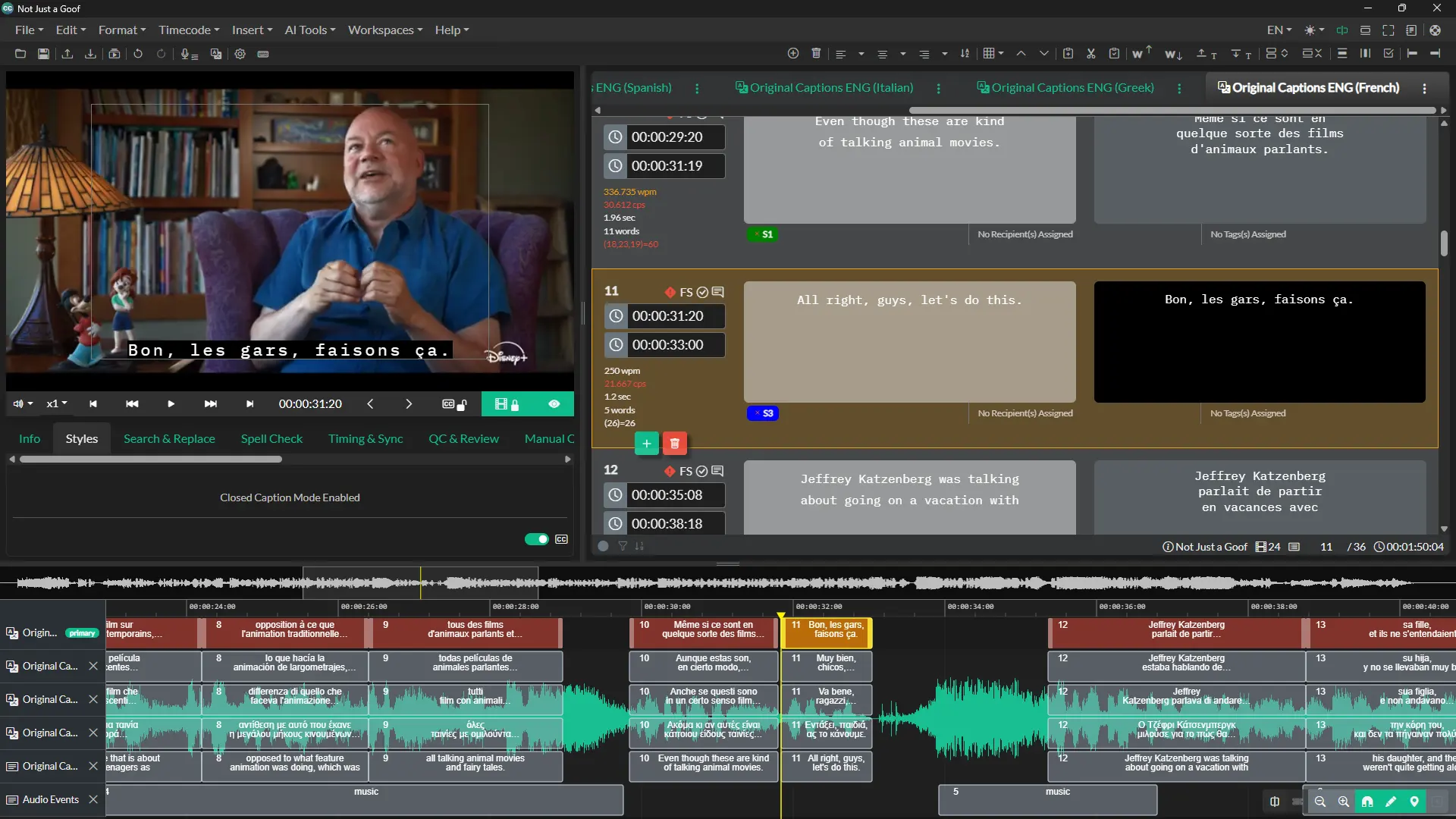
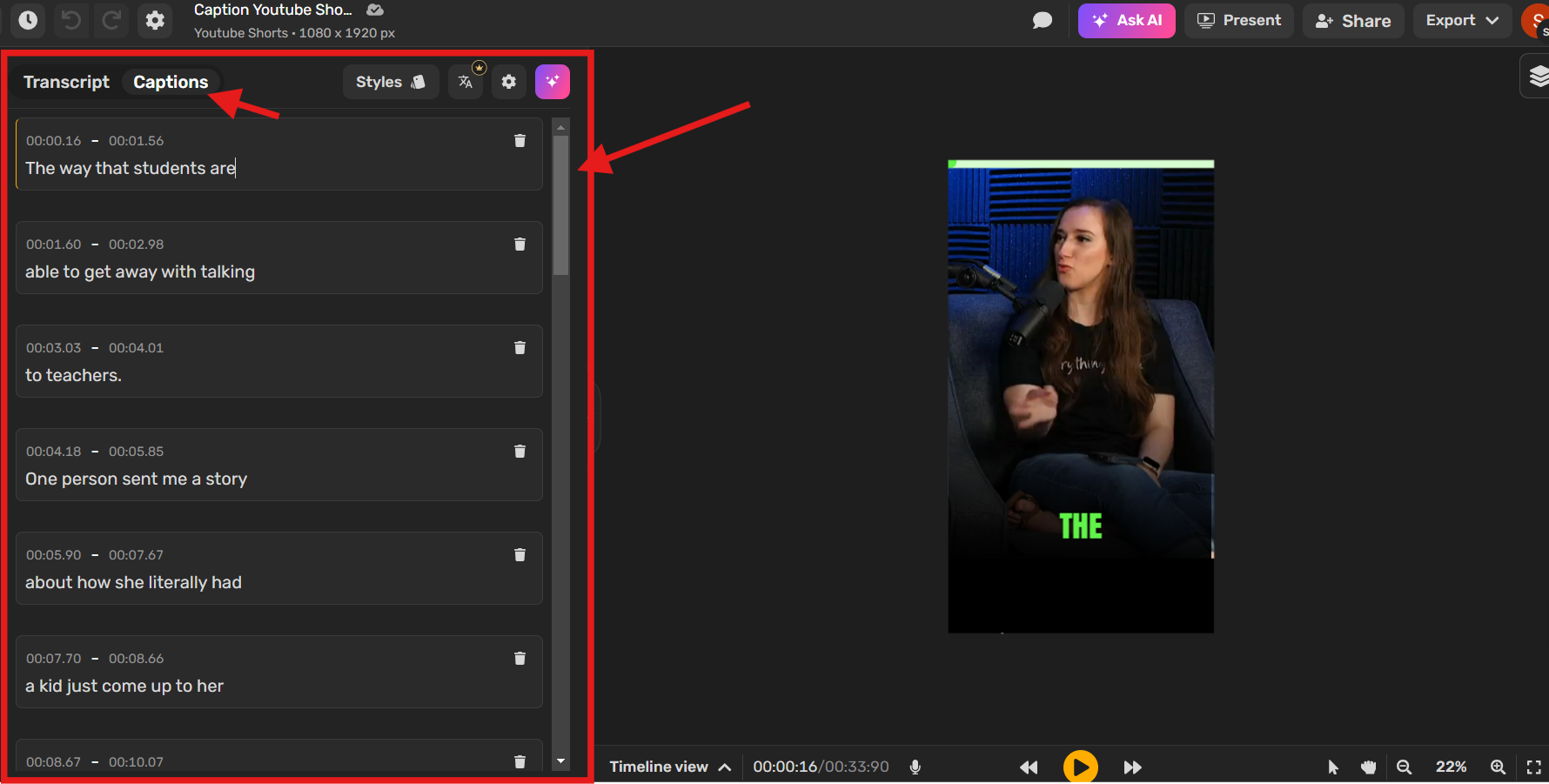
BBC captions, commonly accessed as subtitles on BBC iPlayer and linear broadcast channels, can be turned on by selecting the S icon on the video control bar or pressing the SUB button on a TV remote. BBC iPlayer provides captions across live TV and on-demand programs, complete with customization options for text size and contrast on supported devices.
Understanding BBC Captions and Subtitles
Captions and subtitles serve as a fundamental bridge for media accessibility. On BBC platforms—including BBC iPlayer, web portals, and traditional television channels like BBC One, BBC Two, and BBC News—captions provide synchronized text representations of spoken dialogue and critical ambient audio.
The British Broadcasting Corporation (BBC) distinguishes between standard translation subtitles and Subtitles for the Deaf and Hard of Hearing (SDH), which are commonly referred to as closed captions. While standard subtitles focus purely on translating spoken words, BBC closed captions incorporate non-speech audio cues. These include speaker identification, tone of voice, background sound effects (such as [dramatic music], [door creaks], or [applause]), and directional indicators when off-screen characters speak.
Under statutory obligations enforced by the UK communications regulator, Ofcom, and guided by the BBC’s Royal Charter, the broadcaster maintains near 100% caption coverage across its core television broadcasts and catch-up content on BBC iPlayer. Whether you are watching a pre-recorded drama, a live news broadcast, or a regional sports event, caption options are embedded directly into the media stream.
Pre-Recorded vs. Live Broadcast Captions
It is helpful to understand the technical difference between pre-recorded and live captions when using BBC services:
- Pre-Recorded Content: For dramas, documentaries, and comedy shows, captions are authored prior to transmission. Editors carefully time the text to align with speech rhythms, position boxes to avoid hiding face expressions or screen text, and review dialogue for exact word accuracy.
- Live Broadcast Content: For breaking news, live sports, and live events, captions are generated in real time using a process known as respeaking. Trained captioners listen to the broadcast feed and re-dictate dialogue into specialized voice-recognition software trained on phonetic dictionaries and current event terminology. As a result, live captions naturally feature a slight transmission delay of two to five seconds relative to live audio.
Step-by-Step Guide: How to Turn On BBC Captions
Activating BBC captions depends on the platform and device you use. Below are step-by-step instructions for every major viewing environment.
- BBC iPlayer Video Screen
- Video Content
- Play/Pause
- Progress Bar
- S (Click or tap "S" for Subtitles/Captions)
- AD
- FS
1. Web Browsers (Windows, Mac, Linux, Chromebook)
- Open your web browser and navigate to the official BBC iPlayer website.
- Select and begin playing your chosen show or live stream.
- Move your mouse cursor over the video window to expose the player controls overlay.
- Locate the S icon in the bottom-right corner of the playback bar.
- Click the S icon. When activated, the icon will change appearance (typically highlighting or changing background color) and captions will immediately display on screen.
- To turn captions off, click the S icon a second time.
2. Mobile and Tablet Apps (iOS, iPadOS, Android)
- Launch the BBC iPlayer app on your iPhone, iPad, or Android device.
- Start streaming an on-demand program or live channel.
- Tap anywhere on the video playback window to reveal the overlay menu.
- Tap the S icon located at the top-right or bottom-right corner of the screen.
- Select Subtitles On from the pop-up menu.
- To disable captions, tap the icon again and select Subtitles Off.
3. Smart TVs, Streaming Sticks, and Game Consoles
The BBC iPlayer application on Smart TVs (Samsung Tizen, LG webOS, Sony Google TV), media devices (Amazon Fire TV, Roku, Apple TV), and gaming consoles (PlayStation 4/5, Xbox Series X/S) uses a uniform TV interface:
- Launch the BBC iPlayer app on your TV platform.
- Select a show and press Play.
- While the video is playing, press the Up or Down arrow on your remote control to bring up the video controls.
- Navigate left or right to highlight the S (Subtitles) icon on the control bar.
- Press the OK or Select button on your remote to turn subtitles on or off.
- Alternatively, press the dedicated SUB, STTL, or CC button on classic remote controls if available.
4. Digital TV and Cable/Satellite Set-Top Boxes
If you watch live BBC TV channels through set-top boxes (Sky Q, Sky Stream, Virgin Media TV 360, Freesat, or Freeview receivers) rather than the iPlayer app:
- Sky Q / Sky Stream: Press the Subtitles button on your Sky remote, or press the Question Mark (?) / Three Dots (...) button and select Subtitles: On.
- Virgin Media: Press the Info button on your remote, swipe or navigate to Audio & Subtitles, and toggle Subtitles to On.
- Freeview / Freesat: Press the SUB or STTL button directly on your TV or set-top box remote control to enable system-level BBC captions.
Customizing BBC Caption Appearance and Accessibility
Different viewers have distinct vision requirements. The BBC provides options to adjust subtitle font size, color contrast, and background rendering to ensure captions remain readable against varying video backdrops.
| Visual Setting | Option / Effect |
|---|---|
| Text Size | Standard, Large, Extra Large |
| Text Color | White, Yellow, Cyan, Green |
| Background Style | Transparent, Solid Black Box |
| System Preferences Override | Inherit from OS Accessibility |
Adjusting Text Size and Backgrounds on Web and Apps
On web browsers and supported mobile devices, caption styling can be adjusted within the BBC iPlayer settings menu:
- Font Size: Choose between Standard, Large, and Extra Large font rendering.
- High Contrast Backgrounds: Enable solid black rectangular backgrounds behind text lines. This eliminates legibility issues caused by bright or busy video backgrounds (such as sporting events or white landscapes).
System-Level Accessibility Integration
On modern operating systems—including Apple iOS, iPadOS, tvOS, Android, and Amazon Fire OS—BBC iPlayer can automatically adopt your system-wide accessibility preferences:
- iOS / iPadOS / Apple TV: Go to Settings > Accessibility > Subtitles & Captioning > Style. Select or create a high-contrast style (e.g., Large Text with Solid Background). BBC iPlayer will mirror these display properties automatically.
- Android / Google TV: Open Settings > Accessibility > Caption preferences. Turn on captions and customize text size and background palette.
- Amazon Fire TV: Go to Settings > Accessibility > Subtitles. Enable closed captioning and modify text size, font color, and opacity.
Audio Description (AD) vs. Captions (S)
BBC iPlayer provides two distinct accessibility features that are frequently placed side by side:
- Subtitles (S): Converts dialogue and sound cues into visual text on the screen for hearing-impaired or deaf viewers.
- Audio Description (AD): Provides an additional spoken narration track describing visual elements—such as facial expressions, actions, scene changes, and costumes—for blind or vision-impaired viewers.
You can enable both S and AD simultaneously if required by your household members.
BBC Caption Support & Feature Matrix
The following table compares caption support, customization flexibility, and features across different viewing environments:
| Viewing Platform | How to Toggle Captions | Custom Font / Size Support | High Contrast Background | System Accessibility Integration | Live TV Caption Support |
|---|---|---|---|---|---|
| Web Browser (PC/Mac) | Click S on player bar | Yes (via App Settings) | Yes | Limited | Yes |
| Mobile App (iOS/Android) | Tap S on playback overlay | Yes | Yes | Full (OS Settings) | Yes |
| Smart TV Apps | Remote Up/Down arrow -> S | Device Dependent | Yes (Default Solid Box) | Partial | Yes |
| Streaming Devices (Fire TV, Roku, Apple TV) | In-App S Icon or Remote CC | Yes | Yes | Full (OS Settings) | Yes |
| Sky Q / Sky Stream | Dedicated SUB / ? Remote Button | Limited (System Default) | Yes | Managed by Sky OS | Yes |
| Virgin Media TV 360 | Info button -> Subtitles | Limited | Yes | Managed by Virgin OS | Yes |
| Freeview / Freesat Broadcast | SUB or STTL Remote Button | Hardware Dependent | Fixed Broadcast Style | Managed by TV Tuner | Yes |
Troubleshooting Common BBC Caption Issues
If captions fail to appear, freeze, or display incorrectly on BBC iPlayer or live TV broadcasts, use the diagnostic steps below to resolve the issue.
Troubleshooting Flowchart:
- Are Captions Missing?
- YES
- Check for "S" Badge on Programme Detail Page
- Badge Present: Clear Cache / Reinstall App
- No Badge: Program lacks captions (rare)
- Check for "S" Badge on Programme Detail Page
- NO
- Check Audio Sync / Display Overscan
- Audio Desync: Pause 10s & resume video
- Text Cut Off: Change TV Aspect Ratio to "Just Scan"
- Check Audio Sync / Display Overscan
- YES
1. Captions Icon Is Missing or Greyed Out
- Check Program Availability: Although the BBC captions nearly all content, rare exceptions exist (such as legacy archival clips, foreign acquisitions, or regional news opt-outs). Look for the S icon badge on the show's description page before playback. If the badge is missing, captions are unavailable for that title.
- Update the BBC iPlayer App: Outdated app versions on Smart TVs or mobile devices can lose connection to subtitle data tracks. Update the app through your platform's app store.
- Clear Cache and Data: On Android TV, Fire TV, or web browsers, clearing app cache and site data forces the player to reload the latest manifest files, which contain subtitle references.
2. Captions Are Out of Sync with Speech
- Live Stream Delay Adjustment: Real-time speech-to-text generation during live events creates a inherent delay. If captions fall further than 5 seconds behind audio on live broadcasts, pause the video stream for 10 seconds and press play again to clear the buffer.
- On-Demand Audio Sync Issues: On pre-recorded programs, out-of-sync text usually indicates local network packet loss. Restarting the broadcast stream or switching from Wi-Fi to an Ethernet cable resolves buffering glitches.
3. Caption Text Is Cut Off or Off-Screen
- Disable TV Overscan: If the top or bottom lines of subtitle text are cut off on your television screen, your TV's display aspect ratio settings are likely cropping the picture. Open your TV picture settings and change the aspect ratio from "16:9" or "Zoom" to Screen Fit, Just Scan, or 1:1 Pixel Mapping.
- Reduce Font Size: If you have set text size to "Extra Large" on mobile or web browsers, long lines of dialogue may overflow the designated safe area. Switch font size back to "Standard" or "Large".
4. Settings Do Not Save Across Viewing Sessions
- Sign In to Your BBC Account: Subtitle preferences align with your registered BBC Account profile. Ensure you are signed in on all devices so your preference for turned-on captions persists whenever you launch a stream.
- Browser Privacy Tools: If you use strict privacy extensions or incognito windows on desktop web browsers, browser cookies and local storage are deleted when you exit, resetting subtitle settings to default. Add an exception for
bbc.co.uk.
Technical and Style Standards Behind BBC Captions
The BBC's subtitle guidelines are considered an industry benchmark across global broadcasting and web development. The technical specifications used by the BBC ensure that text remains legible, non-intrusive, and accessible.
BBC Timed Text (EBU-TT-D) Data Flow:
- Video Feed + XML Timed Text File (EBU-TT-D)
- BBC iPlayer Media Engine
- Screen Overlay: Max 37 Chars/Line, Color Coded, Timed
1. The BBC Subtitle Style Guide
The BBC maintains public documentation detailing editorial rules for subtitle presentation. Key rules include:
- Line Length and Capacity: Captions are limited to a maximum of 37 to 39 characters per line (including spaces) to prevent visual clutter. No more than two lines of text may appear on screen simultaneously.
- Reading Speed Limits: Subtitle speed is calculated according to the target audience. For adult programming, maximum text speed is capped at 160 to 180 words per minute (wpm). For children's television (CBBC and CBeebies), text speed is restricted to 120–140 wpm to accommodate developing reading skills.
- Color-Coding System: To distinguish between multiple speakers in dialogue-heavy scenes, the BBC uses standardized text colors against black background blocks:
- White: Default text color for primary speakers.
- Yellow: Secondary speaker.
- Cyan: Third speaker.
- Green: Fourth speaker or off-screen narration.
2. File Formats and Engineering Standards
To deliver timed text smoothly across thousands of device types, the BBC relies on XML-based open standards:
- EBU-TT-D (European Broadcasting Union Timed Text for Distribution): The BBC adopted EBU-TT-D as its standard format for IP-delivered subtitles. EBU-TT-D is a subset of TTML (Timed Text Markup Language) designed specifically for web browsers, mobile apps, and connected TVs.
- Positioning and Font Delivery: EBU-TT-D allows the BBC to specify line positions dynamically. For instance, if important text or news tickers appear at the bottom of the screen, captions automatically shift to the top of the frame to avoid obscuring relevant information.
Journalistic BBC Image and Video Caption Rules
Beyond closed captioning for video accessibility, the phrase "BBC caption" also refers to the journalistic standards established in the BBC News Style Guide for writing photographic and video captions on editorial websites and social media channels.
BBC News Image & Caption Structure:
- News Photograph
- Caption: Firefighters work to extinguish a blaze at a commercial warehouse in Manchester on Tuesday. (Photo: Jane Doe/BBC)
When publishing images or short video clips across news platforms, BBC journalists adhere to strict captioning guidelines:
- Context First: A caption must explain what is happening in the photo or clip without merely repeating the article headline or main text. It provides actionable context (Who, What, Where, When).
- Present Tense Usage: Actions depicted in photographs are described using the present tense to convey immediacy (e.g., * "Prime Minister addresses delegates in London..."* rather than * "Prime Minister addressed delegates..."*).
- Identification: Individuals shown prominently in images must be identified by full name and title, working from left to right when multiple figures appear.
- Attribution and Copyright: Every image caption must include proper copyright or agency credits (e.g., Reuters, Getty Images, or BBC/John Smith).
- Alt Text Alignment: For screen readers, web captions work alongside alternative text (
alttags). While the caption provides contextual details and credits, thealttext describes the literal visual content for visually impaired web visitors.
Frequently Asked Questions
Why are subtitles missing on some BBC iPlayer programs?
While the BBC provides subtitles for almost 100% of its broadcast television catalog, rare exceptions occur with legacy archival material, foreign news acquisitions with hardcoded translations, or short promotional clips. If subtitles are missing on a mainstream show, try restarting your application or clearing your device cache to fix connection issues.
How do I change the size or color of BBC captions on my TV?
On Smart TVs and streaming devices (such as Fire TV or Apple TV), caption styling is controlled either through the BBC iPlayer settings menu or via the operating system's global Accessibility settings. Changing subtitle size and contrast in your device's system settings automatically applies those preferences to the BBC iPlayer app.
What does the "S" icon mean on BBC iPlayer?
The S icon stands for Subtitles. It is the standard interface toggle used across all BBC platforms to enable or disable closed captions and subtitles for the deaf and hard of hearing.
Are live BBC TV channels fully captioned on iPlayer?
Yes. Live channels streamed through BBC iPlayer—including BBC One, BBC Two, BBC News, and BBC Parliament—feature synchronized live captions. Because live captions are generated in real time using respeaking technology and automated speech recognition, expect a slight lag of 2 to 5 seconds compared to live audio.
How do I report a error in BBC subtitles?
If you notice persistent subtitling errors, missing caption tracks, or severe audio synchronization issues on BBC iPlayer, you can submit a technical report through the official BBC iPlayer Help portal. Reports are logged by technical operations teams to fix asset metadata or re-index caption timing files.
Recommended Next Steps
To get the most reliable captioning experience when watching BBC content, follow these actionable recommendations:
- Sign In and Synchronize: Create and sign in to your BBC Account on all streaming devices. This ensures your accessibility preferences—including activated subtitles and font scaling—automatically apply across web, mobile, and Smart TV platforms.
- Optimize System Accessibility Settings: Set up subtitle styles at the device level on platforms like iOS, Android, Apple TV, or Fire OS. This guarantees consistent high-contrast captions across BBC iPlayer and other streaming applications.
- Fix Display Scaling: If caption text appears clipped on your TV screen, check your television's display settings and switch aspect ratio settings from 16:9 to Just Scan or Screen Fit.


![How to Fix YouTube Captions Not Working? [PC & Android]](https://images.wondershare.com/repairit/article/youtube-captions-not-working-7.jpg)